

Advanced Product Variations, Built In and Free with FluentCart
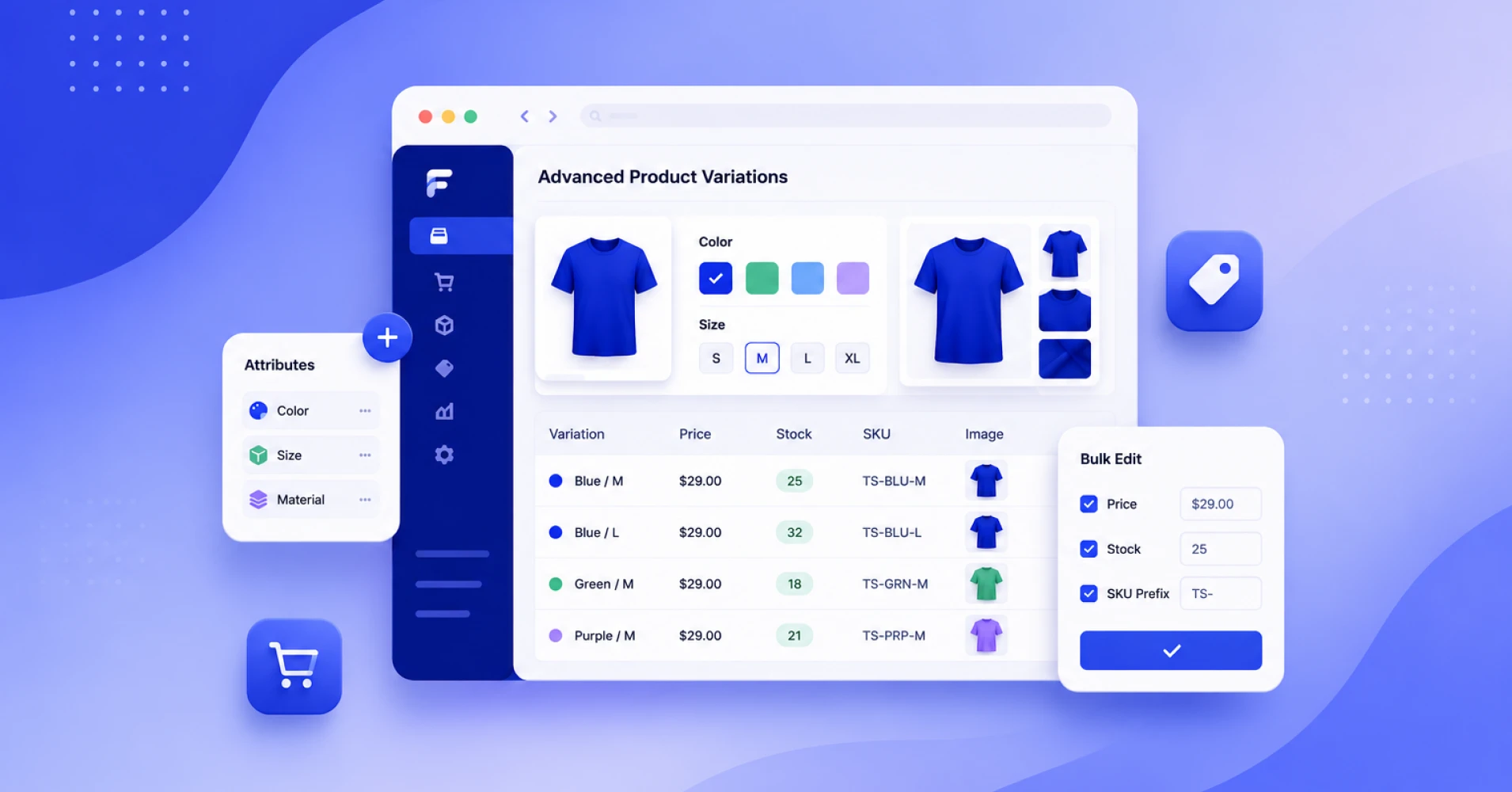
Advanced product variations aren’t just a fancy feature, a nice-to-have you bolt on later. They’re vital, giving buyers a better experience while also raising the probability of a sale.
They give buyers a real sense of preference: the right color, the right size, the pattern they actually want. So shouldn’t this be native to your eCommerce plugin? Let’s understand what we’re actually dealing with here.
TL;DR
- Advanced product variations mean defining reusable attributes (Color, Size, Material) once and letting the system generate every combination automatically.
- FluentCart, a full WordPress eCommerce plugin, includes swatches, per-variant galleries, and bulk group editing natively.
- Other plugins handle basic variations well, but swatches, galleries, and bulk tables come from separate paid plugins, often $29 to $49 a year each.
- Bulk editing an entire attribute group across large catalogs is simple in FluentCart’s free version.
- Fashion and apparel categories, where variation choices dominate the buying decision, see some of the highest cart abandonment rates online.
What “Advanced Product Variations” Actually Means Here
Basic variations are just attribute combinations. Advanced product variations add the layer customers actually interact with: swatches instead of dropdowns, a gallery that updates per variant, bulk editing across a whole attribute group, and pricing that adjusts live as a shopper picks options.
That layer is where most WordPress eCommerce plugins draw a line between what’s built in and what costs extra. WooCommerce is the clearest example, and it’s worth being fair to it here.
It’s the most established eCommerce plugin in WordPress for a reason, and its core variation system works. What WooCommerce doesn’t include by default is the visual layer. No color swatches or image thumbnails. No gallery that updates when someone picks green instead of blue.
That gap isn’t a flaw so much as a deliberate model. It keeps its core lean and lets a marketplace of extensions fill in the rest, and addons like Advanced Product Variation for WooCommerce exist specifically to add that missing layer on top.
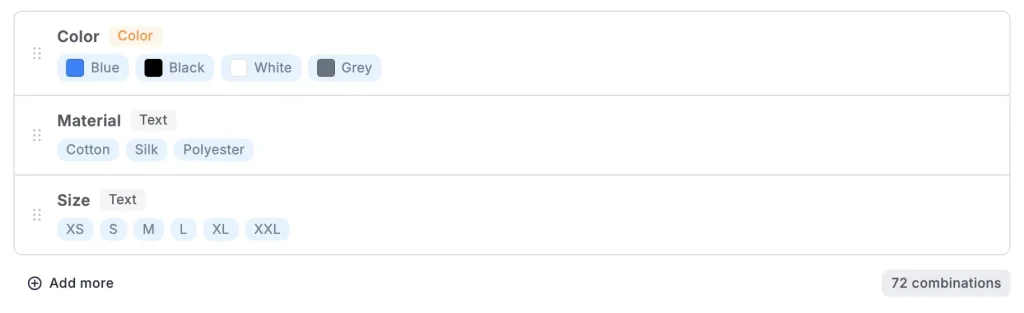
FluentCart takes a different approach entirely. FluentCart’s Advanced Variations feature is part of its core product editor from the start. No separate purchase unlocks it. Let’s see how it works.
Setting Up Advanced Product Variations in FluentCart
This is where things break for a lot of assumptions about “free” eCommerce tools: the full feature is actually in the free plugin, not gated behind a premium tier. Here’s how the setup works.
Step 1: Create Your Attributes and Terms
Before any product can use advanced variations, the attributes need to exist first.
- Attributes are the option dimensions themselves, such as Color, Size, or Material.
- Terms are the individual values inside an attribute, like Red, Blue, and Green inside Color.
To get there, open your WordPress dashboard and go to FluentCart Pro > Products, then click Attributes. This opens the Attributes and Terms screen, where the left panel lists every attribute group in your store and the right panel shows that group’s terms.
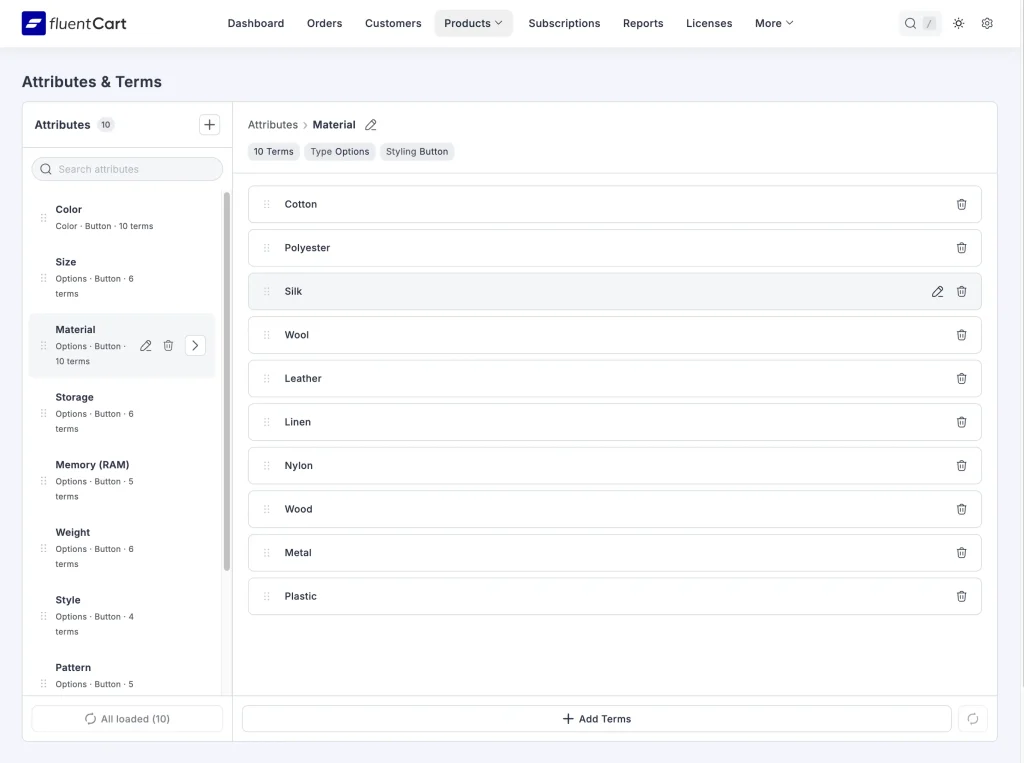
To create a new group, click the + icon beside the Attributes heading. Three fields appear:
- Group Title, the label customers and you will see, such as “Color.”
- Attribute Type, which decides how values are shown: plain text Options, hex-based Color swatches, or uploaded Image thumbnails.
- Styling, either Button (clickable, most common) or Dropdown.
Once saved, click into the group and use + Add Terms to fill it with values like Cotton or Polyester. Terms can be reordered by dragging, and that order is exactly what customers see on the storefront later.
Step 2: Build the Product Around Those Attributes
From FluentCart Pro > Products, click Add Product, enter a title, and set Variation Type to Advanced Variations.
On the product’s Pricing panel, click + Add options like size or color. Pick an existing attribute or create a new one on the spot. Then check the specific terms this product should offer. You don’t need every term from the attribute, only the ones that apply here. Add a second dimension (Size alongside Color, say) with + Add more, then click Save.
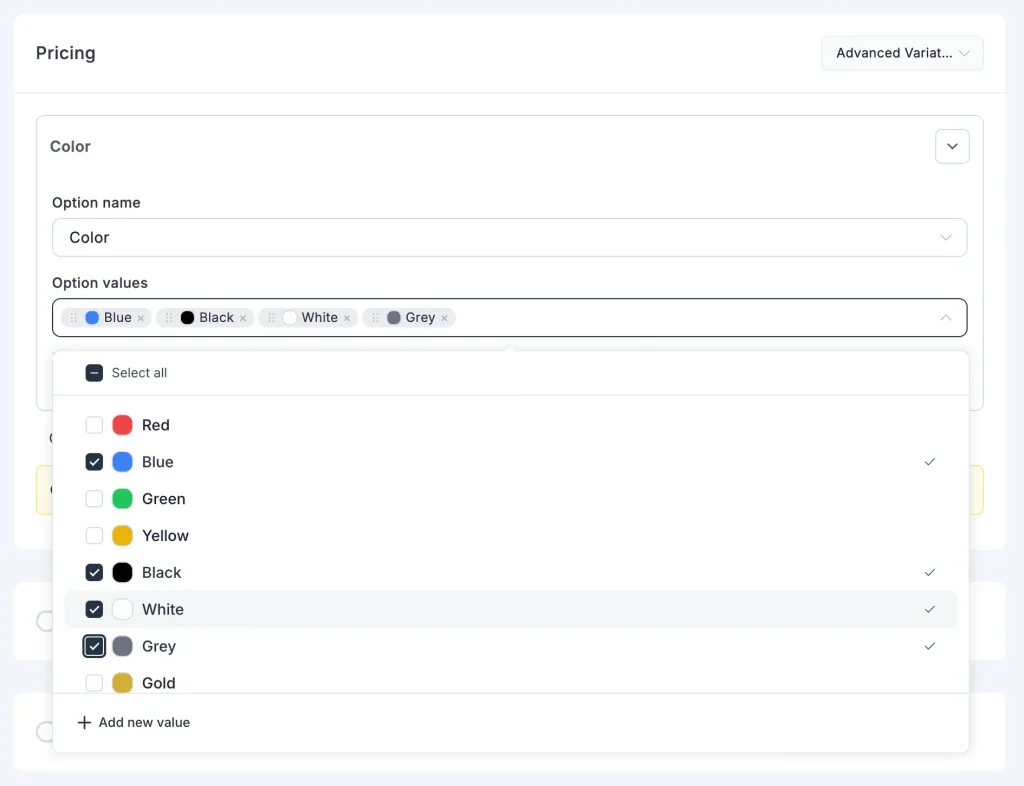
The system generates the full variant matrix automatically. Every combination shows up in the variant editor, where prices, variation images, inventory, and SKUs get set individually for individual supply chain management tracking.
Step 3: Switching an Existing Product Over
A product already running Simple or Simple Variations pricing can move to Advanced Variations later, but this is a one-way door. Switching deletes all current variations for that product, and there’s no reverting to Simple Variations afterward.
To do it, open the product’s Pricing panel, click the variation type dropdown, and choose Advanced Variations. A confirmation dialog appears, and you’ll need to type proceed exactly before the delete button becomes clickable. Once confirmed, the Pricing panel resets to the same empty state described in Step 2, ready for new attribute-based options.
Step 4: Bulk Editing an Entire Attribute Group
A catalog with dozens of variants rarely needs one-by-one edits. Say every Red variant needs a price bump, or every Cotton variant needs restocking. Group Edit handles that in a single pass.
Open any variant to load the Pricing drawer. Above the variant list, one button appears per attribute value (one per color, for instance). Clicking a group switches the drawer into group-edit mode, showing every variant in that group with a checkbox next to each, all selected by default. A live counter reads “Changes will apply to X of Y variants in this group” and updates as boxes get checked or unchecked.
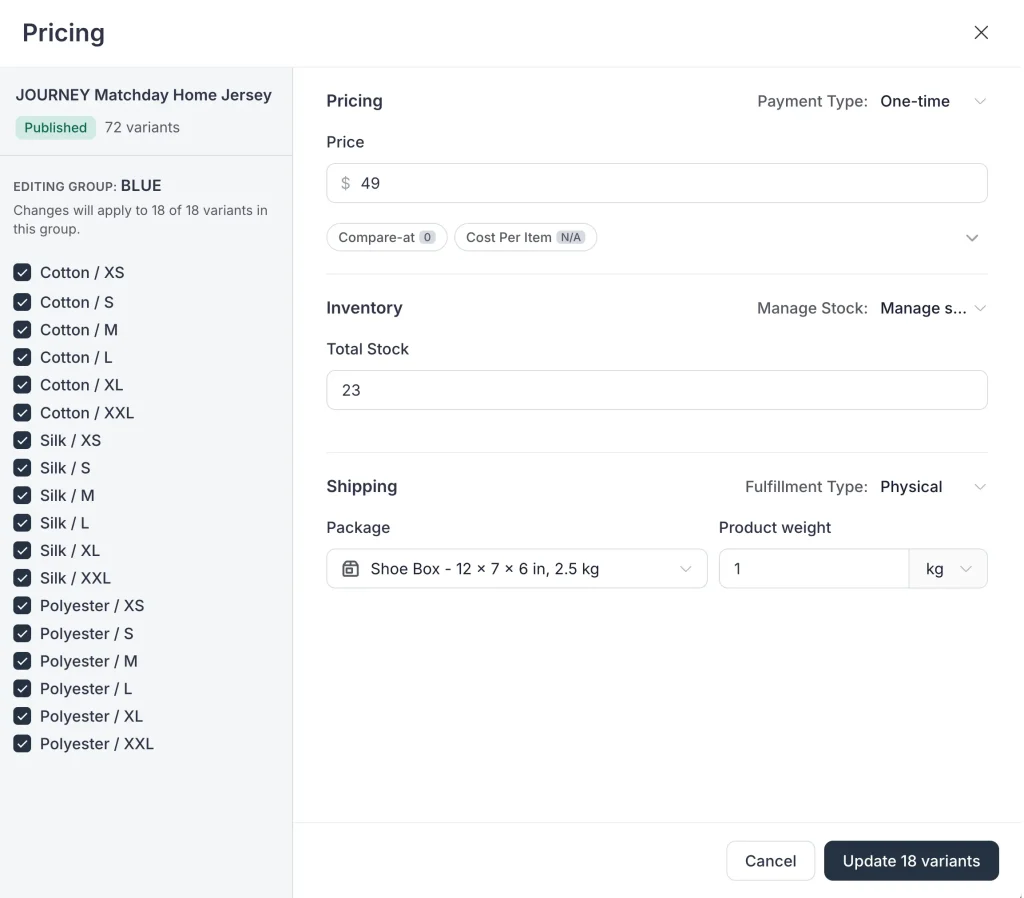
Fill in only what needs to change (price, inventory, shipping, tax class where relevant) and click Update X variants. Fields left blank keep each variant’s existing value, and the system requires at least one selected variant and one filled field before it saves anything, so a blank group edit can’t wipe data by accident.
What This Looks Like on the Storefront
Once published, each attribute becomes an interactive selector matching the type and styling chosen earlier. Image-type attributes show as clickable photo swatches that update the main product image on selection. Options-type attributes render as buttons. Before a full combination is picked, the product shows a price range spanning the lowest and highest variant. Once a valid combination is selected, the price updates to match, and the customer can add it to cart or use Buy Now.
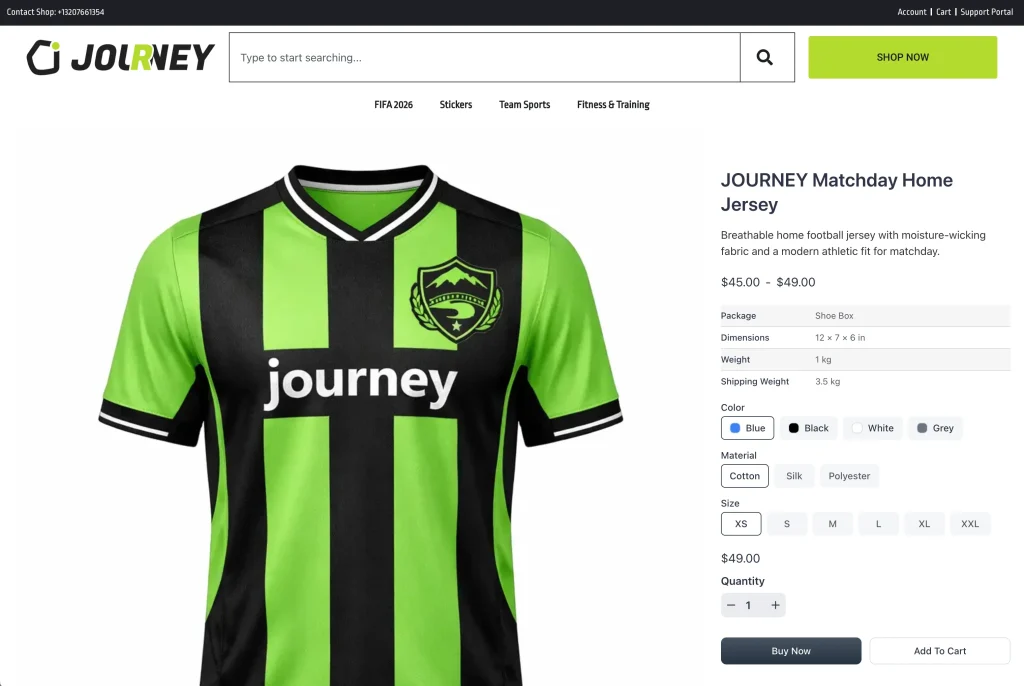
FluentCart shipped this exact system as part of its 1.5.0 release, and it works the same way whether you’re running a six-variant hoodie or a sixty-variant wholesale catalog.
Where Advanced Variations Actually Matter
Most businesses don’t figure out they need this until their catalog outgrows a handful of manual variants. A few situations where it shows up fast:
Apparel and merch Two or three attributes (color, size, material) combine into dozens of variants. Typing “Red / Small,” “Red / Medium,” and so on by hand stops making sense past a certain point. If you’re weighing whether to start a t-shirt business, this is one of the first operational walls you hit.
Subscription and course bundles Products sold with multiple pricing tiers or access levels benefit from the same attribute logic, even though the “variation” isn’t a physical color or size.
B2B and wholesale catalogs Buyers ordering across many sizes and colors in one purchase need a grid, not thirty individual add-to-cart clicks. If you want a dedicated comparison or spec table beyond what your product page shows, Ninja Tables now has a direct FluentCart integration built for exactly this, since it comes from the same team.
Anything with a visual choice If the customer needs to see the difference (a fabric swatch, a finish, an engraving preview) rather than just read it, plain dropdowns actively hurt conversion. This connects directly to broader eCommerce product page design decisions, since a cluttered variation selector undermines an otherwise clean layout.
Why the Add-on Route Gets Expensive Fast
Here’s what happens when this feature isn’t native. Finding one plugin that covers swatches and bulk editing together can be a challenge. Instead, you might need to use multiple addons just for one feature.
Stack two or three of those together at $29 to $49 a year each, and a feature that sounds like a checkbox becomes a recurring line item on a store that hasn’t even hit real scale yet. This is the cost that shows up specifically when advanced product variations aren’t part of a plugin’s core, and it’s the exact cost FluentCart’s approach removes by including the feature natively.
The Part Most Guides Skip
A working variation matrix is only half the job. The other half is presentation, since a technically correct dropdown with ugly styling still loses sales. Pairing advanced variations with basic product card design work and a clear product description matters more than most setup guides admit. The variation selector is often the last thing a shopper interacts with before deciding to buy or leave.
That decision point carries real weight. Fashion and apparel, where sizing and color choices dominate the buying moment, see cart abandonment rates that run higher than almost any other retail category, according to Baymard Institute’s ongoing checkout research. A confusing or ugly variation picker isn’t a cosmetic detail. It’s sitting at the exact point where a lot of customers change their mind.
Closing Thought
A free product variations plugin makes more sense than a paid one. This isn’t just a feature. It’s a business requirement. It doesn’t have to mean a stack of paid add-ons bolted onto your cart.
If you’re choosing an eCommerce plugin for your store, it’s worth knowing what your business requirements actually are. A plugin like FluentCart, where advanced product variations are just part of the product and not an upsell waiting at checkout, is worth considering.

Hi, I’m an experienced web designer, and WordPress core contributor. Creating interesting content and products that ensure a 360-degree customer experience is my daily job.
-

Ecommerce SMS Marketing: Strategies, Examples & Best Practices
Learn ecommerce SMS marketing strategies, campaigns, and best practices to -

10 Best jQuery Table Plugins for Best Data Visualization in 2026
Discover the 10 best jQuery table plugins for 2026. Compare -

Omnichannel Marketing: 7 Steps to a Connected Shopping Experience
It’s never too late to upgrade your marketing plan. Whether


Leave a Reply
You must be logged in to post a comment.