

Server-Side Processing For WordPress Tables: Why Big Data Tables Need It

At a few hundred rows, a WordPress data table performs fine. Push past a few thousand and page loads drag, imports time out, and search stops responding. Most people blame the server first.
The actual cause is in the rendering layer. This article explains what client-side rendering does wrong at big data table scale, how server-side processing corrects it. And how Ninja Tables implements it through the DataTables rendering engine.
Key Takeaways
- WordPress tables using client-side rendering load the full dataset into the browser, slowing down as rows increase
- Server-side processing keeps the data in the database. The browser requests one page at a time, and each interaction triggers a fresh database query
- Every sort, filter, search, or page navigation triggers a targeted AJAX request to the server. Load time stays consistent regardless of total dataset size
- Pagination bolted onto a client-side table does not fix the slow load. Since the full dataset still arrives in the browser before pagination hides most of it
- Ninja Tables addresses this through its DataTables rendering engine in Advanced Mode. With native server-side AJAX processing and chunk-based CSV import for large datasets
What Is Server-Side Processing In A WordPress Table?
Server-side processing is a table architecture. Where sorting, filtering, searching, and pagination are handled by the database instead of the browser. The browser never receives the full dataset, only the rows needed for whatever the user is currently looking at.
When a user loads a table with server-side processing enabled, the browser requests only the first page of results from the server. The server queries the database, applies any active filters or sort order, and returns only the rows for that view.
When the user sorts a column, applies a filter, or moves to the next page, a new request goes to the server. The database processes that specific operation and returns the updated result set. The browser renders what it receives and nothing else.
The key characteristic is that the browser never holds the full dataset. It holds one page of results at a time. A table with 500,000 rows in server-side processing mode sends the same volume of data to the browser as a table with 50 rows. Whatever fits on the current page.
This architecture is what allows large-scale data grids, from financial dashboards to internal admin tools, to maintain consistent performance as datasets grow. Most WordPress table plugins, by default, are not built this way.
Why WordPress Tables Slow Down Once The Data Gets Real
Most WordPress table plugins are client-side by default. On page load, PHP pulls every row from the database, formats it, and sends the whole set down to the browser as part of the page.
The browser then builds a DOM row for each entry and holds the entire dataset in JavaScript memory for the rest of the session.
From there, the browser is doing work it was never meant to do. A column sort means JavaScript re-ordering the full array in memory. A search means looping through every row checking for a match. None of this shows up as a problem at a few hundred rows. It becomes one as the dataset grows, because every interaction’s cost scales with total row count, not with what’s visible on screen.
This is the actual cause behind the symptoms people usually blame on hosting or “a slow table plugin”; pages that hang on load, filters that take seconds to respond, and CSV imports that fail outright before any of this even becomes relevant.
Pagination Alone Does Not Fix Slow WordPress Tables
One of the biggest misconceptions is equating pagination with server-side processing, and it is a mistake that sends many developers down a frustrating debugging path. A paginated table is not automatically server-side. If the rendering is still client-side, the browser has already loaded the entire dataset into memory. Pagination merely divides those already-loaded rows into pages; it does not change how the data is processed.
The full dataset still loads on page one. The browser still builds DOM nodes for every row. Pagination only decides how many of those rows are currently displayed. This is why adding pagination to a struggling table sometimes makes navigation between pages feel fast while the initial load stays exactly as slow as before.
Telling the two apart takes under a minute. Open browser dev tools, go to the Network tab, and load the table. Genuine server-side processing shows a small initial response, just one page of data, with new AJAX requests firing every time you sort or filter. Client-side rendering shows one large response up front, and pagination clicks produce no network activity at all because by this point, all the data has already been loaded into the browser.
Importing Large Data vs. Displaying It in WordPress Tables
A point that gets blurred together in most discussions about large data tables: the import problem and the rendering problem are distinct, have different causes, and need different solutions.
The rendering problem is what server-side processing addresses. A large dataset displays poorly because the browser is receiving and operating on more data than it handles efficiently.
The import problem happens earlier. Loading a large CSV into WordPress through a standard import process means PHP reads the entire file into memory before writing a single row to the database. Standard shared hosting environments impose a PHP memory limit and a maximum execution time. Large files exhaust one or both before the import finishes, and the process fails without completing.
The fix is chunk-based import: reading and writing the file in sequential batches small enough to complete within the memory and time constraints. Each batch commits rows to the database before the next batch begins. Memory usage stays bounded. The import runs to completion regardless of file size.
Getting the data in is a different operation from getting it out. Both require architectural consideration for large datasets, and solving one does not solve the other.
Ninja Tables includes AJAX chunk-based import as part of the same release as the DataTables rendering engine because both problems exist together. A server-side rendering architecture that can display a huge dataset is only useful if that dataset can be imported into the database in the first place.
How Ninja Tables Handles Big Data
Ninja Tables introduced the DataTables rendering engine in version 5.2.8 as a fully integrated alternative to the default FooTable renderer. DataTables is a widely used jQuery-based data grid library with a native server-side AJAX processing protocol. The integration handles everything internally: the AJAX endpoint, request parsing, and response formatting. No custom initialization script is required.
The engine applies to Advanced Mode (Default) tables and to tables built from CSV imports.
Enabling the DataTables engine
To switch a table to the DataTables engine, open the table in the Ninja Tables editor and go to Table Rendering Settings. Under the rendering option, switch from the default FooTable to DataTables and save. Server-side processing activates within that configuration.
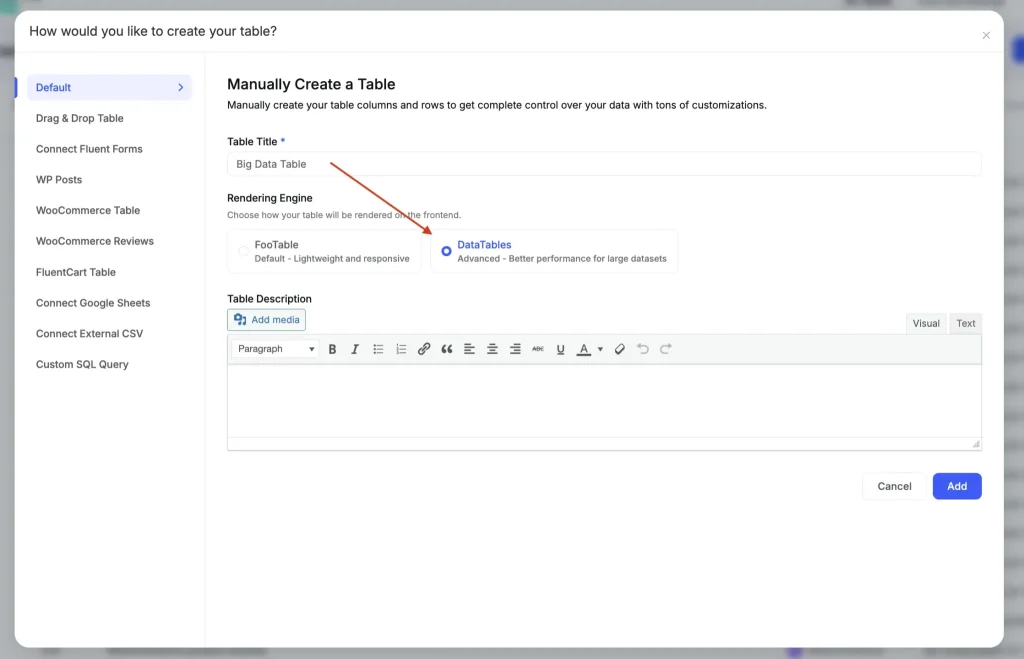
Importing large datasets
Two import paths are available depending on dataset size. For standard large files, go to Import, select DataTables as the rendering engine, and run the import directly.
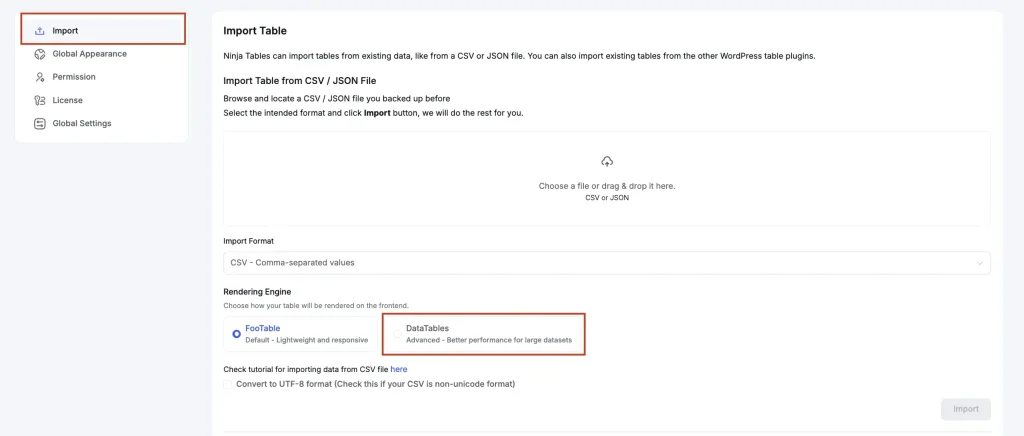
For very large datasets, upload the CSV to the WordPress Media Gallery first, then select the Large File Source option that appears when DataTables is chosen as the rendering engine on import. The plugin processes the file in chunks, keeping PHP memory consumption flat throughout.
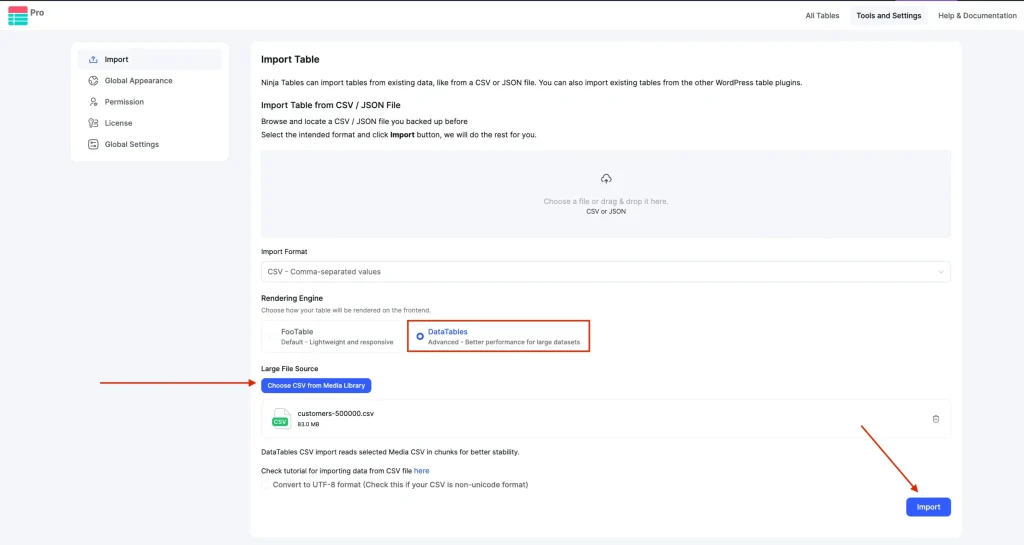
When You Actually Need It
Not every table benefits from server-side processing, and enabling it on a small table adds AJAX overhead to every interaction for no return.
Under a couple thousand rows, card-based pricing tables or product showcase display- client-side rendering is fine on most hosting and adds no real benefit from switching.
The honest signal that it’s time is performance, not a row count. Load the table on your actual hosting and see if filtering or page load produces a delay long enough that a visitor would assume something broke.
The reliable way to identify where any specific table sits is by measurement, not a threshold number. Load the table on the production hosting environment and measure initial page load time and filter response time under realistic conditions.
If either produces a user experience that would cause a visitor to assume the page is broken, the client-side ceiling has been reached and server-side processing is needed.
For tables whose datasets grow over time – product catalogs, operational reports, research datasets, directories – designing for server-side processing before the dataset reaches the client-side ceiling is preferable to retrofitting it after users have already experienced the degraded performance.
Wrapping Up
Server-side processing isn’t an upgrade you bolt onto a slow table. Past a certain size, it’s the only architecture where the table works at all. The browser was never the right place to query a large dataset, and no amount of plugin configuration changes that fact.
If your data is approaching that point, set it up before users feel the lag, not after. The big data tables in WordPress guide walks through the broader decision points of this dilemma. For WordPress specifically, big data has historically required custom development. Ninja Tables DataTables rendering engine with server-side AJAX processing makes it available within the platform without custom code, alongside a chunk-based import that handles the data-loading side of the same problem.

Hi there! I’m a creative content writer at Ninja Tables, WPManageNinja. I love writing on diverse topics and when I’m not writing, you’ll find me chilling with a book.
-

How to Master Customer Onboarding and Keep Customers Coming Back
Master customer onboarding with 5 simple stages, 9 proven best -

How to Create a Conversational Survey in WordPress
Build a conversational survey in WordPress with Fluent Forms step-by-step, -

How to Create a Beautiful Online Course Website with WordPress
Creating online course has become easier with WordPress. Are you


Leave a Reply
You must be logged in to post a comment.