

Project Planning Templates: How to Manage Projects in WordPress

Managing a project without a clear plan feels simple at first. Then tasks start hiding in chats, files get lost, deadlines move quietly, and nobody knows what is actually finished.
That is why project management templates are useful. They give your work a starting structure before the real chaos begins.
In this guide, you will get practical project management templates in CSV and XLSX formats. You can use them in Excel, Google Sheets, or import the CSV files into FluentBoards to manage projects directly from your WordPress dashboard.
Key Takeaways
- Project management templates help you plan work before tasks become messy.
- CSV and XLSX templates are useful for agencies, marketers, developers, product teams, and freelancers.
- You can use these templates in Excel, Google Sheets, or similar spreadsheet tools.
- CSV templates can also be imported into FluentBoards for WordPress-based project management.
- FluentBoards helps you manage boards, tasks, stages, deadlines, assignees, reports, and progress inside WordPress.
- A template gives you the plan. FluentBoards gives you the system to manage it.
Project Management Templates
A project management template is a reusable structure for planning, organizing, and tracking work. Instead of building everything from scratch every time, you start with predefined fields, statuses, tasks, and checkpoints.
These templates are especially helpful when your team handles repeated work. For example, website design, development, SEO, content marketing, social media, product planning, onboarding, and launch projects.
You can use the templates as simple spreadsheets. Or, when you want to turn them into active task boards, you can import the CSV version into FluentBoards. FluentBoards added CSV import and export so users can import boards in CSV format and map their data during import.
Website Project Planning Template
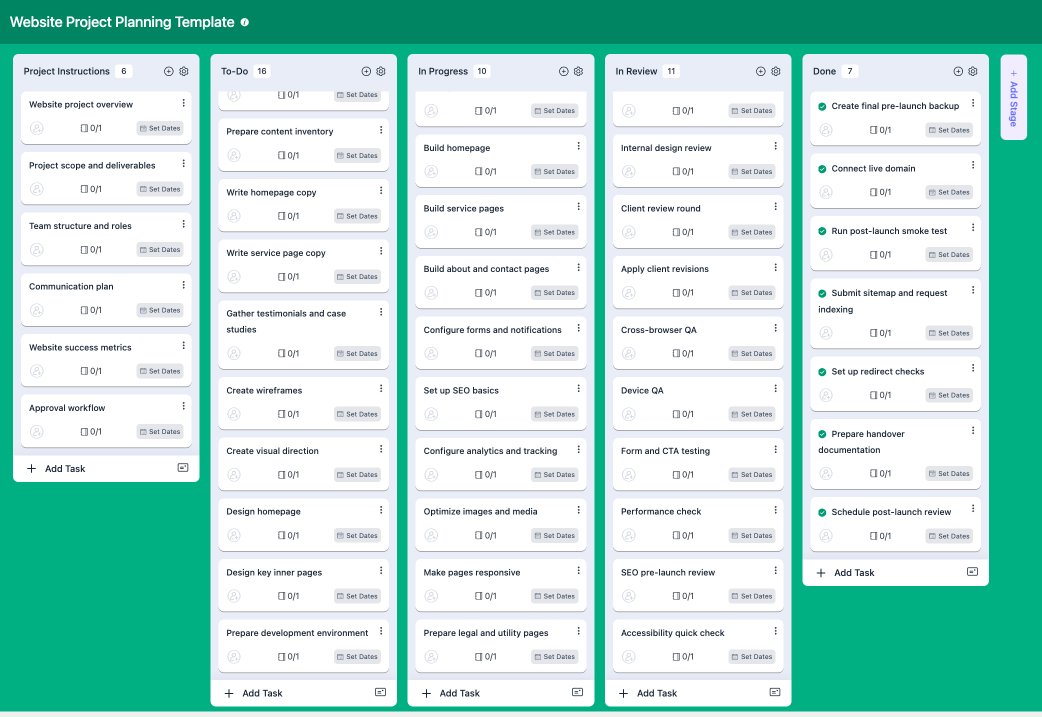
A website project looks simple from the outside. Design a few pages, build them, test everything, and launch. In reality, there are many small moving parts.
You need to plan pages, copy, design, development, SEO, forms, tracking, responsiveness, speed, security, and launch tasks.
A website project planning template helps you organize the full project from discovery to launch. It can include project name, client name, pages, deliverables, assignee, priority, status, deadline, and notes.
This template is useful for agencies, freelancers, and internal website teams. It keeps the full website project visible in one place, so the team does not depend on scattered messages and memory.
You can use it for business websites, landing pages, portfolio websites, service websites, and redesign projects.
Web Design Agency Project Tracker
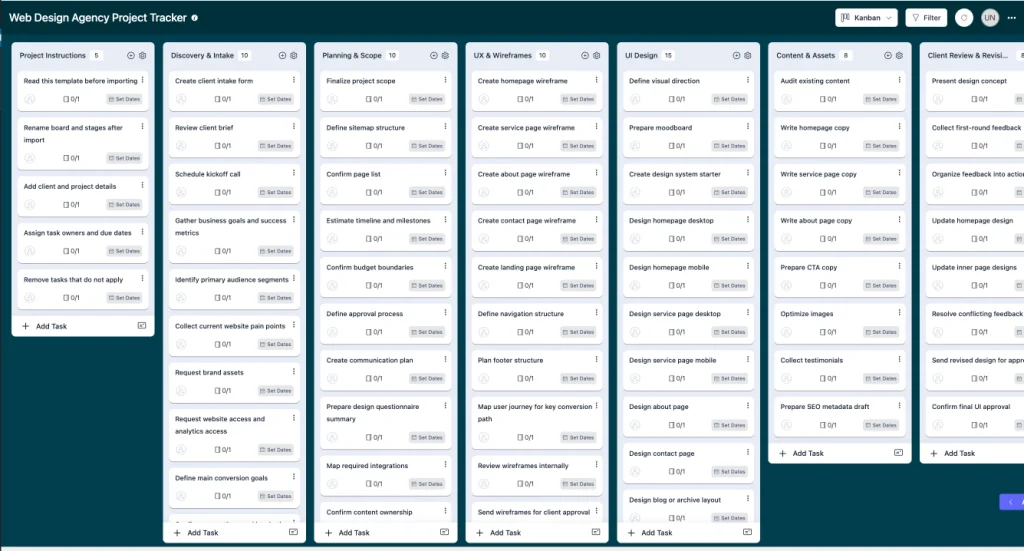
Design projects usually get stuck in feedback loops. The homepage is ready, but the client has not approved it. The inner pages are designed, but mobile versions are missing. The brand direction is approved, but the hero section needs another revision.
That is where a web design agency project tracker helps.
This template can track design tasks like wireframes, homepage design, inner page design, responsive versions, design review, client feedback, and final approval.
You can add fields for designer name, reviewer, Figma link, design status, revision count, deadline, and approval status.
For agencies, this is useful because design work needs clarity. Everyone should know what is in progress, what is waiting for feedback, and what is ready for development.
Web Development Project Tracker
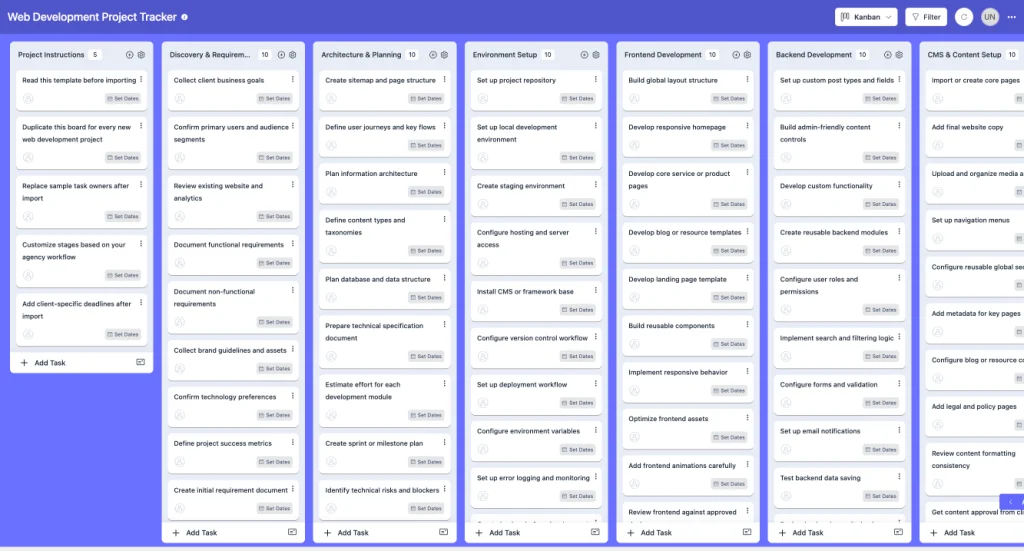
Development projects need a different kind of structure. A task may depend on another task. A feature may need testing before deployment. A bug may block an entire release.
A web development project tracker helps developers and project managers track technical tasks more clearly.
You can use it for frontend work, backend tasks, plugin setup, API integration, custom features, staging updates, QA issues, and final deployment.
Useful fields can include task title, feature area, developer, priority, status, staging URL, GitHub or GitLab link, deadline, testing status, and deployment notes.
This template is helpful for web development agencies, WordPress developers, SaaS teams, and technical project managers.
Digital Marketing Campaign Planner
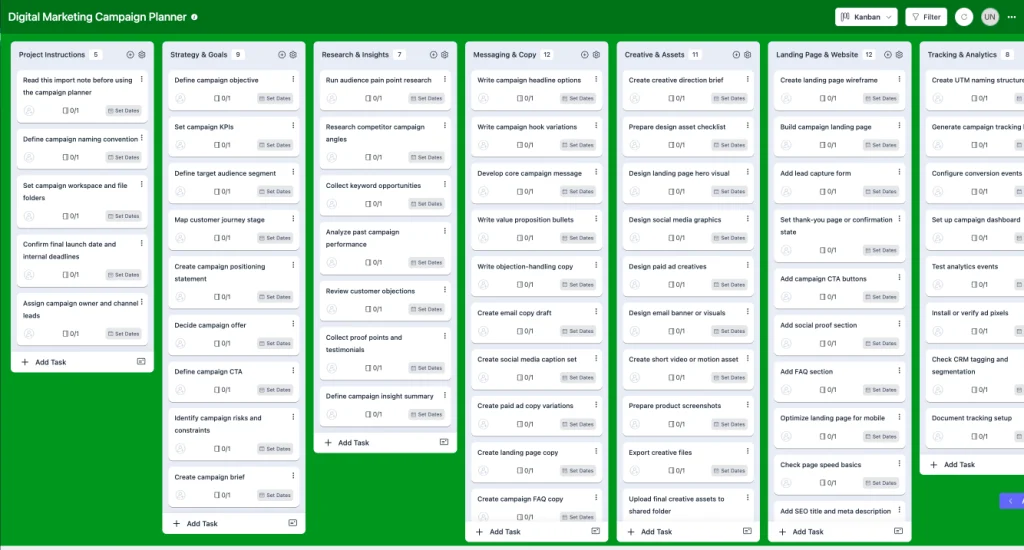
A digital marketing campaign often includes more than one channel. You may have landing pages, SEO content, emails, ads, social posts, banners, lead magnets, and reporting tasks.
Without a campaign planner, the work gets messy fast.
A digital marketing campaign planner helps you organize campaign goals, channels, assets, owners, deadlines, budget, and performance notes.
You can use it for product launches, seasonal campaigns, Black Friday campaigns, lead generation campaigns, webinars, email campaigns, or affiliate promotions.
Useful fields can include campaign name, goal, channel, task, owner, status, deadline, budget, KPI, and result.
This template is helpful for marketing teams that want one clean place to track the full campaign.
SEO Project Management Template
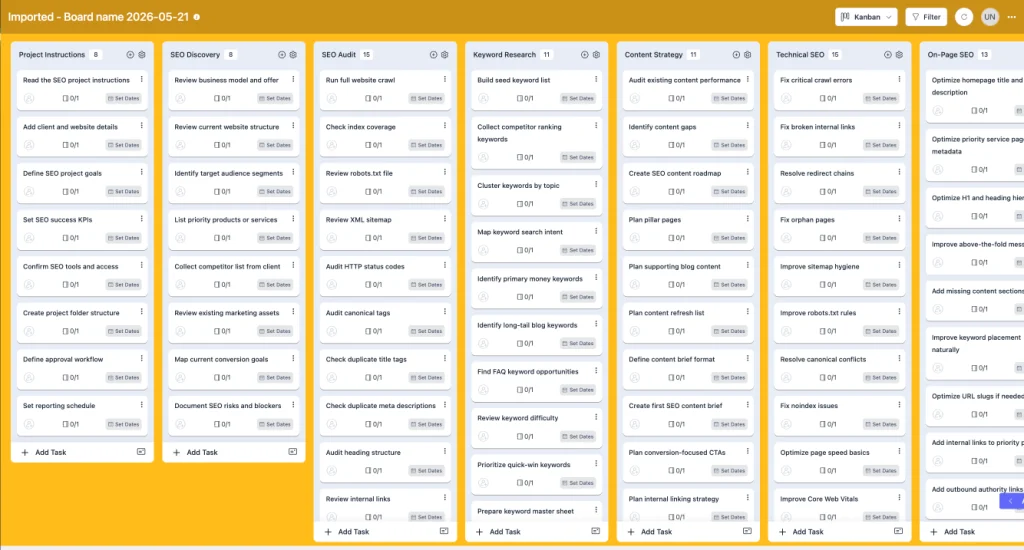
SEO is not one task. It is a collection of research, planning, technical improvements, content updates, internal links, backlinks, indexing checks, and performance tracking.
An SEO project management template helps turn vague SEO plans into trackable work.
You can use it for keyword research, content audits, on-page SEO, technical SEO, link building, schema updates, page refreshes, and ranking checks.
Useful fields can include target keyword, page URL, search intent, task type, priority, owner, status, current ranking, target ranking, deadline, and notes.
This template is useful for SEO agencies, content teams, and WordPress site owners who want to manage SEO work more consistently.
Social Media Content Planner
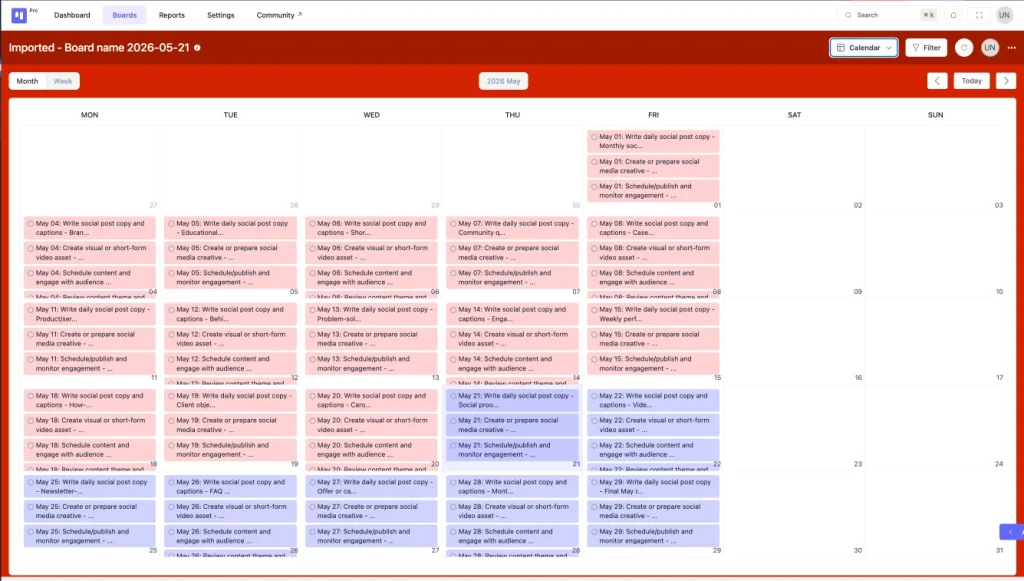
Social media work gets chaotic when captions, graphics, approvals, and posting dates live in different places.
A social media content planner helps you organize platform-wise content before publishing.
You can use it for Facebook, LinkedIn, X, Instagram, YouTube Shorts, TikTok, Pinterest, or any other channel your brand uses.
Useful fields can include platform, post type, caption, creative status, designer, approval status, publish date, live link, and performance notes.
This template is useful for social media managers, agencies, and marketing teams. It helps them see what is planned, what is approved, and what still needs design or review.
Product Roadmap Template
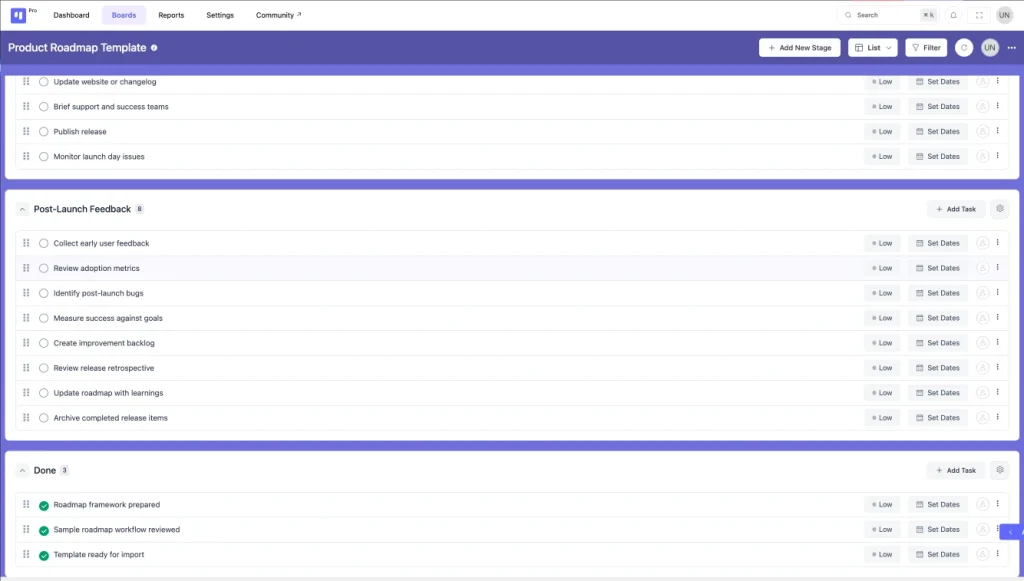
A product roadmap helps teams decide what to build, improve, or release next. It connects product ideas with priority, timeline, and business value.
A product roadmap template can track features, improvements, bug fixes, customer requests, internal ideas, and release plans.
Useful fields can include feature name, category, priority, owner, status, target release, customer impact, effort level, and notes.
This template is helpful for SaaS teams, WordPress plugin teams, product managers, and founders. It keeps product direction visible and helps the team avoid random feature decisions.
You can also use this template before creating a public roadmap or internal product board.
Client Onboarding Checklist
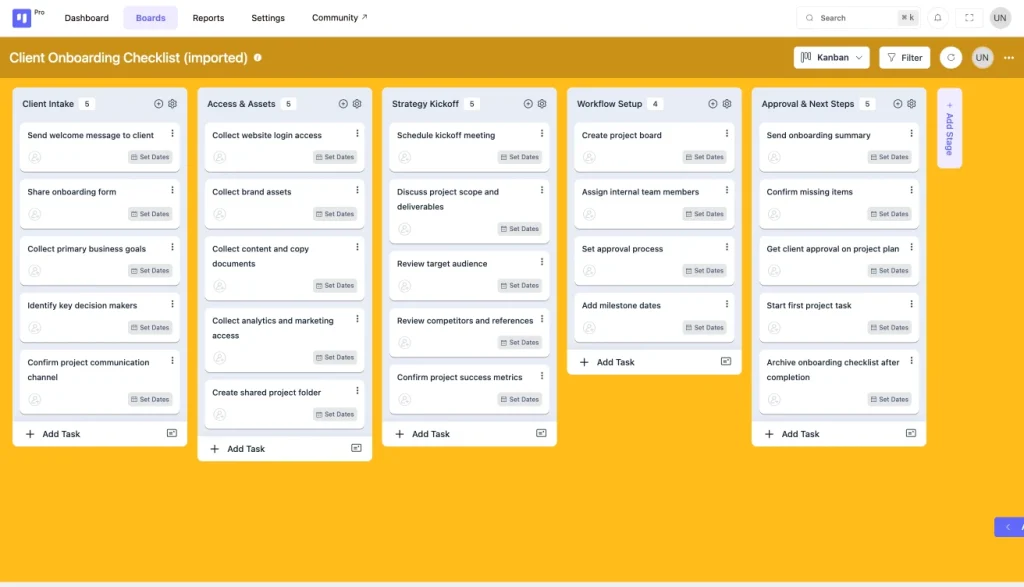
Client onboarding sets the tone for the whole project. If you miss important details at the beginning, the project usually suffers later.
A client onboarding checklist helps you collect everything before work begins.
You can use it to track brand assets, website access, hosting access, analytics access, project goals, target audience, competitors, approval contact, payment status, and communication preferences.
This template is useful for agencies, freelancers, consultants, and service teams.
It reduces back-and-forth communication because you already know what information is missing before the project starts.
Website Launch Checklist
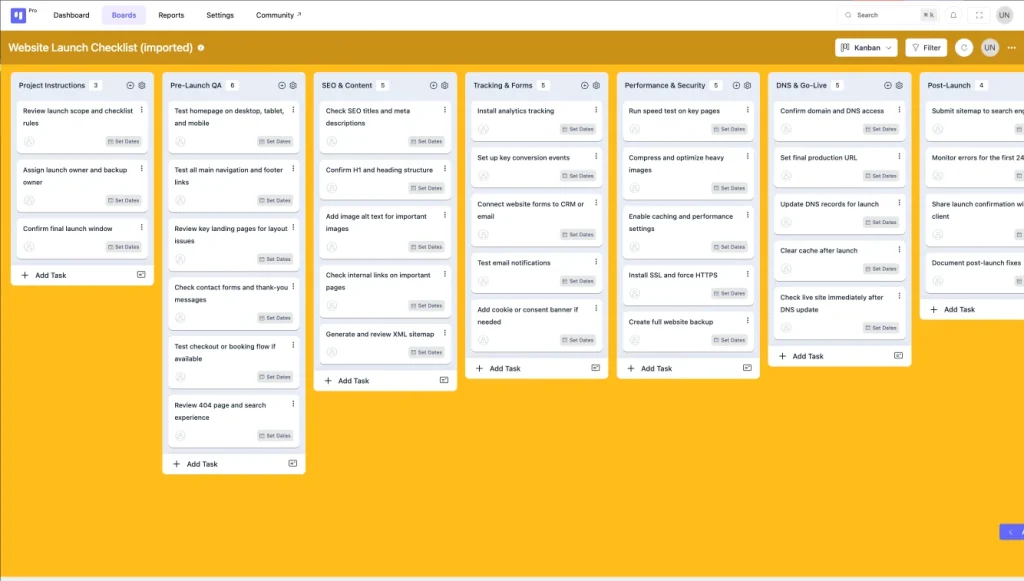
A website launch should never depend on memory. There are too many small things that can go wrong.
A website launch checklist helps you review the site before it goes live.
You can include checks for SSL, backups, redirects, forms, payment gateways, tracking codes, SEO titles, meta descriptions, robots settings, sitemap, broken links, mobile responsiveness, page speed, and security.
This template is useful for web designers, developers, SEO teams, and agencies.
It gives your team a final review process, so launch day feels controlled instead of stressful.
Meeting Notes and Action Items Template
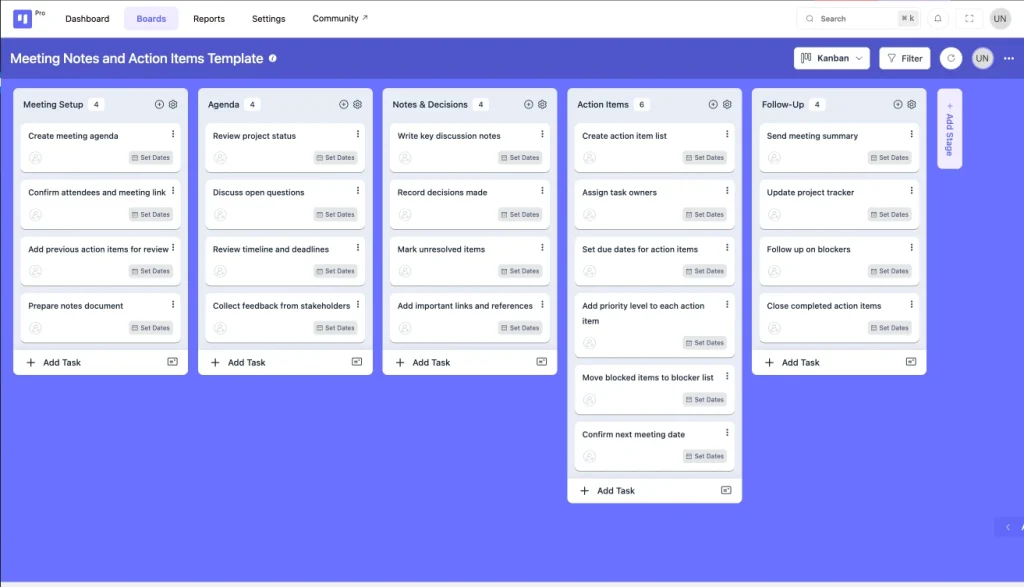
Meetings are only useful when they create clarity. Otherwise, people leave the call and forget what was decided.
A meeting notes and action items template helps you capture the agenda, discussion points, decisions, blockers, action items, owners, and deadlines.
Useful fields can include meeting date, attendees, topic, decision, action item, assignee, deadline, and follow-up status.
This template is useful for client calls, internal meetings, sprint planning, campaign reviews, and weekly project updates.
It turns conversations into trackable work.
How to Use These Project Planning Templates
Templates are only helpful when you use them with a clear process. A spreadsheet full of empty columns will not manage your project for you.
The goal is simple. Pick the right template, add your project details, break the work into tasks, assign ownership, and keep the file updated.
Step 1: Choose the Right Template for Your Project
Start with the template closest to your actual workflow.
If you are planning a website, use the website project planning template. When you are managing SEO work, use the SEO project management template. If you are planning content, start with the content calendar.
You do not need every template for every project. That will only make the process heavier.
Choose one main template first. Then add supporting templates if needed. For example, a website project may need a project tracker, client onboarding checklist, and launch checklist.
Step 2: Add Your Project Details
After choosing the template, add the basic project details.
Start with project name, client or department name, project owner, start date, deadline, team members, priority, and project status.
This makes the template easier to understand at a glance.
You can also add links to important resources. For example, project brief, design file, staging site, live site, brand guideline, keyword sheet, or content document.
The more context you add early, the fewer questions your team will ask later.
Step 3: Break the Project into Smaller Tasks
A project should not stay as one big task.
“Launch new website” is not a task. It is a goal. To manage it properly, you need to break it into smaller steps.
For example:
- Finalize sitemap
- Collect brand assets
- Write homepage copy
- Design homepage
- Design inner pages
- Develop homepage
- Set up contact forms
- Add SEO metadata
- Test mobile responsiveness
- Check page speed
- Launch website
This makes the project easier to assign, track, and complete.
Small tasks also help your team avoid confusion. Everyone can see exactly what needs to happen next.
Step 4: Assign Owners and Deadlines
A task without an owner becomes nobody’s responsibility. A task without a deadline becomes “later.”
Assign one clear owner for every task.
You can add collaborators or reviewers, but the task should still have one main responsible person. This keeps accountability simple.
Then add realistic deadlines. Do not add fake deadlines just to create pressure. That usually damages trust and makes the project board noisy.
Good planning means every task has a clear owner, clear due date, and clear status.
Step 5: Save or Export the Template as CSV
Once your template is ready, save it properly.
Use the XLSX version if you want to keep editing in Excel or Google Sheets. Use the CSV version if you want a clean, importable file.
This is especially useful if you want to manage the project inside WordPress with FluentBoards.
FluentBoards supports CSV import. According to its release note, you can import a board in CSV format, map your data, and then import the board into FluentBoards.
Before importing, make sure your CSV file is structured cleanly. Keep column names simple and avoid unnecessary fields.
How to Manage Projects in WordPress
WordPress is not only for publishing pages and posts anymore. Many businesses already manage websites, stores, forms, CRM, support, courses, and communities inside WordPress.
So managing projects from the same dashboard can make sense for WordPress-based teams.
WordPress is used by 41.9% of all websites and 59.5% of websites with a known CMS, according to W3Techs data.
If your team already works inside WordPress, a project management plugin can reduce tool switching and keep work closer to your actual website operations.
Your attached project management draft also frames WordPress project management around flexibility, control, scalability, privacy, affordability, and fewer external tools.
Manage Projects in WordPress With FluentBoards
FluentBoards is a WordPress project management plugin built for managing projects, tasks, workflows, and team collaboration inside WordPress.
The WordPress.org plugin listing describes FluentBoards as a solution for creating projects, assigning members, setting priorities, managing multi-stage workflows, receiving updates, and administrating projects without leaving the dashboard.
FluentBoards uses boards, stages, and task cards to organize work. A board works as the central hub for a project. Stages organize the workflow. Task cards hold the actual task details.
That makes it a practical option for teams that want to manage projects from their WordPress dashboard.
Install and Activate FluentBoards
To install FluentBoards, go to your WordPress dashboard and open Plugins > Add New Plugin.
Search for FluentBoards in the WordPress plugin directory. Once you find it, click Install Now. After installation, click Activate.
The official FluentBoards installation guide follows this same process for installing the free version from the WordPress plugin directory.
After activation, you can open FluentBoards and start creating your first project board.
Create a New Board
A board is where your project lives.
You can create a board for a website project, SEO campaign, content calendar, product roadmap, development sprint, or client onboarding workflow.
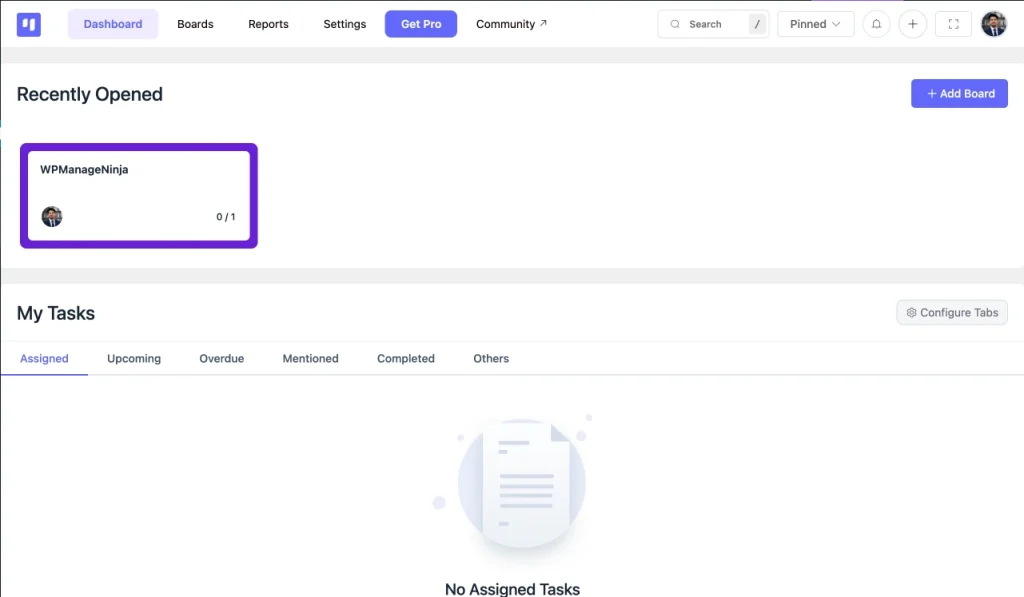
Click Add Board and give your board a name. Add a short description so your team understands what the board is for.
For example:
- Website Redesign Project
- May SEO Campaign
- Product Launch Plan
- Client Onboarding Workflow
- Bug Fix Sprint
Keep the board name clear. A vague board name creates confusion later.
Set Up Project Stages
Stages show where each task stands in the workflow.
A simple project board can use stages like:
- Backlog
- To Do
- In Progress
- In Review
- Completed
For a website project, you may use:
- Planning
- Copywriting
- Design
- Development
- QA
- Launch
FluentBoards allows you to create stages inside boards. You can add a stage, give it a title, and use stage actions like copy stage, reorder stage, move tasks, set default assignees, or make a stage template.
Keep your stages simple. Too many stages can make the board harder to manage.
Add or Import Tasks
After setting up stages, start adding tasks.
Each task should describe one clear action. Avoid creating huge tasks that contain five different jobs.
For example, instead of adding “Prepare website,” create smaller tasks like:
- Finalize sitemap
- Write homepage copy
- Design hero section
- Build services page
- Test contact form
- Add SEO title and meta description
In FluentBoards, task cards can include task descriptions, subtasks, assignees, due dates, attachments, and other important details.
You can add tasks manually, or you can import tasks from your CSV project template.
Import CSV Project Templates into FluentBoards
This is where your project planning templates become even more useful.
The CSV files are not only for spreadsheet users. They can also work as a starting point for FluentBoards users.
If someone downloads your project planning template, fills it with tasks, and wants to manage the project inside WordPress, they can import the CSV into FluentBoards.
This gives users two options.
They can keep using the XLSX file in Excel or Google Sheets. Or they can import the CSV into FluentBoards and turn the template into an active project board.
How CSV Import Works in FluentBoards
FluentBoards introduced CSV export and import in version 1.45. The release note says users can import any FluentBoards board in CSV format and map their data to keep everything organized.
The basic process is simple.
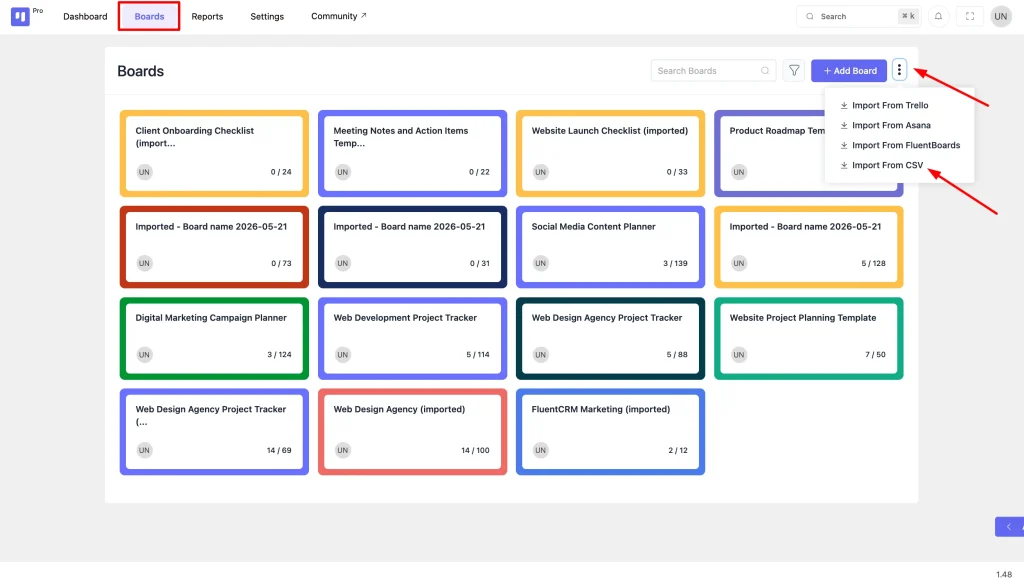
Go to the All Boards dashboard. Click the three-dot button near the Add Board. Select Import From CSV.
Then upload your CSV file, map the data, and click Import Board. FluentBoards also recommends making sure the CSV file is structured correctly before importing.
This makes CSV templates more useful because they can move from planning into execution.
Best CSV Fields to Prepare Before Importing
A clean CSV file imports better.
Before importing your template into FluentBoards, keep the fields simple and task-focused.
Useful CSV fields can include:
- Task title
- Task description
- Stage or status
- Assignee
- Priority
- Start date
- Due date
- Label
- Client or project name
- Notes
Do not overload the CSV with too many columns. Add only the fields your team will actually use.
For example, a website project CSV may include task title, stage, assignee, priority, due date, and notes. That is enough to start managing the project inside FluentBoards.
Assign Tasks to Team Members
After adding or importing tasks, assign them to the right team members.
Every task should have one clear owner. This helps the team understand who is responsible for moving the task forward.
You can also use due dates, labels, priorities, and comments to make each task clearer.
For example, a task can be assigned to a designer, marked as high priority, given a due date, and labeled as “Homepage Design.”
This makes the board easier to scan and easier to manage.
How to Track Project Progress
Planning is only the beginning. The real work starts when tasks move, deadlines approach, and people need updates.
A good project management system should help you see what is happening without asking everyone manually.
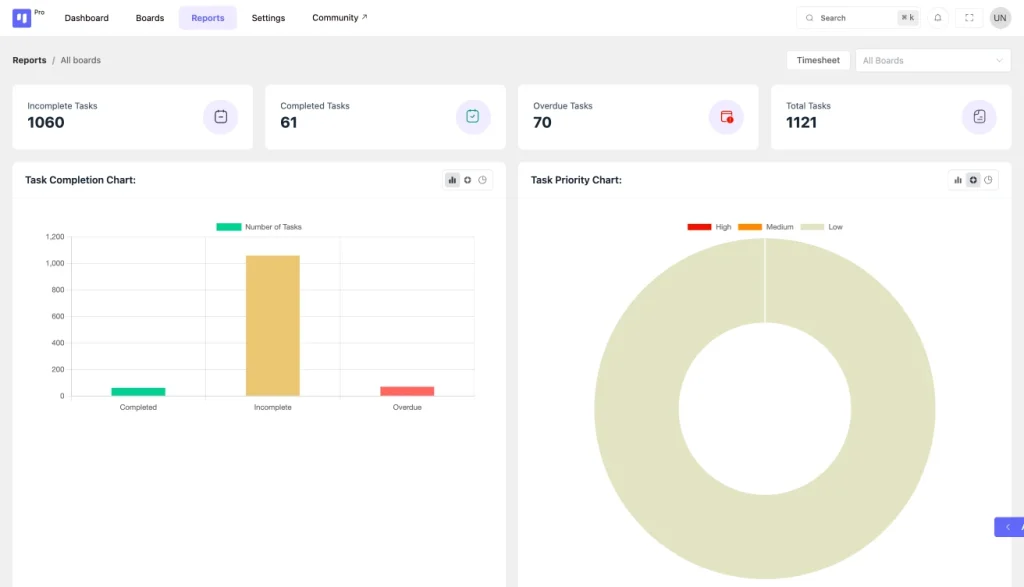
FluentBoards includes features for searching, filtering, board views, reports, and activity tracking. These help project managers understand progress and find bottlenecks faster.
Search and Filter Tasks
When a board grows, finding a specific task manually becomes annoying.
Search and filters help you quickly locate the task you need.
You can filter tasks by assignee, due date, priority, and labels. The WordPress.org listing also mentions filtering and checking task progress by assignee, due date, priority, and labels.
This is useful when you want to answer questions like:
- What is assigned to the designer?
- Which tasks are overdue?
- What high-priority items are still open?
- Which tasks are waiting for review?
- What content tasks are due this week?
Filtering saves time because you do not need to scroll through the whole board.
Use Table and Calendar Views
Different projects need different views.
Kanban view is great for visual workflows. Table view is better when you want to scan many task details quickly. Calendar view helps when deadlines matter.
FluentBoards documentation explains that board views include Kanban, List, Calendar, and Table views. Table view shows task rows with columns like title, stage, priority, status, dates, and assignees.
For example, a content team may prefer calendar view to track publish dates. A project manager may prefer table view to scan owners, priorities, and deadlines.
Using the right view makes project tracking easier.
Use Reports to Understand Progress
Reports help you see the health of the project.
Instead of checking every task manually, you can review project status from a report dashboard.
FluentBoards reports show incomplete tasks, completed tasks, overdue tasks, total tasks, task completion charts, and task priority charts. It also includes timesheet reporting based on estimated and logged time.
This is useful for project managers who need quick answers.
For example:
- How many tasks are still incomplete?
- How many tasks are overdue?
- Which board has the most pending work?
- Are high-priority tasks moving?
- Where is the team spending time?
Reports make project reviews more practical and less emotional. You can talk from real task data instead of guesses.
Track User Activity
Activity tracking helps you understand what changed inside a project.
This is useful when multiple people are working on the same board. You can see task updates, movement, changes, and progress without asking everyone separately.
Your attached draft also highlighted activity tracking as a way to identify and resolve bottlenecks.
For project managers, this is helpful because bottlenecks are not always obvious. A task may look fine, but the activity history may show that nobody touched it for days.
Tracking activity keeps the project honest.
Final Thoughts
Project planning templates are a simple way to start with clarity. They help you organize tasks, owners, deadlines, priorities, and project details before the work gets scattered.
The CSV and XLSX templates are useful for teams that prefer spreadsheets. They are easy to edit, easy to share, and easy to customize.
But when you want to manage projects inside WordPress, FluentBoards gives you a cleaner workflow. You can create boards, set stages, assign tasks, import CSV templates, track deadlines, use reports, and monitor team progress from your dashboard.
So the workflow is simple.
Start with the right template. Fill it with your project details. Export it as CSV when needed. Then import it into FluentBoards and manage the project inside WordPress.
That way, your project does not start from a blank page. And it does not end up lost across chats, emails, and random spreadsheets either.

WordPress, automation, eCommerce and growth marketing specialist, a WordPress Core Contributor and Media Corps member blending storytelling with technology to craft strategies in SEO, email marketing, and beyond.
-
10 Best jQuery Table Plugins for Best Data Visualization in 2026
Discover the 10 best jQuery table plugins for 2026. Compare -
FluentSMTP Review: Whats Inside this 700K+ WordPress SMTP Plugin?
Check our FluentSMTP review blog to Discover whats inside this -
Taking a Closer Look at Common WordPress Errors and How to Fix Them
A troubleshooting guide to the common WordPress errors, why they



Leave a Reply
You must be logged in to post a comment.