


5 Best Portfolio Website Builders to Showcase Your Work

Your next client opens your portfolio. They like the first project, browse another, and look for a way to contact you.
That is the journey your website needs to support. Choosing the right builder makes it easier to present your work, explain your expertise, and turn interest into a conversation.
WordPress is a popular foundation for that journey. According to W3Techs, it powers 38.5% of all websites in its survey, as of November 20, 2026. Its reach is substantial, but the more useful question is whether it fits the portfolio you want to create.
Our five picks are WordPress, Squarespace, Wix, Webflow, and Framer. WordPress is our first choice for portfolios that need blogging, detailed case studies, and flexible lead generation. Squarespace suits creatives who want managed hosting, Wix offers an approachable starting point, and Webflow and Framer appeal to readers who want more control over presentation.
This guide compares their strengths and limitations, walks you through building a WordPress portfolio, and shares real examples.
The Best Portfolio Website Builders at a Glance
| Builder | Best for | Main advantage | Main trade-off |
|---|---|---|---|
| WordPress | Blogging and lead generation | Flexible publishing, design, and integrations | Hosting and maintenance need attention |
| Squarespace | Polished creative portfolios | Portfolio layouts with managed hosting | Custom functionality has platform limits |
| Wix | Beginners and service businesses | Visual editing and organized project collections | Moving to another platform requires planning |
| Webflow | Custom layouts and structured case studies | Detailed design control and CMS templates | A steeper learning curve |
| Framer | Visually expressive personal portfolios | Visual design, motion, and CMS publishing | Content and usage limits vary by plan |
Choose WordPress if your portfolio will grow alongside a blog and a client inquiry process. If your priority is publishing a focused website with less technical administration, start by comparing the hosted alternatives.
What Makes a Good Portfolio Website Builder?
A good portfolio builder should make your next project as easy to publish as your first.
Look beyond the homepage template and consider how the platform handles these tasks:
- Presenting projects: Can you combine images, video, explanations, and results?
- Updating content: Can you add projects without rebuilding layouts?
- Designing for mobile: Will visitors understand your work on a smaller screen?
- Collecting inquiries: Can you create a useful contact form?
- Publishing articles: Can your portfolio support a growing blog?
- Managing costs: What do hosting, subscriptions, extensions, and renewals add up to?
- Moving later: Which content can you export if you change platforms?
Usability deserves attention alongside appearance. In its February 2026 analysis of one million homepages, WebAIM detected accessibility failures on 95.9% of the pages tested. Automated testing does not detect every accessibility problem, but the findings show how often basic issues remain unresolved.
Before committing to a builder, try recreating one representative project page. Add real images, a project explanation, and a contact action. Check how easily you can maintain the page and use it on mobile.
5 Best Portfolio Website Builders
1. WordPress.org: Best for Blogging and Lead Generation
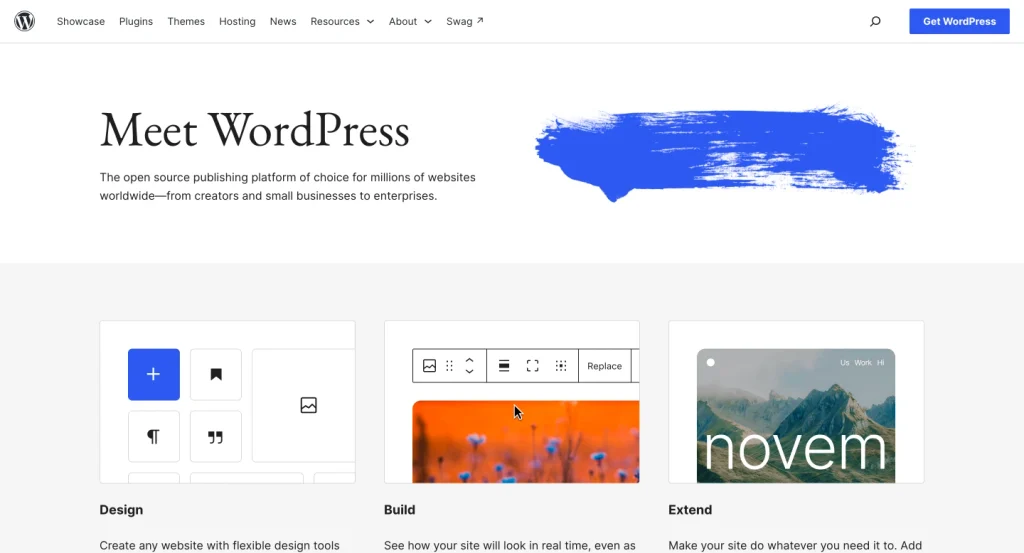
A portfolio can become much more useful as you add case studies, service pages, articles, and ways for prospective clients to contact you.
WordPress is our first choice for that kind of growth.
We are referring to the self-hosted software from WordPress.org. You choose a hosting provider, install WordPress, and build your website using a theme and the editor. WordPress.com is a separate hosted service with its own plans.
The WordPress feature set includes publishing tools, media management, themes, and plugin support. These give you room to combine a portfolio with the functions your business needs.
For example, a freelance designer could publish:
- A branding case study explaining a recent project.
- An article about preparing a useful design brief.
- A service page describing the engagement.
- An inquiry form that collects the details needed for a reply.
Those pages work together. A visitor can discover your advice, review your experience, and contact you without leaving your website.
WordPress also lets you choose how much functionality to add. You can begin with ordinary project pages and a basic contact form, then expand when your workflow requires it.
The main limitation
Flexibility brings responsibility. Someone needs to manage hosting, updates, backups, and plugin compatibility. Managed hosting can reduce that workload.
Pricing
The WordPress software is free. Your actual website costs include a domain, hosting, and any paid themes, plugins, or maintenance services.
Choose WordPress if
You want a portfolio that can support regular publishing and a growing client acquisition process.
2. Squarespace: Best for a Polished Creative Portfolio
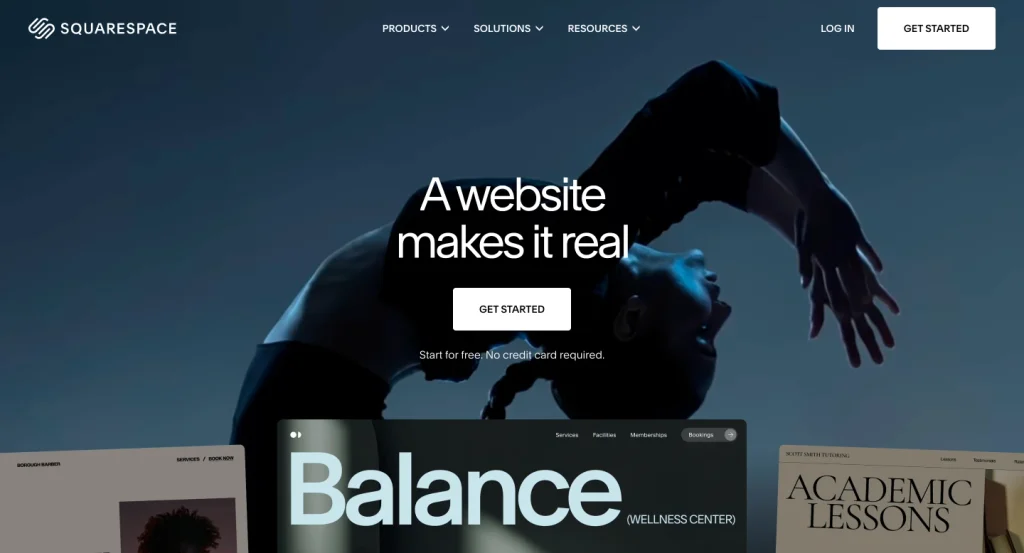
Squarespace suits creatives who want to present their work within a consistent visual system and avoid managing a separate hosting setup.
Its portfolio tools provide a foundation for project presentation, while contact forms give interested visitors a way to reach you. The official Squarespace portfolio guide covers both showcasing projects and collecting leads.
For photographers, illustrators, and interior designers, this can make the initial setup more manageable. You can spend your time choosing projects, writing descriptions, and refining the presentation.
Organize the portfolio around how clients search for your work. An interior designer might separate residential and commercial projects. An illustrator might group editorial work, packaging, and personal commissions.
The main limitation
Your website operates within Squarespace’s features and customization options. Check any unusual integrations or future business requirements before choosing a plan.
Pricing
Squarespace offers a free trial rather than a permanent free plan. Review its current pricing for your location and billing term. Additional services can have separate charges.
Choose Squarespace if
You want a polished creative portfolio with managed hosting and a relatively contained setup.
3. Wix: For Beginners Building a Service Business Portfolio
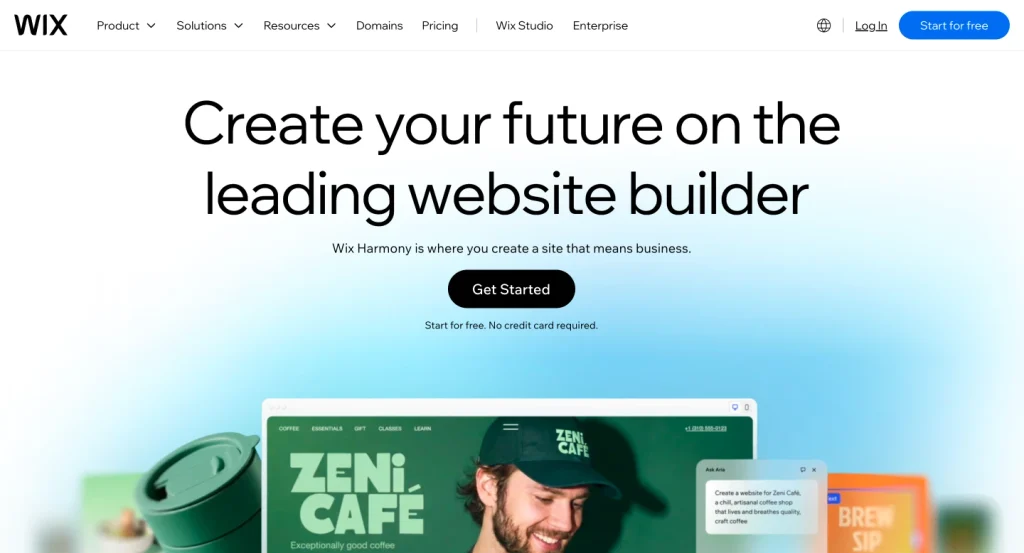
It is an approachable option when you want to bring your projects, services, and business information together in a visual editor.
Wix Portfolio organizes work into three page types: a portfolio page, collection pages, and individual project pages.
That structure is useful when you offer several services. A photographer could create collections for weddings, portraits, and commercial work. A designer could separate branding, websites, and packaging.
Each project can then have its own description and media, giving visitors more context than a gallery thumbnail alone.
Keep collection names straightforward. Visitors should understand where to find relevant work without learning your internal project categories.
The main limitation
The free version uses Wix branding and a Wix address. You need a paid plan for your own domain and removal of Wix branding. Consider the work involved if you later move to another platform.
Pricing
Wix offers a free plan. Its published US pricing lists Light from $17 per month; billing terms and regional pricing affect the final charge. Check the current plans before purchasing.
Choose Wix if
You want to build your first portfolio and service website through a beginner-friendly visual interface.
4. Webflow: Best for Custom Layouts and Structured Case Studies
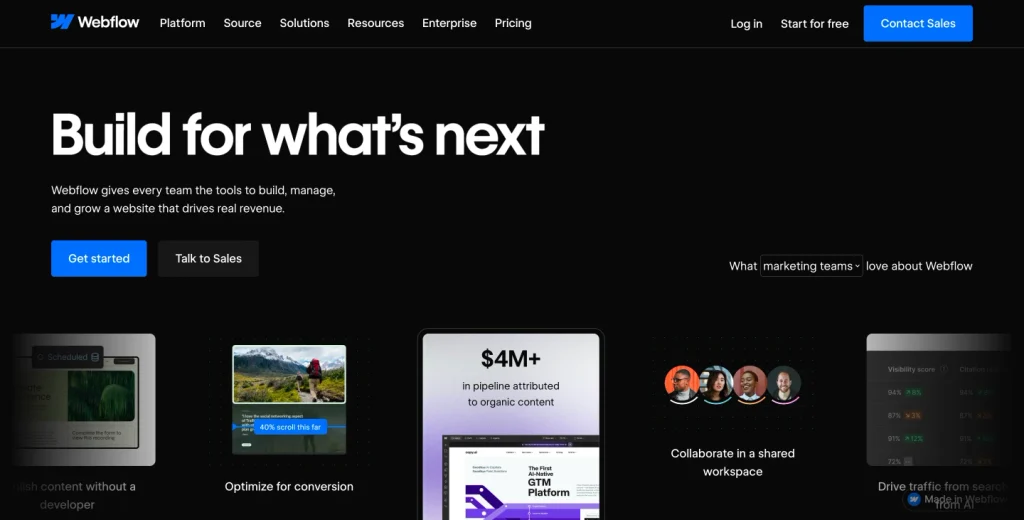
Webflow is worth considering when you have a specific design direction and want detailed control over the presentation.
Its CMS is especially relevant for portfolios with repeatable case studies. You can define project fields, then build a template that displays them consistently.
For example, an agency might give every project these fields:
- Client.
- Industry.
- Service.
- Project summary.
- Main image.
- Supporting media.
- Results.
Once the structure is ready, publishing another case study becomes a content task rather than a complete page-design task.
Plan selection matters. On the current Webflow pricing page, Basic is intended for websites without a CMS. Premium includes the CMS and is the more relevant option for a portfolio built around structured project content.
The main limitation
Expect to invest time in learning layout, responsive behavior, and content modeling. Also check the difference between Site plans and Workspace plans before estimating your costs.
Pricing
Webflow offers a free Starter option. Published annual-billing prices are $15 per month for Basic and $25 per month for Premium.
Choose Webflow if
Custom design and a structured case-study system justify a more involved setup.
5. Framer: Best for Visually Expressive Personal Portfolios
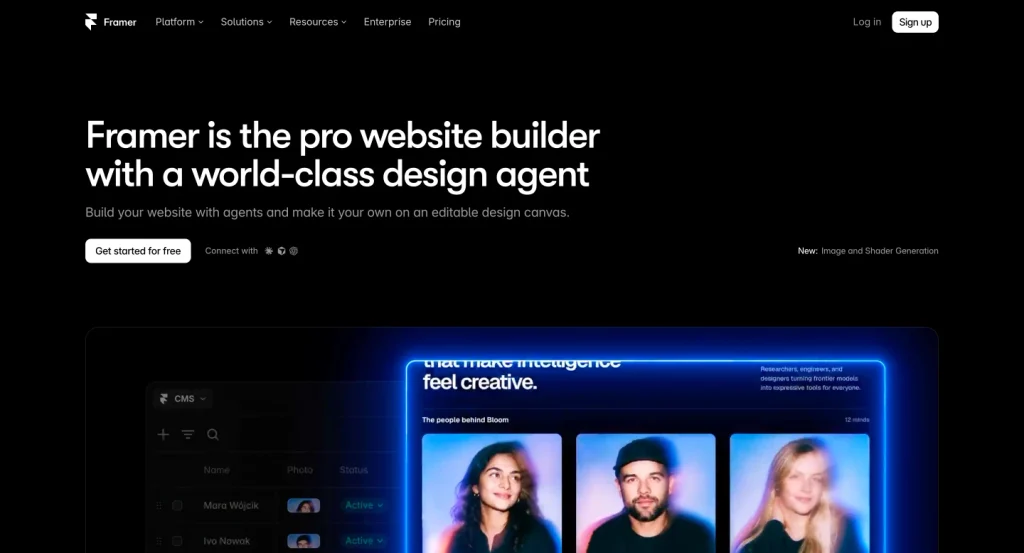
Framer appeals to creatives who want the website’s presentation to demonstrate their visual approach.
It combines visual design, motion, and CMS publishing. That makes it a useful candidate for a focused personal portfolio with a distinctive style.
Motion works best when it helps explain the work. A transition might reveal a product interaction or connect two stages of a design process. Visitors should still be able to reach the projects and contact details easily.
Framer’s content limits are worth checking early. Its Basic plan currently lists two CMS collections and 1,000 CMS items. A projects collection and a blog collection could fit within that structure, depending on your requirements.
The main limitation
Pages, CMS collections, bandwidth, editors, and add-ons can affect the plan you need. Map your content before choosing a subscription.
Pricing
A free option is available on a Framer domain. Basic is listed at $10 per month with yearly billing, while Pro starts at $30 per month on the same billing basis.
Choose Framer if
You want an expressive personal portfolio and its content structure fits your plans.
How to Create a Portfolio Website Using WordPress
Your portfolio needs to help visitors understand your work and take a useful next step.
Before following this walkthrough, have a domain, hosting, an active WordPress installation, and HTTPS ready. Then build the website around the conversation you want visitors to start.
Step 1: Create Your Project Inquiry Form With Fluent Forms
Start by deciding what you need to know when someone contacts you.
For most freelancers and agencies, a focused project inquiry form is a useful foundation. Create it with Fluent Forms and include these fields:
| Field | What it helps you understand | Suggested requirement |
|---|---|---|
| Name | Who is contacting you | Required |
| Where to reply | Required | |
| Service needed | The type of work requested | Required |
| Project description | The problem or goal | Required |
| Budget range | Whether the project may fit | Optional |
| Preferred timeline | Scheduling expectations | Optional |
Avoid collecting information you will not use. You can ask more detailed questions after reviewing the initial inquiry.
Use a clear submit button, such as “Send My Project Details.”
Configure an administrator notification and a confirmation message:
Thanks for sharing your project. I’ll review your details and reply within two business days.
Choose a response time you can consistently meet.
If you also offer a newsletter, provide a separate, optional subscription checkbox. Someone requesting a proposal should be able to do that without joining your marketing list.
Embed the form on your Contact page and submit a test entry before building the rest of the website.
Step 2: Design a Frontend That Makes Your Work Easy to Explore
Choose a maintained block theme and use the WordPress editor to establish your typography, colors, spacing, and button styles.
Then build a homepage that answers visitors’ questions in a clear order.
| Section | What it should communicate |
|---|---|
| Hero | What you do and who you help |
| Selected projects | The work you want to be hired for |
| Services | What clients can ask you to deliver |
| Client reviews | What working with you is like |
| About | Your expertise, approach, and personality |
| Latest articles | Your understanding of relevant problems |
| Inquiry section | How to discuss a project |
Make your introduction specific. For example:
I design clear, approachable websites for growing service businesses.
Follow it with “Explore My Work” and “Discuss Your Project.”
Add context to project previews. “Website redesign for an independent architecture studio” communicates more than “Project 04.”
Check readability as you choose your colors. WebAIM’s 2026 study found low-contrast text on 83.9% of the one million homepages tested. Test headings, body text, buttons, and form labels against their backgrounds.
A visually distinctive website still needs to make the work comfortable to read and explore.
Step 3: Turn Your Projects Into Persuasive Case Studies
A finished image shows what you made. A case study explains the problem, your contribution, and the decisions behind the result.
Use this structure for each important project:
- Context: Who was the project for?
- Goal: What needed to change?
- Your role: What did you personally handle?
- Approach: Which decisions shaped the work?
- Deliverables: What did you create?
- Outcome: What changed after delivery?
- Next step: How can visitors discuss similar work?
Include numbers when you have reliable evidence. Explain the measurement period and your role in the result.
Without performance data, describe a concrete outcome. Perhaps the client gained a reusable design system, a clearer service structure, or a website their team could update independently.
If you are building your first portfolio, include personal projects, volunteer work, or clearly labeled concept projects. Explain the problem you chose and how you approached it.
Finish with a relevant invitation:
Planning a similar website? Tell me what you’re working on.
Step 4: Organize Contacts and Follow Up With FluentCRM
Once inquiries arrive, organize them so useful details do not disappear into an inbox.
FluentCRM connects with Fluent Forms to add or update contacts from submissions. The official integration listing identifies the connection as available with the free Fluent Forms plan.
Install FluentCRM, enable the connection in Fluent Forms, and configure an integration feed for your inquiry form. Map the relevant fields and submit a test entry. The integration documentation explains the current setup.
Use tags that help you act on the information:
- Website inquiry.
- Branding inquiry.
- Existing client.
- Newsletter subscriber.
Keep project communication separate from newsletter subscription status. A prospect asking about a website needs a response about that website.
For people who choose to subscribe, send useful updates such as new case studies, practical advice, or availability announcements. Add automated sequences when they serve a clear purpose, and check the relevant plan requirements.
Configure authenticated email delivery through an appropriate sending service. Test internal notifications and visitor-facing messages before relying on them.
Step 5: Display Client Reviews With WP Social Ninja
Visitors may appreciate your work and still want reassurance about the experience of hiring you.
Use WP Social Ninja to display relevant reviews from supported sources, such as Google or Facebook. Its platform documentation explains the available connections.
Connect the appropriate account, create a display template, and choose a layout that fits your portfolio. Features and access requirements vary by source and edition.
Prioritize reviews that explain something useful:
- How you communicated.
- Whether you understood the brief.
- How you handled a challenge.
- Whether the work met the agreed requirements.
Place reviews near related case studies, service descriptions, or the inquiry section.
Keep attribution visible when appropriate. Obtain permission before publishing privately supplied testimonials, and preserve the reviewer’s meaning.
Step 6: Add a Blog That Supports Your Services
A blog gives prospective clients a way to understand how you think before contacting you.
Start with questions they ask before a project.
| Service | Useful article idea | Relevant next step |
|---|---|---|
| Website design | What should you prepare before a website redesign? | Website inquiry form |
| Branding | What belongs in a useful brand brief? | Branding case study |
| Photography | How should a team prepare for a commercial shoot? | Photography service page |
| Development | What makes a website difficult to maintain? | Development inquiry |
| Copywriting | How should you organize a service page? | Writing portfolio |
Connect each article to a relevant project or service.
For example, an article about planning a redesign can link to a completed redesign case study. The case study can then direct interested readers to your inquiry form.
Write from your actual experience where possible. Specific explanations, examples, and lessons help readers assess your expertise.
Step 7: Test the Entire Journey Before Publishing
Start on the homepage, find a relevant project, read its explanation, and submit an inquiry. Repeat the process on a phone.
Use this launch checklist:
- Project images load at appropriate sizes.
- Navigation works on smaller screens.
- Text and buttons are easy to read.
- Forms have visible labels and clear error messages.
- Keyboard users can reach links, buttons, and fields.
- Form notifications arrive.
- CRM fields and tags are populated correctly.
- Newsletter preferences behave as expected.
- Contact details and project links are accurate.
- Backups are configured.
- Search indexing is not accidentally discouraged.
Ask someone unfamiliar with your business to complete the same journey. Watch where they hesitate. Their questions can reveal missing context that you no longer notice.
Real Portfolio and Creative Brand Websites Built With WordPress
You now have a practical process for creating your website. These examples show different ways to apply it.
Their WordPress use is supported by official showcase documentation or public site evidence. The plugins in the walkthrough are our recommended setup; we have not established that these websites use them.
Taylor Swift: Give Your Audience Reasons to Return

Taylor Swift’s official website shows how WordPress can support a globally recognized creative brand.
Its WordPress Showcase entry describes a website that brings together music releases, news, tour information, and fan content.
It is an artist brand website with useful lessons for personal portfolios.
What you can apply: Keep current work visible and give interested visitors a reason to return.
For a freelancer, that could mean publishing a new case study, sharing a useful article, or offering occasional email updates. Your portfolio can continue the relationship after the first visit.
LANDIA: Put Your Work at the Center

LANDIA is an international production company whose website emphasizes films, directors, and client projects.
Its work includes projects associated with brands such as Oreo, Volkswagen, and Corona. The WordPress Showcase documents its use of WordPress to present production work.
What you can apply: Help visitors find relevant projects quickly.
Use clear titles, concise descriptions, and appropriate credits. When a project involved several contributors, identify your role so the reader understands what you delivered.
Jimmy Nelson: Give Every Project a Story
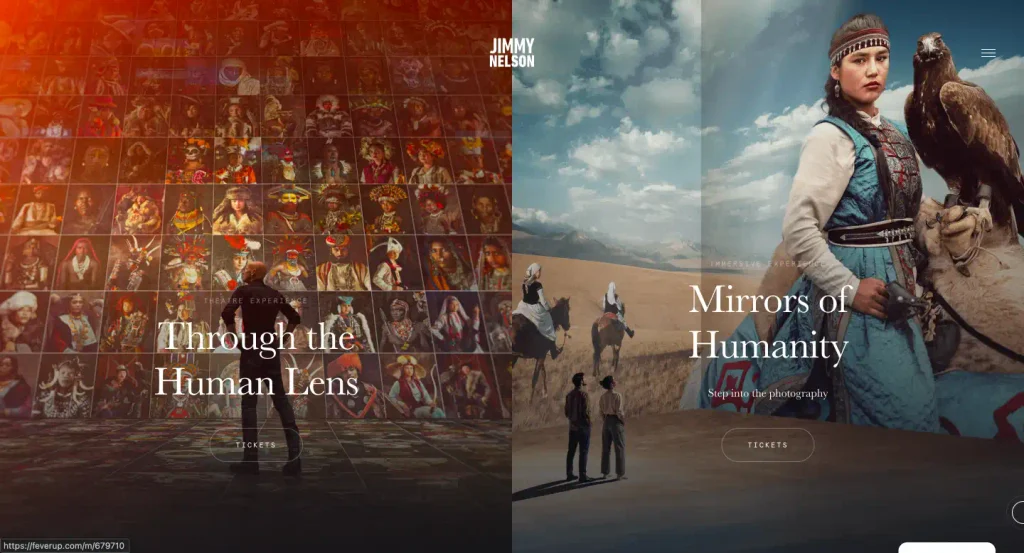
Jimmy Nelson’s website connects photography with project archives, publications, exhibitions, and commerce.
The official WordPress Showcase entry explains how its structure supports visual storytelling and a substantial collection of creative work.
What you can apply: Add the context that makes a project meaningful.
Explain the purpose, challenge, location, or decision behind the work. Choose details that help visitors understand what they are seeing and why it matters.
Adham Dannaway: Make Your Specialty Clear
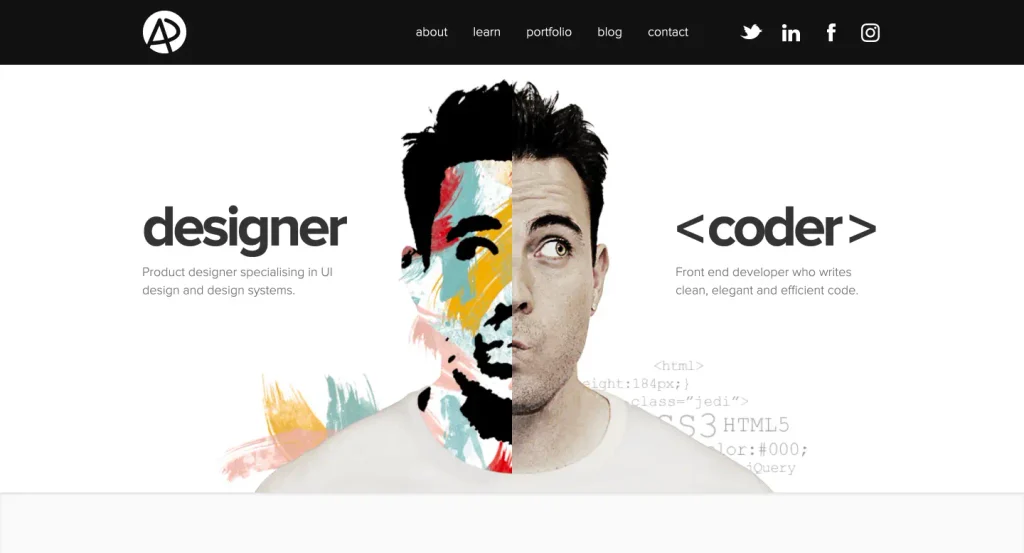
Adham Dannaway’s portfolio introduces his designer and developer identity through a distinctive homepage and selected projects. Public homepage assets are served from a custom WordPress theme directory.
What you can apply: Make your expertise understandable before asking visitors to explore.
Your introduction, selected projects, and contact action should support the same positioning. If you want more website design projects, make that expertise easy to recognize throughout the page.
Which Portfolio Website Builder Should You Choose?
The best choice depends on the work you want to show and how you want to maintain the website.
| Your priority | Our pick |
|---|---|
| Blogging, case studies, and flexible lead generation | WordPress |
| A polished creative portfolio with managed hosting | Squarespace |
| An approachable first portfolio and service website | Wix |
| Custom layouts with structured project content | Webflow |
| An expressive personal portfolio with motion | Framer |
WordPress is our recommendation for a portfolio that supports a growing service business. It gives you room to connect projects, useful articles, inquiry forms, and follow-up communication.
Begin with a manageable version: a clear introduction, a few strong projects, and one working inquiry form. Expand when you have a reason to add more.
Which builder fits the portfolio you want to create? Share your choice and what you plan to showcase in the comments.
Frequently Asked Questions
What is the best website builder for a portfolio?
WordPress is our first choice for portfolios that need blogging, flexible functionality, and lead generation. Squarespace suits creatives who prefer managed hosting, Wix is approachable for beginners, Webflow offers detailed design control, and Framer suits visually expressive personal portfolios.
Is WordPress good for a portfolio website?
Yes. WordPress supports project pages, images, video embeds, blogging, and additional functionality through plugins. It is especially useful when you want your portfolio to become part of a broader business website.
Can I create a portfolio website for free?
Wix, Webflow, and Framer offer free options with restrictions such as platform-branded addresses or publishing limits. WordPress software is free, but a typical self-hosted website requires hosting and a domain. Squarespace offers a trial rather than a permanent free plan.
How much does a portfolio website cost?
The total depends on the platform, billing term, domain, and required features. For WordPress, budget for hosting and optional extensions. For hosted builders, compare the subscription that supports your content, custom domain, and business requirements, including any add-ons.
What should a portfolio website include?
Include a clear introduction, selected projects, your role in each project, relevant services, an About section, and an easy way to contact you. Add testimonials and project outcomes when you have permission and reliable evidence.
Can I build a portfolio without client experience?
Yes. Use personal projects, volunteer work, permitted coursework, or clearly labeled concept projects. Explain the problem, your approach, and the result without implying a client relationship that did not exist.
How do I get client inquiries through my portfolio?
Show relevant work, explain your services clearly, and place useful contact actions near your projects. Keep the inquiry form focused and respond reliably. You also need to bring relevant visitors to the website through channels such as referrals, search, outreach, or professional communities.
Should I add a blog to my portfolio website?
Add a blog if you can answer questions prospective clients care about. Articles about your process, project challenges, and practical preparation can support your case studies and help readers understand your expertise.

WordPress, automation, eCommerce and growth marketing specialist, a WordPress Core Contributor and Media Corps member blending storytelling with technology to craft strategies in SEO, email marketing, and beyond.
-

7 Best Conversion Rate Optimization(CRO) Tools you Should Try
Compare 7 conversion rate optimization tools for heatmaps, funnels, A/B -

How to Master Customer Onboarding and Keep Customers Coming Back
Master customer onboarding with 5 simple stages, 9 proven best -
How to Create a Conversational Survey in WordPress
Build a conversational survey in WordPress with Fluent Forms step-by-step,



Leave a Reply
You must be logged in to post a comment.