

Step by Step Guide to Migrate WooCommerce to FluentCart
Migrating an established WooCommerce store involves more than copying products. You must preserve customer accounts, historical orders, taxes, coupons, refunds and, when applicable, active subscription obligations while ensuring customers can still purchase after the transition.
FluentCart provides an official WooCommerce Migrator that transfers most core store data within WordPress. It reads through WooCommerce’s CRUD API, which allows the same migration engine to work with both High-Performance Order Storage (HPOS) and legacy order tables.
TL;DR
Migrating from WooCommerce to FluentCart is straightforward, but it’s not a one-click switch. FluentCart’s Migrator can move your products, customers, orders, transactions, coupons, taxes, and subscription records, while some store settings still need to be rebuilt manually.
Here’s the short version:
- Back up your WooCommerce store and run the first migration on staging.
- Install and activate the FluentCart Migrator from FluentCart settings.
- Use the migration wizard for small to medium stores, or WP-CLI for larger stores and long-running migrations.
- Verify products, customers, orders, refunds, taxes, coupons, and subscriptions after migration.
- Reconfigure shipping, payment gateway credentials, emails, WooCommerce pages, blocks, and links because these do not migrate automatically.
- Give subscriptions extra attention, especially automatic renewals, since some payment methods may fall back to manual billing.
- Keep WooCommerce available until FluentCart is fully tested and stable.
For the safest migration, test on staging first, validate everything, then perform the final cutover during a low-traffic window.
What does the FluentCart Migrator transfer?
The Migrator covers the data that is hardest to reconstruct manually, but it does not replace every WooCommerce configuration or extension. Review the boundaries before scheduling a production cutover.
| Data type | Support | Important detail |
|---|---|---|
| Products | Yes | Simple, variable, subscription, grouped and supported bundles |
| Categories and attributes | Yes | Category hierarchy, attribute groups, terms and variations |
| Images and downloads | Partial | Featured images and downloads transfer; product galleries do not |
| Customers | Yes | Accounts, addresses and purchasing history; deduplicated by email |
| Orders and transactions | Yes | Line items, fees, taxes, shipping totals, refunds and transaction IDs |
| Coupons | Yes | Discount rules, restrictions, limits and expiration dates |
| Taxes | Yes, review | FluentCart rates are generated; the models are not a one-to-one match |
| Subscriptions | Partial | Records and renewal history transfer; auto-charge depends on token support |
| Shipping configuration | No | Recreate zones, methods and rates in FluentCart |
| Gateway credentials | No | Reconnect Stripe, PayPal and other gateways |
| Reviews, tags and custom meta | No | Plan a separate export or manual rebuild where required |
| Pages, shortcodes and emails | No | Replace WooCommerce blocks, links and notification templates |
Before you begin
Confirm the technical requirements and create a written inventory of the source store. This gives you measurable acceptance criteria after the import.
- WooCommerce 3.0 or later is installed and active.
- At least one WooCommerce product exists.
- FluentCart and the FluentCart Migrator addon are installed.
- WooCommerce Subscriptions remain active when subscription records must be transferred.
- You have WordPress administrator access, a fresh database backup and a filesystem backup.
- The server has enough PHP memory and execution time; 256 MB is a practical minimum for larger stores.
IMPORTANT The Migrator copies data into FluentCart and does not delete the original WooCommerce records. Keep WooCommerce active throughout the migration because FluentCart reads data through WooCommerce’s APIs.
Migrate WooCommerce to FluentCart Step by Step
Step 1: Audit the WooCommerce store
Record the number of products, variations, customers, orders by status, paid transactions, refunds, coupons, tax rates and subscriptions. Also document payment gateways, shipping zones, custom checkout fields, memberships, licensing extensions, product tags, reviews and custom metadata.
Search the site for WooCommerce blocks, shortcodes and hard-coded links to Cart, Checkout and My Account. These content elements are not rewritten automatically and must be replaced during cutover.
Step 2: Rehearse on staging
Clone production into a staging or local environment, including the database, media library, theme, WooCommerce extensions and custom code. The first migration attempt should not happen on the live store.
On staging only, Developer Mode enables the reset workflow so you can test, inspect, reset and repeat the migration:
define('FLUENT_CART_DEV_MODE', true);To clear the staged migration and start again:
wp fluent_cart_migrator migrate_from_woo --resetDESTRUCTIVE ON FLUENTCART DATA Reset drops and recreates FluentCart tables and removes migrated FluentCart product posts. Never enable or run the reset workflow on production.
Step 3: Install and activate FluentCart Migrator
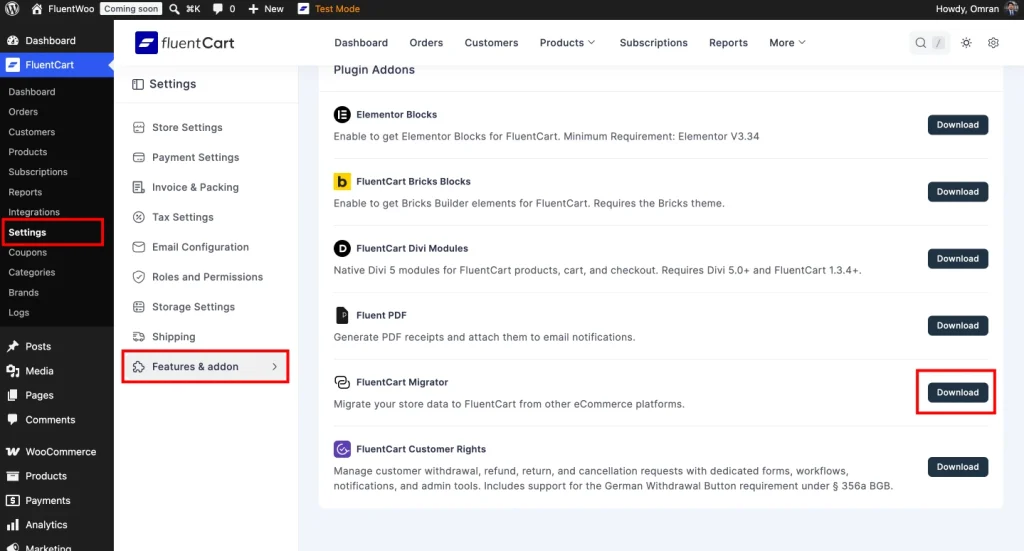
- Open FluentCart → Settings.
- Select Features & addon.
- Find FluentCart Migrator under Plugin Addons.
- Click Download, then activate the addon.
- Confirm that Migration or Migrator now appears in the FluentCart navigation.
Step 4: Open the migration wizard and select WooCommerce
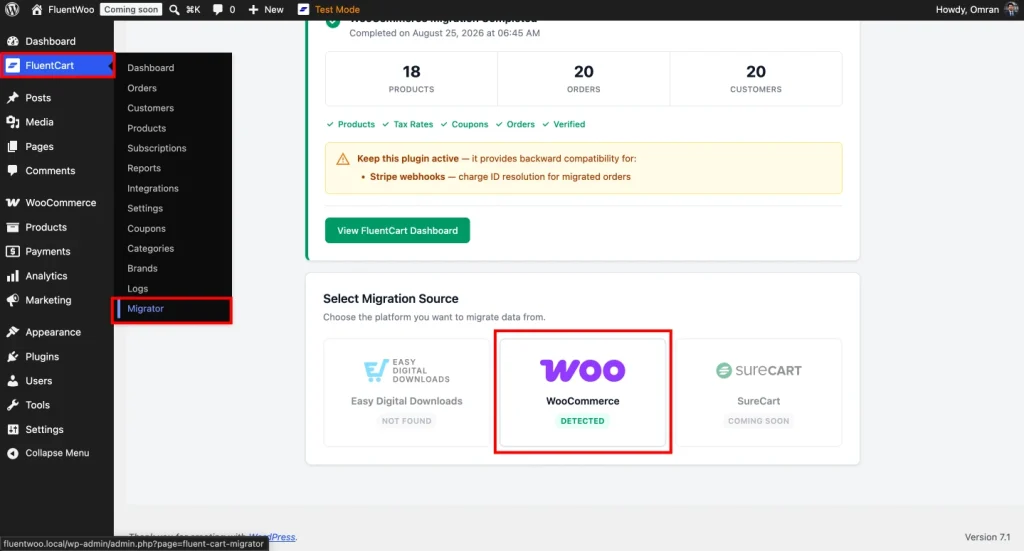
Open the new FluentCart Migration dashboard. The source-selection screen detects supported ecommerce plugins installed on the same WordPress site. Choose the WooCommerce card marked Detected.
Step 5: Run the compatibility check
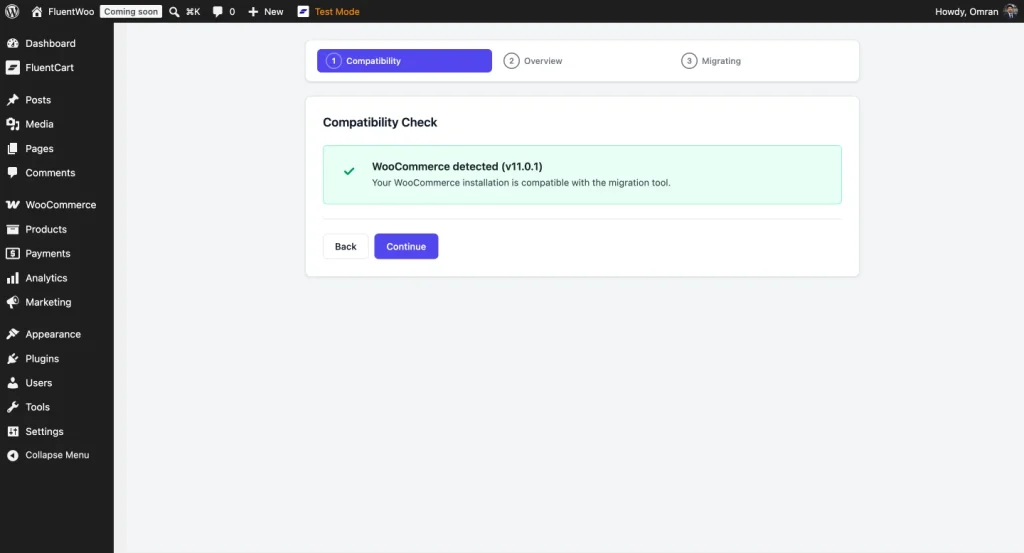
The wizard confirms that WooCommerce is active, checks the detected version and verifies that the store can be read. WooCommerce 3.0 is the minimum supported version because that release introduced the CRUD API used by the Migrator.
When the compatibility result is successful, click Continue. If it fails, update or reactivate WooCommerce and repeat the check before attempting to migrate data.
Step 6: Review the pre-migration overview
Before writing data, the wizard inventories the WooCommerce store. Compare its product, order, customer, transaction, coupon and subscription totals with your source audit. It also surfaces registered payment gateways and order statuses.
Leave the migration stages selected unless you have a documented reason to exclude one. The normal sequence is products, tax rates, coupons, orders and payments, missing customers, then recount and verification.
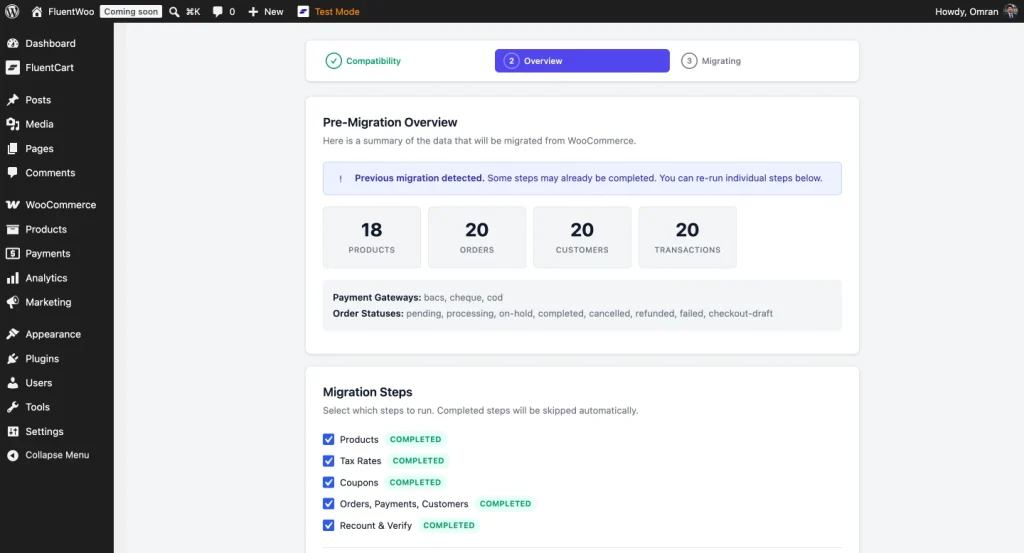
ORDER MATTERS Products must exist before orders and coupons can resolve product references. Tax rates should exist before historical order tax rows are migrated. Recount & Verify must run last.
Step 7: Start and monitor the migration
Click Start Migration and keep the browser tab open. The wizard processes the selected stages in sequence and reports progress. If an HTTP timeout interrupts the run, reload the page and resume; completed stages and batches are tracked so the Migrator can skip work already finished.
A small or medium store can normally use the browser wizard. For a larger catalog or order history, run the same engine through WP-CLI.
WP-CLI migration for large stores
Preview source counts without migrating anything:
wp fluent_cart_migrator migrate_from_woo --statsRun the complete pipeline:
wp fluent_cart_migrator migrate_from_woo --allOr run each stage separately for more control:
wp fluent_cart_migrator migrate_from_woo --products
wp fluent_cart_migrator migrate_from_woo --tax_rates
wp fluent_cart_migrator migrate_from_woo --coupons
wp fluent_cart_migrator migrate_from_woo --payments
wp fluent_cart_migrator migrate_from_woo --missing-customers
wp fluent_cart_migrator migrate_from_woo --recount
Inspect failed records after a run:
wp fluent_cart_migrator migrate_from_woo --logIf a large run exhausts PHP memory, provide additional headroom:
wp --exec='ini_set("memory_limit","1G");' fluent_cart_migrator migrate_from_woo --allStep 8: Review the completion screen
A completed run displays the imported totals and provides access to FluentCart. If the wizard exposes an error log, inspect it before treating the migration as accepted. Fix malformed source records in WooCommerce, rerun the relevant stage and recount the results.
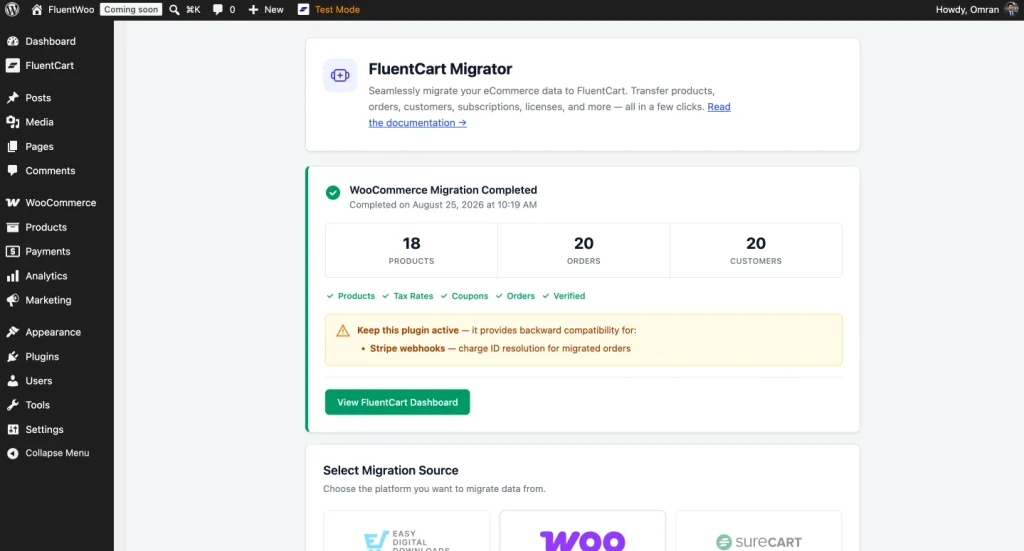
Step 9: Verify products
Check a representative sample of every product type. Include simple, variable, subscription, grouped, downloadable, sale-priced, backordered and out-of-stock products.
- Name, slug, description, short description and publish status
- Category hierarchy and featured image
- Regular price, sale price and compare-at price
- SKU, stock quantity, stock status and backorder behavior
- Attributes, terms, variation combinations and variation-level inventory
- Downloadable assets and remote file URLs
- Subscription interval, trial, signup fee and billing limits
COUNT DIFFERENCES WooCommerce variations become variations inside their FluentCart parent product, so product totals may not match a WooCommerce report that counts variations separately. Trashed products are also excluded.
Step 10: Verify customers, orders and refunds
Customers are matched by email and continue using their existing WordPress accounts. Test registered customers, guest buyers, customers with separate billing and shipping addresses, users who never purchased and customers with subscriptions or refunds.
- Customer identity, WordPress account link, billing address, shipping address and phone number
- Order status, products, variations, quantities, fees, shipping, tax, discounts and final total
- Gateway transaction IDs, refund records, order notes and original dates
- Customer lifetime value, purchase count and coupon usage after recount
Historical shipping totals are preserved on migrated orders even though the live WooCommerce shipping rules are not transferred. WooCommerce checkout-draft records are excluded because they represent abandoned block-checkout attempts rather than completed orders.
Step 11: Review taxes and coupons
Taxes
The Migrator can enable FluentCart’s tax engine and generate rates for relevant countries, but the WooCommerce and FluentCart tax models are not identical. Verify inclusive versus exclusive pricing, store location, tax classes, regional rates, shipping tax, rounding and EU VAT behavior where applicable.
Coupons
Check percentage and fixed discounts, minimum and maximum spend, usage limits, expiration dates, product and category restrictions, stacking behavior, free shipping and renewal applicability. Recount recalculates coupon usage from migrated paid orders.
Step 12: Handle subscriptions with extra care
Subscriptions are live billing obligations, not only historical records. WooCommerce Subscriptions owns its renewal schedule; after migration, FluentCart’s store-billing engine becomes responsible for creating renewal invoices.
| Collection method | What FluentCart does | Customer experience |
|---|---|---|
| System billing + auto-charge | Creates the renewal invoice and charges a compatible stored Stripe PaymentMethod. | Renewal can remain automatic. |
| Manual store billing | Creates a renewal invoice and sends the customer a Pay Now link. | Customer completes each renewal payment. |
FluentCart’s Migrator only assigns automatic collection when the source subscription is not manual, uses Stripe, contains a modern PaymentMethod token beginning with pm_, includes the Stripe customer ID and can be charged by FluentCart’s Stripe integration.
PayPal agreements, legacy Stripe src_ or card_ tokens, offline gateways and unsupported methods normally become manual renewals.
- Reconnect FluentCart to the same Stripe account and the correct test or live mode.
- Compare subscription status, interval, upcoming renewal date and bill count.
- Verify which subscriptions use System collection and which use Manual collection.
- Review reminder, renewal and Pay Now email templates.
- Warn affected customers if their next renewal will require manual payment.
- After acceptance, stop WooCommerce Subscriptions from running the same schedules.
AVOID DOUBLE BILLING Do not leave both WooCommerce Subscriptions and FluentCart independently processing the same renewal schedules after cutover.
Step 13: Rebuild items that do not migrate
Reconnect payment gateways
Gateway transaction references migrate, but API keys and secrets do not. Reconnect Stripe, PayPal and any other gateway under FluentCart payment settings. Use the same accounts when migrated payment methods or transaction history must remain reachable.
Recreate shipping
Rebuild zones, country and postcode restrictions, flat rates, free-shipping thresholds, table rates, local pickup, product-based rules and taxable shipping behavior. Test every important customer region.
Configure emails
Review purchase receipts, payment confirmations, refund notifications, failed-payment notices, subscription renewals, manual-renewal payment links and administrator notifications. Confirm delivery through the site’s SMTP provider.
Replace WooCommerce pages, blocks and links
Replace WooCommerce Cart, Checkout and My Account pages, product blocks, add-to-cart buttons, menu items, footer links and links embedded in campaigns or documentation. Search for common shortcodes such as:
[woocommerce_cart]
[woocommerce_checkout]
[woocommerce_my_account]
[products]
Plan separate content migration
Product gallery images, tags, custom taxonomies, reviews, ratings and third-party custom metadata require manual work or a dedicated migration script. Export anything business-critical before the production cutover.
Step 14: Perform the production cutover
After staging passes, schedule a low-traffic maintenance window and use a controlled sequence:
- Notify staff and temporarily stop new WooCommerce orders.
- Create a fresh database and filesystem backup.
- Record final WooCommerce totals.
- Run the production migration and inspect its log.
- Compare the imported totals with the source audit.
- Reconnect live gateways and production webhooks.
- Activate FluentCart shipping, tax, email, checkout and account experiences.
- Update menus, buttons, shortcodes and internal links.
- Complete a live low-value order, verify its email and test a refund.
- Confirm subscription collection methods and stop WooCommerce renewal processing.
- Reopen the store and monitor orders, payments and email delivery.
CONTENT FREEZE Avoid accepting new WooCommerce orders during the final migration. Otherwise, orders created after the migration starts may fall outside the totals you validated.
Post-migration acceptance checklist
Storefront and checkout
Customer portal
Administration and reporting
Rollback plan
Do not immediately uninstall WooCommerce or delete its tables. Keep the original data as a fallback until FluentCart has completed a stable operating period and critical records have been verified.
- Stop new FluentCart checkouts if a critical issue appears.
- Prevent both systems from processing subscription renewals.
- Restore the pre-migration backup when necessary.
- Re-enable the original WooCommerce checkout.
- Reconcile orders created after the cutover point.
- Correct the problem on staging and repeat the production migration.
Common migration problems
Product counts do not match. Variations become child variations rather than standalone FluentCart products. Trashed products are excluded. Review the failure log for unexplained differences.
Orders point to missing products. Run the products stage first, then rerun payments and recount.
The browser migration stops. Reload and resume, increase PHP memory or switch to WP-CLI.
A subscription becomes manual. Inspect its gateway and token type. PayPal agreements, legacy Stripe tokens and unsupported gateways cannot normally be adopted for automatic charging.
Customer or coupon totals look wrong. Run the recount stage after all other migration stages finish.
An order fails. Use –log, fix the WooCommerce source record and rerun –payments. Already migrated orders are skipped.
wp fluent_cart_migrator migrate_from_woo --products
wp fluent_cart_migrator migrate_from_woo --payments
wp fluent_cart_migrator migrate_from_woo --recount
wp fluent_cart_migrator migrate_from_woo --log
Need Help With Your WooCommerce Migration?
Running into an issue while moving your store from WooCommerce to FluentCart? You don’t have to troubleshoot everything on your own.
The FluentCart support team can help if you’re having trouble with the migration process, including:
- Migration wizard errors or interrupted migrations
- Products, customers, or orders not migrating correctly
- Differences in product or order counts
- Subscription migration and renewal issues
- Payment gateway or checkout configuration
- Taxes, coupons, or shipping setup
- WP-CLI migration errors
- Post-migration issues you can’t identify
If something doesn’t look right, contact the FluentCart support team with the details of the issue, screenshots, and any migration error logs you have. The more context you provide, the faster the team can help you figure out what went wrong.
Frequently asked questions
Does the migration delete WooCommerce data?
No. The Migrator reads and copies source data into FluentCart.
Can the migration run more than once?
Yes. Progress tracking and source-to-destination mappings allow stages to resume and recognize records already migrated.
Does it support HPOS?
Yes. The migration uses WooCommerce’s CRUD API instead of depending on a specific order table layout.
Will customers need new passwords?
No. They continue using their existing WordPress accounts and credentials.
Are gateway credentials transferred?
No. Reconnect gateways in FluentCart.
Will every subscription continue charging automatically?
No. Automatic collection depends on a compatible stored Stripe PaymentMethod and matching gateway configuration.
Should WooCommerce be deleted immediately?
No. Keep the original database available until the new store is stable and fully verified.
Final thoughts
FluentCart’s official Migrator handles the most labor-intensive parts of a WooCommerce move: products, variations, customers, orders, transactions, coupons, taxes and subscription records. A successful project still depends on disciplined preparation, a staging rehearsal, careful subscription review and a controlled cutover.
Document the source, test the full customer journey, rebuild the configuration that does not transfer and keep WooCommerce available as a temporary fallback. That process turns migration from a one-shot gamble into a repeatable, auditable change.

WordPress, automation, eCommerce and growth marketing specialist, a WordPress Core Contributor and Media Corps member blending storytelling with technology to craft strategies in SEO, email marketing, and beyond.
-
Ecommerce SMS Marketing: Strategies, Examples & Best Practices
Learn ecommerce SMS marketing strategies, campaigns, and best practices to -

Omnichannel Marketing: 7 Steps to a Connected Shopping Experience
It’s never too late to upgrade your marketing plan. Whether -
7 Best Ecommerce Plugins for WordPress in 2026 (Tested And Compared)
Compare the 7 best ecommerce plugins for WordPress in 2026

Leave a Reply
You must be logged in to post a comment.