

FluentHub MCP: Run Your WordPress Business Right From Your AI Chat
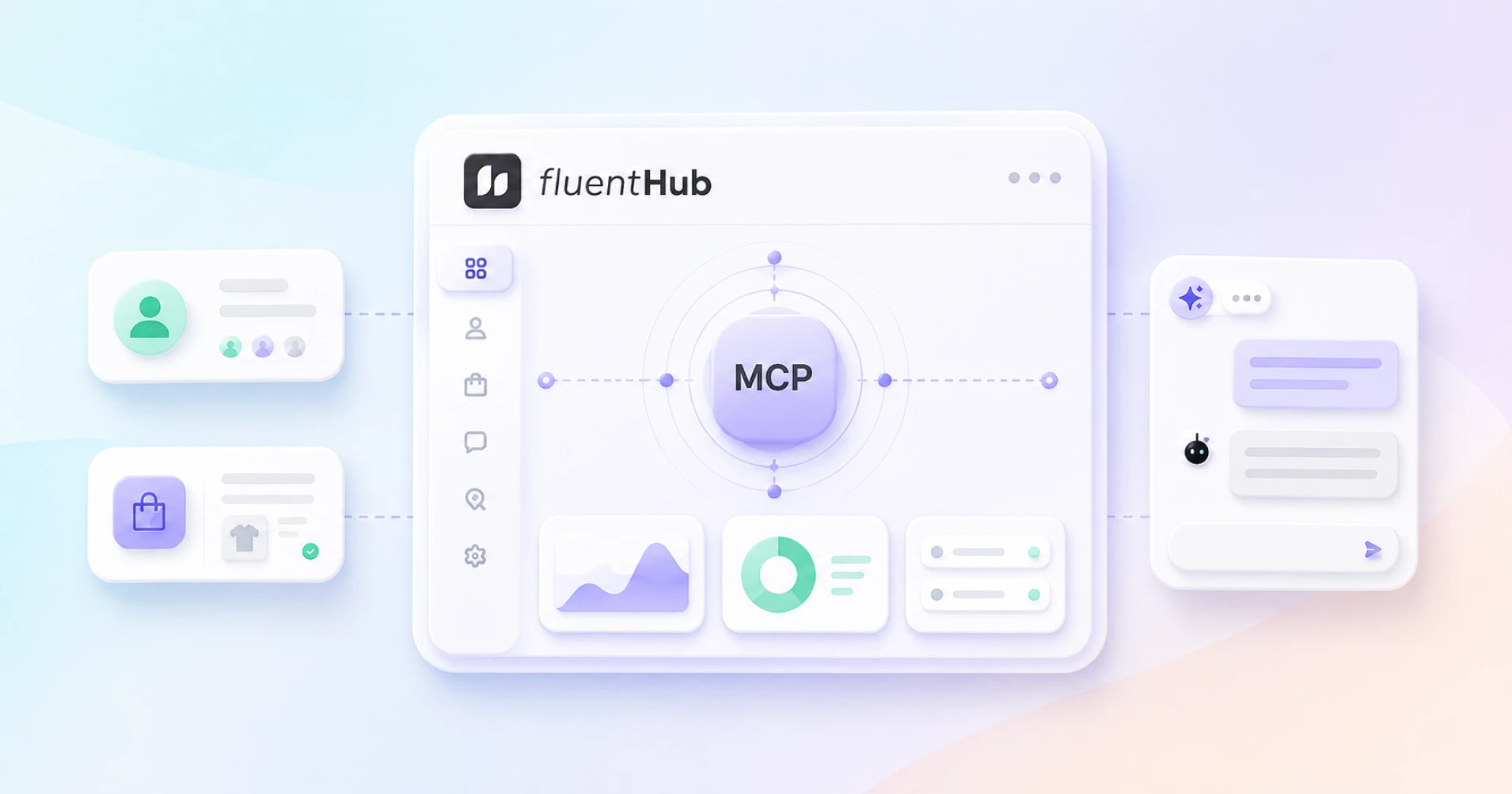
Your WordPress site already knows what is happening across your business. It knows who filled out a form, or which campaign they opened. It knows what they purchased, which subscription they cancelled, what support issue they reported, which course they joined, and when they booked a meeting.
The information is there. Getting to it is the annoying part.
You open one dashboard for contacts, another for orders, another for support tickets, and another for reports. Then you apply filters, compare records, copy details, and try to piece together the full story.
FluentHub MCP changes that workflow.
It connects your WPManageNinja products with compatible AI agents, allowing you to find information, analyze business activity, and complete supported actions through a normal conversation.
Instead of searching through your WordPress dashboard, you can ask:
“Show me the customers who purchased an annual plan this month but have not entered the onboarding automation.”
Or:
“Find unresolved support tickets from customers with active subscriptions and summarize the most urgent issues.”
Your agent does not answer from memory or make a generic guess. It uses the tools and current business data available through your connected WordPress site.
The result is simple: more of your business becomes visible right from your AI chat.
TL;DR
- FluentHub connects the WPManageNinja product ecosystem through one unified experience.
- Its MCP layer gives compatible AI agents controlled access to supported product data and actions.
- You can ask questions about contacts, campaigns, orders, subscriptions, customers, tickets, reports, and other business activity.
- The AI agent chooses the correct available tool based on your plain-language request.
- WordPress users, roles, product permissions, and Application Passwords control access.
- As MCP abilities reach more WPManageNinja products, managing your entire business through one conversational interface becomes increasingly practical.
- You can connect clients such as Claude Desktop, Claude Code, Cursor, and OpenAI Codex.
Your AI Agent Is Smart, but It Cannot See Your Business
An AI agent can write an email, summarize a document, create a marketing plan, or suggest ways to improve customer retention.
But without a connection to your WordPress tools, it cannot answer questions such as:
- “How many new customers did we acquire this week?“
- “Which subscription renewals failed yesterday?”
- “What did this customer purchase before opening a support ticket?“
- “Which email campaigns generated the most engagement?“
- “Who joined through a form but never received the correct tag?“
- “Which tickets have been waiting longest for a reply?“
- “Which customers are eligible for an upgrade campaign?“
The model may understand the question perfectly. It simply does not have access to the information required to answer it.
That missing connection is exactly what MCP solves.
What Is MCP?
MCP stands for Model Context Protocol.
It is an open standard that lets AI applications connect to external tools, data sources, and workflows. Instead of relying only on what the model learned during training, an MCP-compatible agent can request current information and call available tools while you are having a conversation.
Think of it as a common connection layer between your AI client and the software where your work happens.
Without MCP, every AI client and business application may need its own custom integration.
With MCP, a compatible AI client can discover the tools exposed by an MCP server, understand what those tools do, and use the appropriate one when you make a request.
That changes AI from a text generator into a practical business assistant.
It can move from:
“Here is how you could find inactive customers.”
To:
“I found 143 subscribed contacts who have not opened an email in 90 days.”
And, with the correct permission:
“I have applied the re-engagement tag to the approved contacts.”
What Is FluentHub MCP?
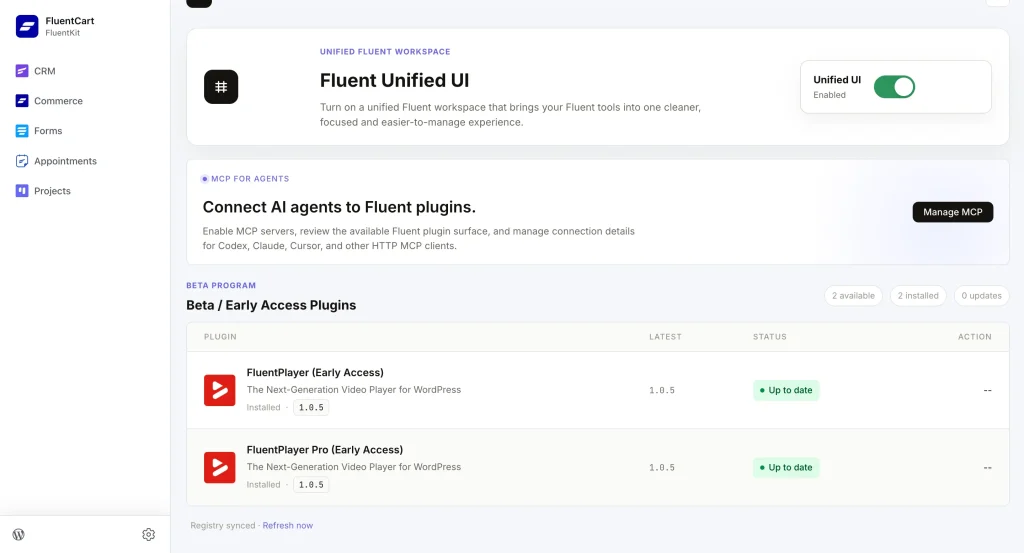
FluentHub brings the WPManageNinja product lineup into one connected WordPress experience.
Instead of treating every plugin as a separate island, FluentHub gives the ecosystem a shared home. Products remain individually powerful, but moving between them becomes cleaner and more consistent.
This connected approach is not new to WPManageNinja.
A FluentCRM contact profile can already include activity from other products. A Fluent Support agent can view relevant purchase or license information while working on a customer ticket. The products have been sharing useful context for years.
FluentHub takes that philosophy further by bringing the entire lineup into a unified dashboard.
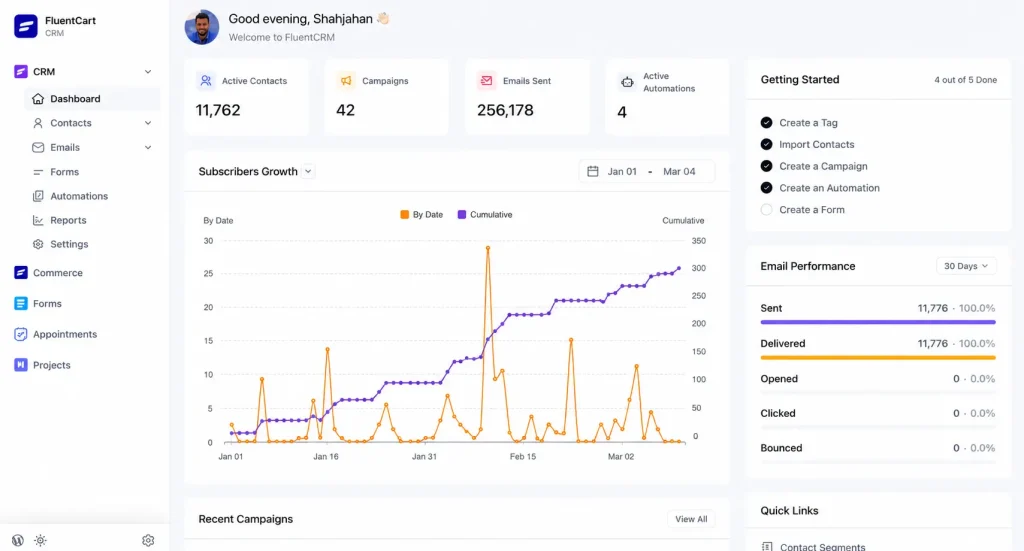
FluentHub MCP adds the conversational layer.
It helps compatible AI agents reach the abilities made available by your WPManageNinja products. Your agent can discover those abilities, call the right tools, and return the result inside your conversation.
The basic flow looks like this:
You → AI agent → FluentHub MCP → Plugin(FluentCart/FluentCRM/FluentSupport/FluentBoards) → WordPress data
You describe the outcome you need. The agent identifies the available tool. FluentHub carries the authenticated request to your WordPress site. The relevant product processes the request.
The agent returns the answer or asks for approval before completing a sensitive action.
You do not need to remember tool names, endpoints, database fields, or complicated filters. You ask in plain language.
One Connected Layer for the WPManageNinja Ecosystem
Most businesses do not use only one WordPress plugin.
They may use:
- Fluent Forms to capture leads and collect information
- FluentCRM to manage contacts, campaigns, and automations
- FluentCart to sell products and subscriptions
- Fluent Support to manage customer conversations
- FluentBooking to schedule meetings
- FluentCommunity to run a community or membership experience
- FluentAffiliate to manage partners
- FluentBoards to organize projects
- FluentSMTP to manage WordPress email delivery
- FluentPlayer to publish conversion-focused video
- WP Social Ninja to display reviews and social proof
- Ninja Tables to organize and present structured information
- Paymattic to collect payments and donations
The products already work closely together. FluentHub makes that relationship more visible and easier to navigate.
MCP gives that ecosystem a common conversational direction.
Today, the deepest publicly documented MCP abilities are already visible in products such as FluentCRM, FluentCart, FluentBoards and Fluent Support. As more product abilities are added, the same conversation can cover a larger part of the business.
That is where the long-term value becomes hard to ignore.
You are not connecting an AI assistant to one isolated plugin. You are building a conversational operating layer across a growing WordPress business stack.
What Can You Do With FluentHub MCP?
FluentHub MCP can support two broad types of work.
Find and Understand Information
Your agent can use read-only tools to retrieve current business information, such as:
- Contact records
- Lists and tags
- Campaign performance
- Automation activity
- Products and variations
- Orders and refunds
- Customers and subscriptions
- Coupons and revenue reports
- Support tickets and conversations
- Customer support history
- Support team activity
- Available workflows and business context
Complete Authorized Actions
When the connected product exposes write tools and the WordPress user has permission, an agent may also be able to:
- Create or update a contact
- Add a contact note
- Apply or remove lists and tags
- Draft or update a campaign
- Send a test email
- Enroll a contact in a sequence
- Update an order status
- Add an internal order note
- Create or update a coupon
- Cancel a subscription
- Preview and process a refund
- Assign or tag a support ticket
- Add an internal support note
- Reply to a ticket
- Close or reopen conversations
- Merge duplicate tickets
- Run bulk ticket actions
The exact abilities depend on the connected product, product version, installed edition, WordPress account, and permissions assigned to that account.
Talk to Your CRM With FluentCRM MCP
FluentCRM currently exposes 25 MCP tools when the documented Pro additions are available. These cover contacts, lists, tags, dynamic segments, campaigns, automations, sequences, and workspace context.
You do not need to call those tools by their technical names.
You can ask:
- “Show me all subscribed contacts tagged as VIP Customers who joined last month.”
- “How many customers have not opened an email in the last 90 days?”
- “Remove the Trial tag from contacts who already have the Paid Customer tag.”
- “Show me the open and click rates from our last three campaigns.”
- “Which contacts are currently inside the New Customer Welcome automation?”
- “Enroll everyone tagged Free Trial into the onboarding sequence.”
- “Add a note to this contact saying they requested an enterprise quote.”
Your agent interprets the request and chooses the appropriate CRM tool.
This makes FluentCRM useful beyond the marketing team.
A salesperson can request a customer summary before a call. Support agent can check whether someone is receiving a particular sequence.
A manager can request a campaign report without navigating through multiple reporting screens. Business owner can ask for a quick CRM briefing before starting the day.
Talk to Your Store With FluentCart MCP
FluentCart MCP gives connected agents access to focused commerce tools for products, customers, orders, subscriptions, coupons, labels, filters, and store reports. It can also support controlled actions such as updating records, changing order statuses, cancelling subscriptions, and processing approved refunds.
You can ask:
- “How much revenue did we generate during the last 30 days?”
- “Compare sales from monthly and annual subscriptions.”
- “Show me failed renewals from the last seven days.”
- “Find unfulfilled orders above $200 from customers in Germany.”
- “Which products have the highest refund rates?”
- “Create a 15% coupon for annual plans and deactivate it after Friday.”
- “Preview a refund for order #1045.”
- “Add an internal note to every order affected by the shipping delay.”
FluentCart’s MCP design separates ordinary lookups from actions that change store data.
Sensitive operations such as refunds and subscription cancellations use a preview-and-confirm process. The connected user must also have the required permission, and live financial actions require explicit approval.
That means you can use your agent for real store operations without turning every chat request into an uncontrolled action.
Talk to Your Helpdesk With Fluent Support MCP
Fluent Support currently exposes 20 documented MCP tools covering tickets, conversations, saved replies, assignments, tags, customers, workflows, activity, and support insights.
You can ask:
- “Summarize the last five open tickets from this customer.”
- “Find all high-priority tickets assigned to Sarah.”
- “Reply to ticket #142 using our standard refund response.”
- “Show me tickets that have been waiting for a customer response for more than seven days.”
- “Assign billing tickets to the finance support team.”
- “Merge these duplicate tickets and add an internal note explaining the reason.”
- “Which support agent had the fastest response time today?”
- “How many billing-related tickets are still open this week?”
This can remove a surprising amount of routine work.
Instead of opening tickets one by one, an agent can review conversations, identify patterns, group issues, prepare summaries, and propose the next action.
A human agent can then focus on the cases that need judgment, empathy, negotiation, or technical investigation.
The Bigger Opportunity: Ask Across the Customer Journey
The real power appears when your business question does not fit neatly inside one product.
Imagine a customer who:
- Submitted a Fluent Forms lead form
- Entered FluentCRM
- Received a campaign
- Purchased through FluentCart
- Joined a FluentCommunity space
- Booked a consultation
- Opened a Fluent Support ticket
That customer is not seven separate records from a business perspective. It is one relationship.
A useful AI agent should be able to help you understand that relationship without forcing you to reconstruct it manually.
You could ask:
“Give me a complete summary of this customer before I reply to their ticket.”
The useful answer may include:
- Contact status
- Lists and tags
- Form submissions
- Email engagement
- Purchased products
- Active subscriptions
- Support history
- Community activity
- Previous bookings
- Internal notes
- Relevant risks or opportunities
As MCP support expands across more WPManageNinja products, this type of cross-product request becomes easier.
The destination is not simply “AI inside WordPress.”
It is a connected business that can explain itself when you ask a question.
What a Day With FluentHub MCP Could Look Like
9:00 AM: Get a Business Briefing
You open your preferred AI client and ask:
“Give me a briefing for yesterday. Include new contacts, sales, failed payments, urgent support tickets, and anything unusual.”
Instead of checking each dashboard separately, you begin the day with one organized view.
10:30 AM: Investigate a Revenue Change
“Revenue is down this week. Compare the current period with the previous week and identify the largest changes.”
Your agent can inspect products, orders, subscriptions, coupons, and refunds before giving you a structured explanation.
12:00 PM: Prepare for a Customer Call
“Summarize Sarah’s contact history, purchases, email engagement, active subscription, support conversations, and internal notes.”
The account manager enters the call with context instead of asking the customer to repeat information the business already has.
2:00 PM: Clean Up the Support Queue
“Find unresolved high-priority tickets waiting longer than eight hours. Group them by issue and suggest an owner.”
The support manager receives a prioritized list rather than another crowded ticket view.
3:30 PM: Build a Campaign Audience
“Estimate how many subscribed customers purchased Product A but have not bought Product B and have opened an email in the last 60 days.”
The marketer can review the segment before building the campaign.
5:00 PM: Review the Day
“Summarize what changed today, which actions were completed, and what still needs human approval.”
Your chat becomes an operational record, not just a place to brainstorm.
How to Connect FluentHub MCP to Your AI Agent
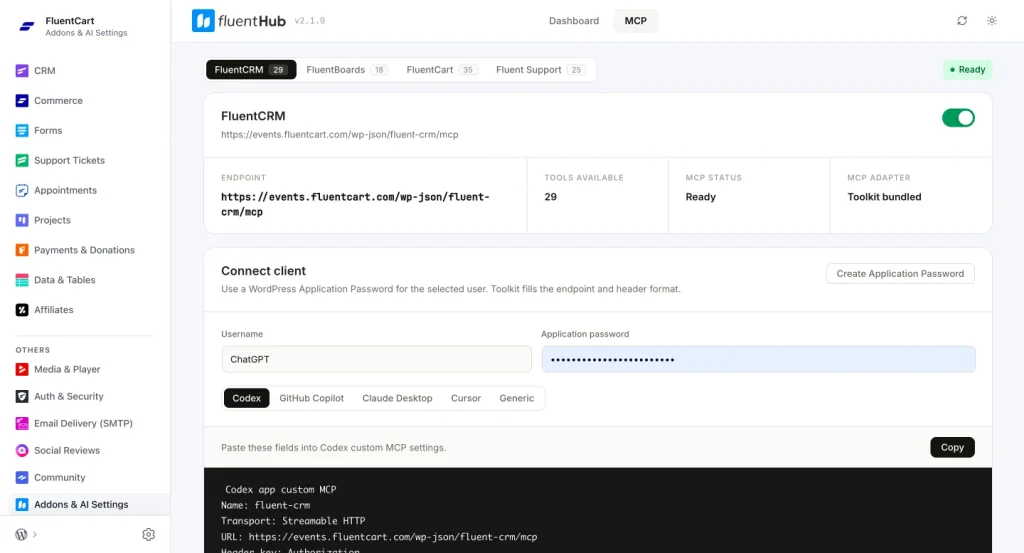
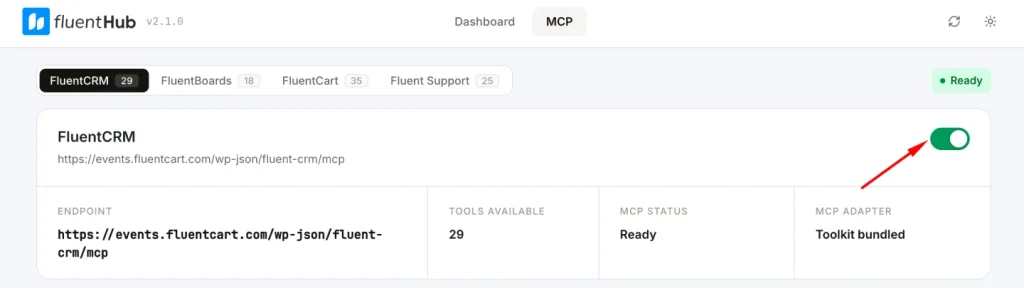
Getting connected is pretty straightforward. FluentHub gives you a dedicated MCP dashboard where you can enable products, authenticate a WordPress user, and generate the configuration for your preferred AI client.
Step 1: Install FluentHub
Install and activate FluentHub on your WordPress site.
Once activated, open the FluentHub dashboard and go to:
Addons & AI → MCP
This is your central MCP dashboard.
From here, you can see which WPManageNinja products are connected, whether their MCP endpoints are ready, and how many tools each product currently makes available.
Step 2: Enable the Products You Want to Use
The MCP dashboard lists supported WPManageNinja products separately.
For each product, you can see information such as:
- MCP endpoint
- Available tools
- MCP status
- Active MCP adapter
Turn on the products you want your AI agent to access.
As MCP support expands across the WPManageNinja ecosystem, more products and business operations can be managed from the same place.
Step 3: Connect a WordPress User
Scroll down to Connect Client.
You need two things:
Username: The WordPress user the AI agent will operate as.
Application Password: A WordPress Application Password belonging to that user.
The easiest approach is to use the user you are currently logged in with. FluentHub can use that username, and you can click Create Application Password to generate a new credential for the AI client.
You can also create a dedicated WordPress user specifically for MCP access and give that account only the permissions it needs.
Important: This field uses a WordPress Application Password, not the user’s normal WordPress login password.
Once the username and Application Password are entered, FluentHub prepares the connection details automatically.
Choose Your AI Client
Now choose where you want to use your WordPress business data.
FluentHub currently provides dedicated connection options for:
Codex | GitHub Copilot | Claude Desktop | Cursor | Generic
You do not have to manually figure out the endpoint, authentication header, or configuration format for each client. Select the client, then use the configuration FluentHub generates for it.
Connect FluentHub MCP to Codex
Select Codex from the client tabs.
FluentHub will generate the configuration required to connect the current MCP endpoint to Codex.
Copy the generated command or configuration.
Then open the terminal on the machine where Codex is installed and run the command provided by FluentHub.
Codex supports MCP servers through its CLI, desktop app, and IDE extension, with the configuration shared between local Codex clients. You can verify your configured servers with:
codex mcp listOr, inside the Codex terminal interface:
/mcpYou should see your FluentHub MCP server and its available tools.
Then try something simple:
“What FluentCRM tools do you have access to?”
Or:
“Show me the five most recently added contacts in FluentCRM. Do not change anything.”
Once Codex returns live WordPress data, the connection is ready.
Connect FluentHub MCP to GitHub Copilot
Select GitHub Copilot in FluentHub and copy the generated configuration.
For GitHub Copilot in VS Code, MCP servers can be configured through an mcp.json file or your personal VS Code configuration. Once added, start the server, open Copilot Chat, switch to Agent mode, and check the tools list for the newly connected MCP tools.
Then you can ask:
“Check my FluentCRM data and summarize the latest customer activity.”
Or:
“Find unresolved support tickets that need attention.”
Copilot can use the exposed FluentHub tools directly from Agent mode.
Connect FluentHub MCP to Claude Desktop
Select Claude Desktop and copy the configuration FluentHub generates.
Add the connection to Claude Desktop using the MCP or connector settings available in your version of Claude Desktop.
For remote MCP connections, current Claude versions provide connector management through Settings → Connectors, while local MCP integrations can also be managed through Desktop Extensions.
Once connected, start a new conversation and ask:
“What tools are available from my WordPress site?”
Then move to a real task:
“Give me a summary of recent CRM contacts, orders, and support activity available through the connected tools.”
Connect FluentHub MCP to Cursor
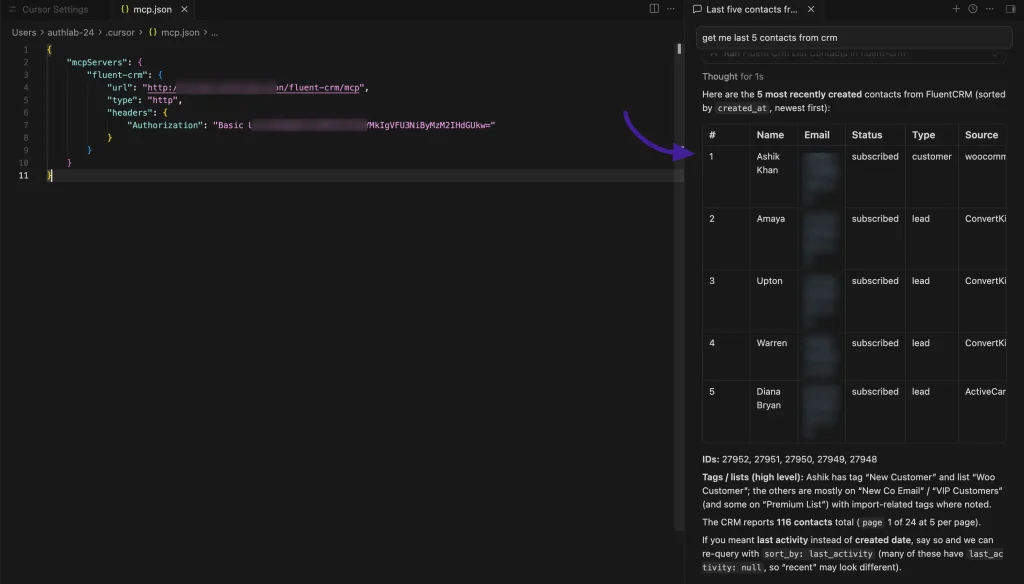
Select Cursor in FluentHub and copy the generated MCP configuration.
Cursor supports MCP through its MCP configuration and can connect to remote HTTP servers as well as locally running MCP servers.
Custom configurations can be stored globally in:
~/.cursor/mcp.jsonor inside a project:
.cursor/mcp.jsonOnce the FluentHub connection is active, Cursor Agent can discover and use its available MCP tools directly from chat.
Try:
“Show me the available FluentCRM tools.”
Then:
“Find the latest 10 contacts and summarize how they entered the CRM.”
Connect Any Other MCP Client
FluentHub also provides a Generic option.
Use this when your preferred AI agent supports HTTP MCP but does not have a dedicated FluentHub tab yet.
The Generic view gives you the essentials:
- MCP endpoint URL
- Authentication header
- Basic Auth credentials
- Example request
Copy those values into the MCP configuration supported by your client.
That means FluentHub is not locked to the clients listed in the dashboard. Any compatible client that supports the required HTTP MCP connection and authentication can potentially connect using the Generic configuration.
Test the Connection Before Doing Anything Else
Start with a read-only request.
For example:
“List the WPManageNinja products and tools you currently have access to. Do not make any changes.”
Then test live data:
“Show me the five most recent FluentCRM contacts.”
“Show me the latest FluentCart orders.”
“Find the newest open Fluent Support tickets.”
Once those work, your AI agent is connected to the live business data available through FluentHub MCP.
From there, the interesting part begins.
You can stop asking:
“Where do I find this?”
And start asking:
“What is happening in my business?”
And as more WPManageNinja products become deeply integrated with FluentHub MCP, that single conversation can cover more and more of your day-to-day business operations.
Keep Access Under Control
Giving an AI agent access to live business systems deserves more care than asking it to rewrite a paragraph.
FluentHub MCP connections use WordPress authentication and product permissions. The agent acts through the WordPress user connected by the Application Password. It cannot automatically bypass that user’s role or gain full administrative access.
Use these practices from the beginning.
Create a Dedicated WordPress User
Do not connect every AI client through the primary administrator account. Create a user specifically for the required workflow and give it only the permissions it needs.
A reporting agent may need read access. A support agent may need permission to view and update tickets. A store operations agent may need access to orders but not site settings.
Use One Application Password Per Client
Create separate credentials for:
- Cursor
- Claude Desktop
- Claude Code
- Codex
- Internal agents
This lets you revoke one connection without affecting the others.
Start With Read-Only Workflows
Begin with questions, reports, searches, and summaries.
Once you understand how the agent selects tools and presents results, gradually introduce write actions.
Request a Preview Before Changes
Use prompts such as:
“Show me the proposed changes first. Do not update anything until I approve.”
This is especially useful for bulk updates, campaign changes, contact deletion, refunds, subscription cancellations, and customer-facing replies.
Never Expose Credentials in Screenshots
Before publishing a tutorial screenshot, hide:
- Application Passwords
- Authorization headers
- Encoded Basic authentication tokens
- Private endpoint credentials
- Customer email addresses
- Ticket content
- Order information
- Internal notes
Revoke Access When It Is No Longer Needed
Go to:
Users → Profile → Application Passwords
Find the connection and click Revoke.
You can also disable MCP from the product settings to stop all clients connected to that endpoint.
Copy-Ready Prompts for FluentHub MCP
Daily Business Briefing
Complete Customer Summary
Revenue Investigation
Campaign Audience Research
Support Prioritization
Failed Subscription Recovery
Controlled Bulk Update
End-of-Day Review
What FluentHub MCP Does Not Mean
FluentHub MCP is powerful, but it is not magic.
- It does not automatically expose every WordPress record.
- It does not give an AI agent unlimited administrator access.
- It does not make every WPManageNinja product action available at once.
- It does not remove product roles or permission checks.
- It does not guarantee that every external AI client handles approvals in the same way.
- It does not replace human judgment for sensitive customer, financial, legal, or operational decisions.
- It also cannot fix disorganized business data by itself.
If your CRM has unclear tags, duplicate lists, incomplete contact records, or abandoned automations, your agent will still be working with that structure.
Good AI operations begin with clean data, clear permissions, and well-defined processes.
Why FluentHub MCP Will Become More Valuable Over Time
The biggest advantage of FluentHub MCP is not one clever prompt.
It is the growing number of business capabilities that can become available through the same conversational interface.
- One product may provide customer information.
- Another may provide purchase activity.
- Another may provide support context.
- Another may provide bookings, community activity, affiliate performance, form submissions, projects, or delivery information.
As those abilities come together, your agent gains a more useful understanding of the business.
You will spend less time asking:
- Which dashboard contains this?
- Which filter should I use?
- Where did we store that information?
- Which customer record is the correct one?
- Who needs to complete the next action?
Instead, you will describe the outcome:
- “Find what needs attention and explain why.”
- “Show me the complete customer story.”
- “Compare what changed.”
- “Prepare the next action.”
- “Complete the approved updates.”
This is how business software should feel. Not like a maze of menus. Like a conversation with a system that already understands where the work lives.
Your Business Is Already Talking. FluentHub Helps Your Agent Listen.
WPManageNinja products already capture an enormous amount of useful business context.
Fluent Forms knows who submitted the form. FluentCRM knows how the relationship developed. FluentCart knows what they purchased.
Fluent Support knows where they got stuck. FluentBooking knows when they want to meet. The FluentCommunity knows how they participate.
The information has always been valuable. It has simply been spread across different workflows and screens.
FluentHub brings the ecosystem together. MCP brings it into your conversation.
And as more WPManageNinja product abilities become available, your AI agent can take on a larger share of the repetitive searching, filtering, reporting, and operational work that slows your team down.
You will still make the decisions and control the access. You will still decide which actions deserve human approval.
But the details you need will be much closer. Right inside your chat. Right at your fingertips.
-

Black Friday Marketing Strategies for 2026: Core and Advance Move
Black Friday is the most celebrated shopping season worldwide. Discover -

7 Best Ecommerce Plugins for WordPress in 2026 (Tested And Compared)
Compare the 7 best ecommerce plugins for WordPress in 2026 -

How Much Can You Earn With Amazon Affiliate Marketing? Rates & Niches
How much can you earn with Amazon affiliate marketing? Dive


Leave a Reply
You must be logged in to post a comment.