

How to Manage Client Feedback in WordPress Without Losing Track
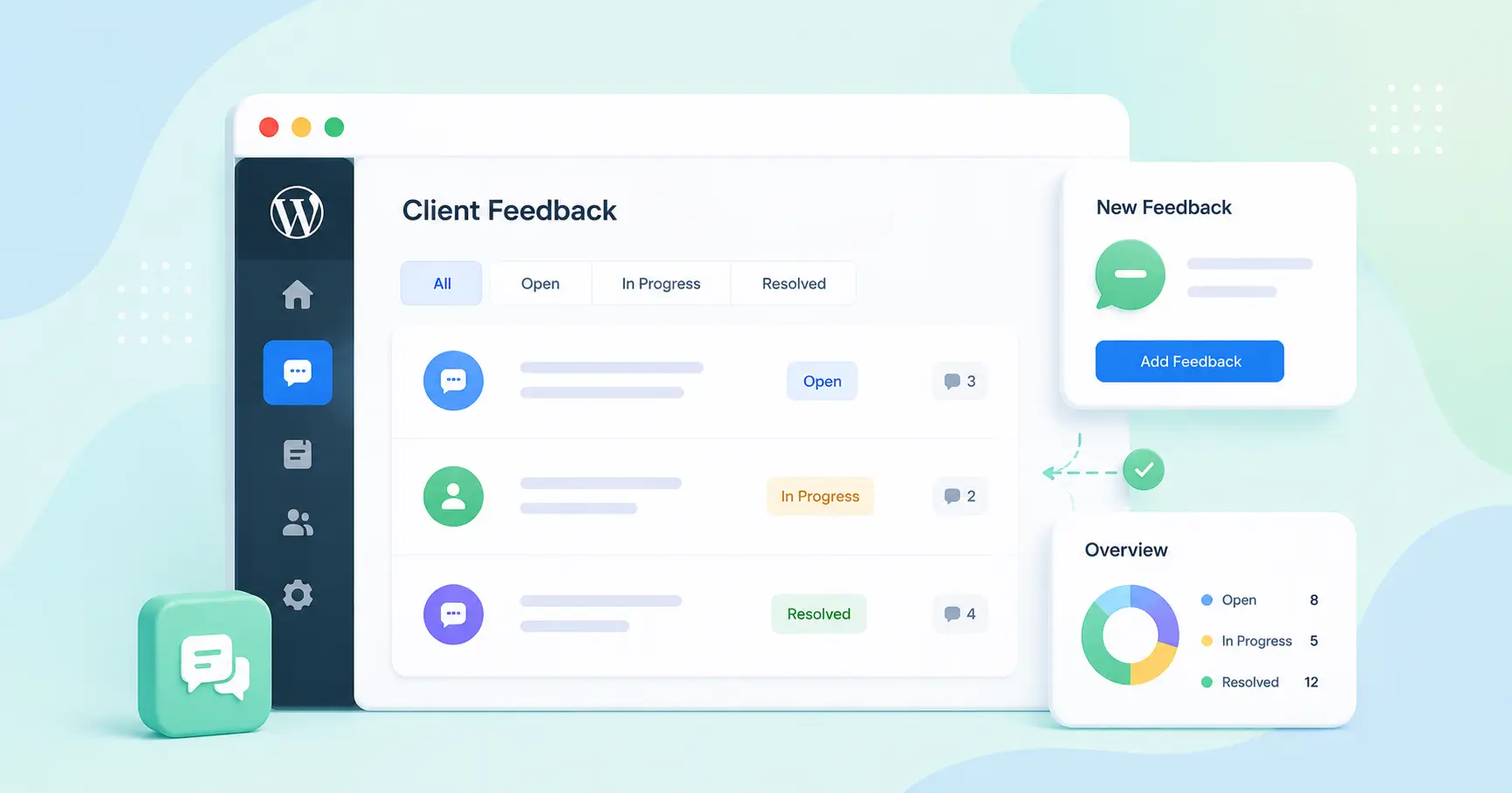
A client sends three changes by email, mentions a fourth on a call, and drops a screenshot in chat.
By the time you sit down to work, one of them is already gone.
That is how client feedback usually goes. It arrives in too many places, none of them have a status, and the request that slips is the one the client remembers in your next meeting.
It does not have to work this way. Not when your project already lives in WordPress. With FluentBoards, you can capture, track, and close every piece of client feedback inside the same dashboard you use every day.
Here is exactly how to set it up.
Key Takeaways
- Scattered feedback across email and chat is the main reason client requests get lost.
- A reliable system needs one place to capture feedback, a clear owner, and visible status.
- FluentBoards keeps every comment on the task it belongs to, so context stays intact.
- Subtasks turn a single comment into separate, trackable action items.
- The Frontend Portal lets clients see their project on your site, with the access you choose.
Why Client Feedback Disappears Between Delivery and Revision
Most revision rounds do not fail because the client gave vague feedback. They fail because of what happens to that feedback after it arrives:
- It comes in across several channels, email, calls, chat, and never gets consolidated
- No single person owns the full list, so nobody has the complete picture
- Work restarts before anyone confirms what was actually agreed
That is a system problem, not a communication problem.
Picture a normal delivery cycle at a web agency. The homepage design goes to the client on Thursday. They email one comment on Friday. On Monday they call with three more. A designer messages the account manager to ask which change is the priority. By Tuesday, two people are working on overlapping edits because neither knew what the other was handling, and the client follows up about a revision nobody logged.
This plays out at nearly every agency running projects across disconnected channels. It repeats every cycle because the root cause is never fixed.
The cost is real. According to the Project Management Institute, ineffective communication is the primary contributor to project failure about one-third of the time. Feedback that never reaches the right person, in the right place, is exactly that kind of gap. For agencies and freelancers, that gap shows up as a real bill:
- Rework, when the same change gets done twice or missed entirely
- Missed revisions that surface in the next client call
- Tense conversations about what was promised and what was delivered
The fix does not ask the client to change how they communicate. It asks your team to route whatever arrives into one system, every time.
What a Reliable Client Feedback System Needs
Before the steps, it helps to know what you are building toward. A system that holds up under real client work needs a few things in place:
- One place to capture it: every note lands in the same spot, whatever channel it came from
- A clear owner: one name on each item, so nobody assumes someone else has it
- Visible status: anyone can see whether a request is open, in progress, or done
- Context kept with the request: the discussion lives on the work, not in a separate thread
- A way to loop the client in: without handing over the whole board
FluentBoards covers all five inside WordPress. The rest of this guide walks through how to set it up, step by step.
How to Manage Client Feedback in WordPress (Step by Step)
So let us build it. Here is the full workflow, from the first note to a client who can watch their project move.
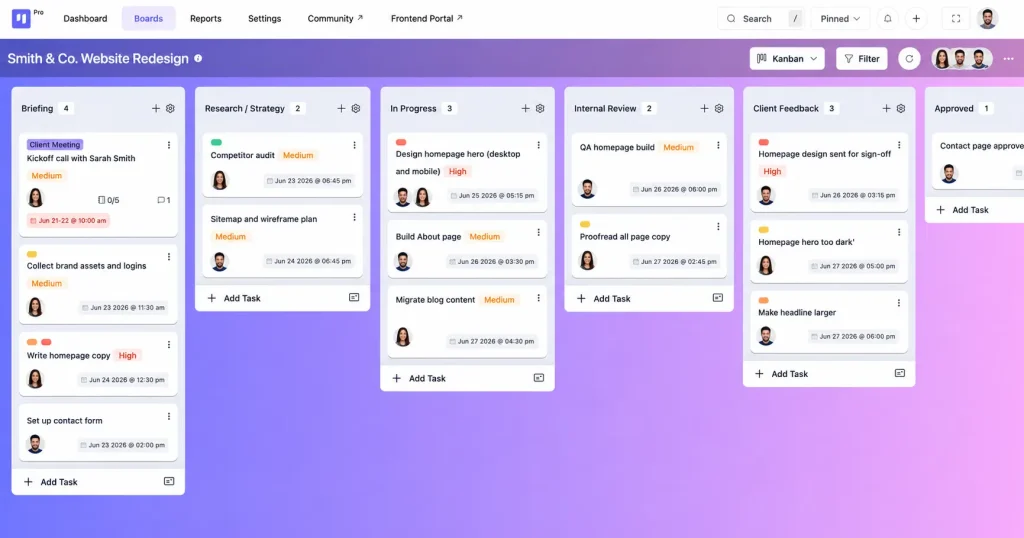
Step 1: Centralize every piece of feedback on one board
Start with a single board for the project. Add a stage named Client Feedback, and make it the front door for every incoming note.
When new feedback comes in, it becomes a task on the board, which means it stops living in a private inbox where only one person can see it.
This sounds simple, and that is the point. The hardest part of feedback management is not the tooling, it is the discipline of putting everything in one place. A board makes that easy because it gives the feedback somewhere obvious to go.
Step 2: Keep each comment in context on the task
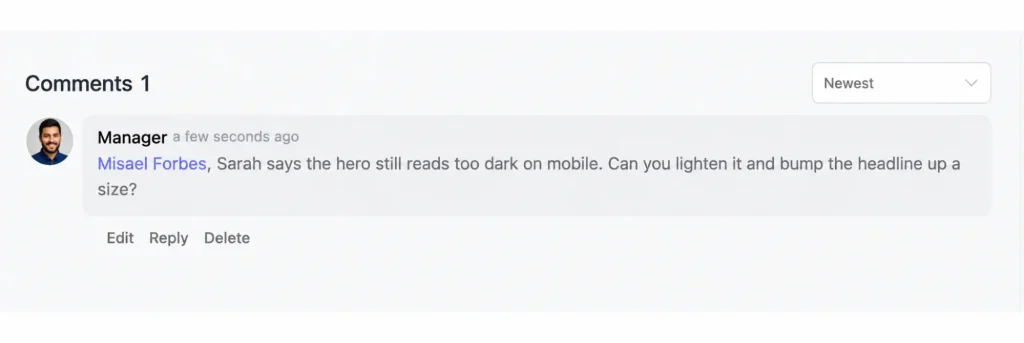
Open the task and add the feedback as a comment. The comment sits on the exact item it refers to, so the context travels with the work.
Use @mentions to pull in the person who needs to act. They get notified right away, and a click on that notification takes them straight to the comment.
This is the heart of keeping feedback on track. Instead of “which email had that note about the header,” the whole discussion lives on the task, where anyone can read it.
Step 3: Break feedback into action items with subtasks
One comment often holds several requests. “Change the header, fix the mobile spacing, and swap the hero image” is three jobs, not one.
Break each into a subtask so every piece is tracked on its own. Now the task is not done until all three are checked off.
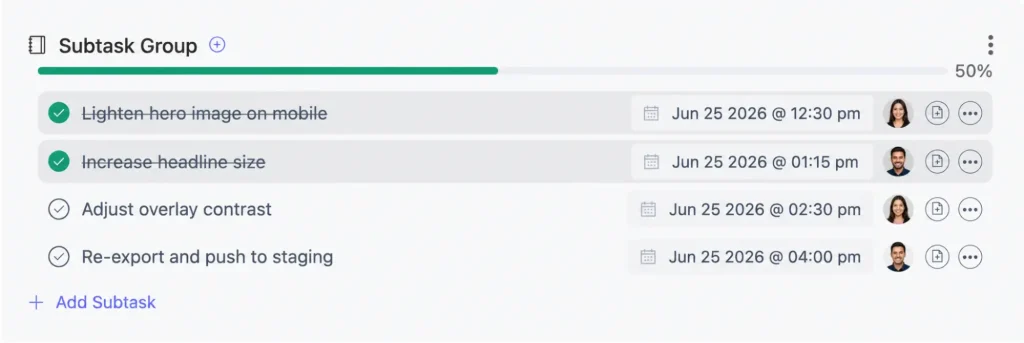
Pro tip: Turn each distinct request into its own subtask. That way a single comment with five asks can never get marked done with two still open.
Step 4: Assign an owner and a due date
A request with no owner waits forever. Assign each task to a specific team member, and set a due date, so everyone knows who is responsible and by when. This is the step that turns a list of feedback into actual movement.
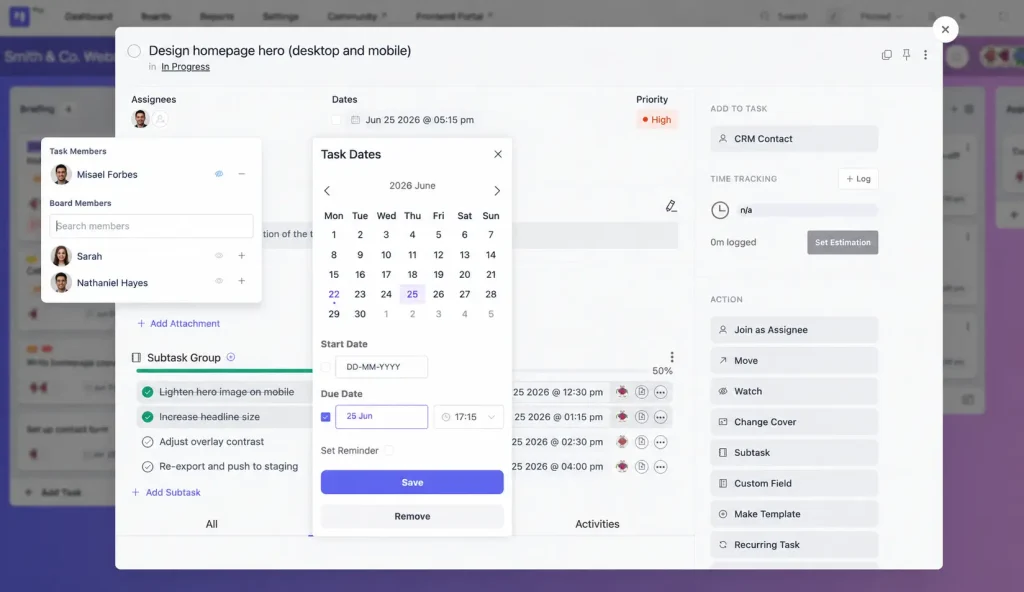
Due dates also give you an early warning. When a revision is sitting close to its deadline with no progress, you can see it and step in before the client has to follow up. Feedback moves because someone owns it, not because someone remembers it.
Step 5: Track status from raised to resolved
As work happens, drag the task through your stages: received, in progress, in review, done. The Kanban view is free and gives you that at-a-glance status for the whole project.
Need a different angle on the same data?
Calendar view (Pro) maps revision deadlines across the month, which helps when several clients overlap and you need to see what is due when.
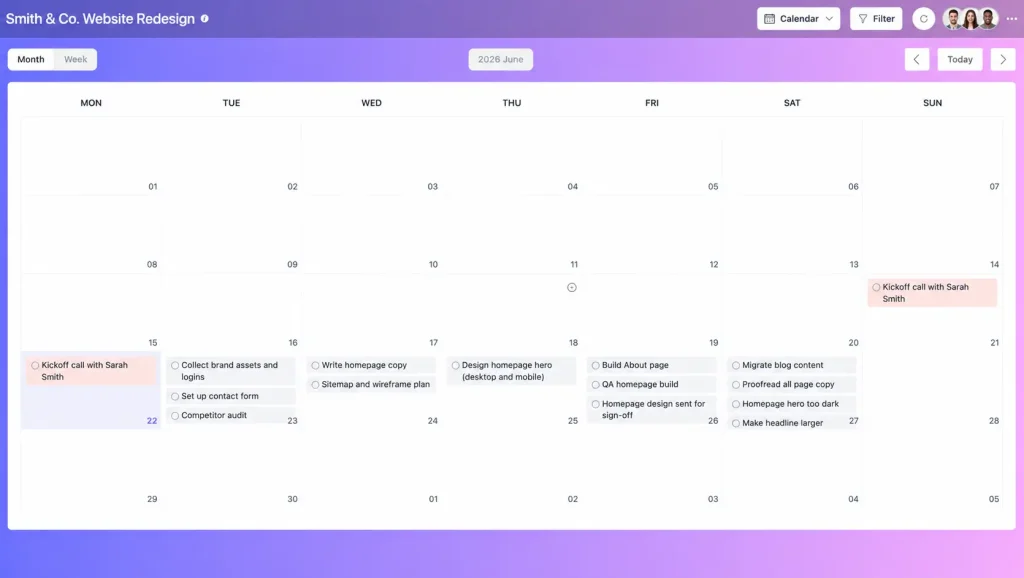
If you are weighing which views you need, the FluentBoards Free vs Pro breakdown has the full comparison.
Share Progress and Collect Feedback Without Giving Full Access
Want to keep clients in the loop without handing them the keys to your whole board? You have two clean options. You can show clients a scoped view of their project, or you can let them send feedback in through a form. Many agencies use both.
Show clients the board with the frontend portal
The Frontend Portal publishes a project board on the front end of your WordPress site. Clients reach it through a login and see only their own project, never your dashboard and never another client’s work. You decide their role on the board, so a client can land as a Viewer with read-only access, or you can let them comment if you want their feedback in the same place.
This gives clients real visibility without real risk. They can watch progress, check status, and see that their requests are being handled, all without touching your admin or anyone else’s project.
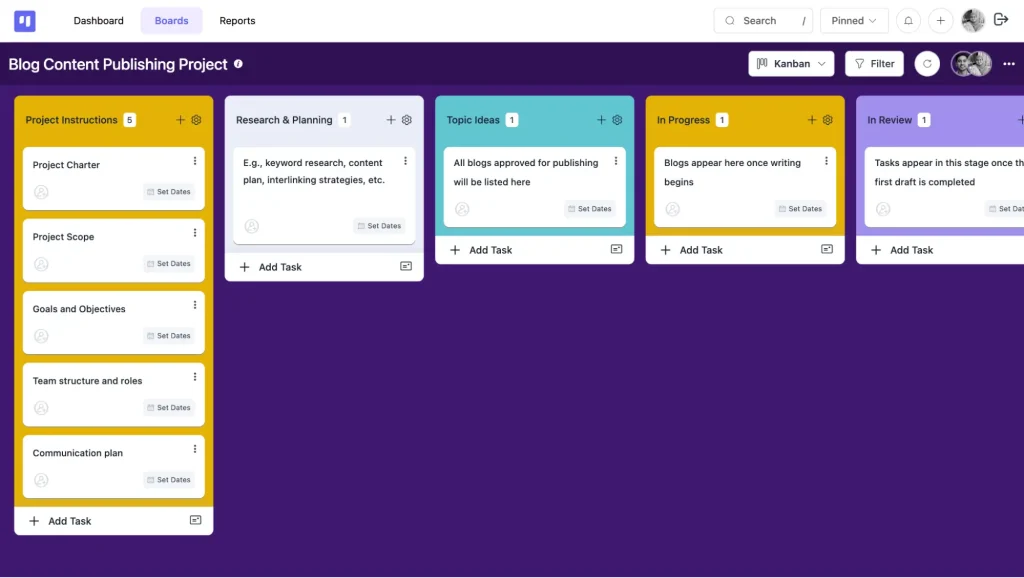
Note: The Frontend Portal is a Pro feature. Clients access it through a login, so add the client as a board member first, then set their role.
Collect feedback through a form with Fluent Forms
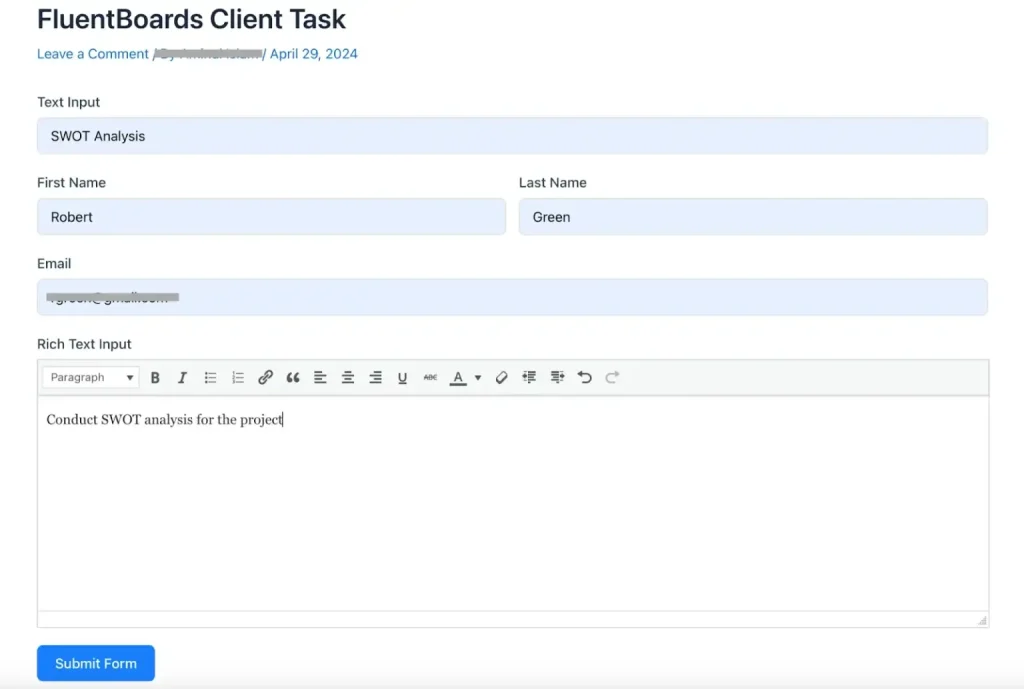
Sometimes you want feedback coming in, but no access going out. Connect Fluent Forms to FluentBoards, and a form submission turns into a task on the board you choose. The client fills out a simple feedback form, and their request lands in your workflow automatically, already sorted to the right place.
This is the cleanest option for clients who are not comfortable inside a project board at all. They use a familiar form, and you get a structured task instead of a loose email. You can see how this and other connections work on the integrations page.
Keep Feedback on Track Across Multiple Rounds
Most projects run more than one round of feedback, and the later rounds are where things drift. A request from round one gets buried under round three, and suddenly nobody is sure what was agreed. A few habits keep everyone on the same page.
- Use @mentions to pull the right person into a comment, so the owner sees it without a separate message.
- Lean on the activity log, which records every change on a task and gives you an audit trail when a client asks what happened to an earlier request.
- On Pro, use the calendar view to see revision deadlines across rounds, so a crunch is visible before it arrives.
Through every round, the board stays the single source of truth. New feedback becomes a task, gets an owner, and moves through your stages, the same loop each time. That repetition is what keeps a long project from turning into a guessing game.
Frequently Asked Questions
Can clients leave feedback without a WordPress login?
Yes, with the Frontend Portal on Pro. Clients reach a scoped view of their project through a login on your site and see only their own work, never your dashboard. You decide whether they can comment or only view.
How do I track which feedback is done and which is still open?
Break each revision round into subtasks, with one status each. The parent task stays open until every subtask is complete, so you can see exactly where a round stands without asking the team for an update.
Can FluentBoards notify the client automatically when their feedback is done?
Yes, if you use FluentCRM. When a feedback task changes stage, the FluentCRM integration can trigger a status email to the client, so closing the loop on a finished revision needs no manual follow-up. It is optional, the core workflow does not require it.
What is the difference between a task comment and a new task?
Use a comment for feedback on an existing deliverable that is within scope. Create a new task when the feedback adds work that was not in the original brief, since that may need a separate conversation about timeline and cost.
Build Your Client Feedback System Today
Lost feedback is a system problem, not a client problem. Give every request one home, one owner, and a status you can see, and the chaos settles. The core loop runs inside the WordPress dashboard your team already uses, with no separate app to check.
Set up a single board for your next client project and route every piece of feedback into it. For agencies scaling this across clients, the project management solution for agencies page covers licensing, or try the FluentBoards demo first.

Hi there! I’m Mahjabin, a content writer at WPManageNinja. I write about project management and love helping teams find smarter solutions to everyday work challenges.
-
10 Best jQuery Table Plugins for Best Data Visualization in 2026
Discover the 10 best jQuery table plugins for 2026. Compare -

Black Friday Marketing Strategies for 2026: Core and Advance Move
Black Friday is the most celebrated shopping season worldwide. Discover -

How Much Can You Earn With Amazon Affiliate Marketing? Rates & Niches
How much can you earn with Amazon affiliate marketing? Dive



Leave a Reply
You must be logged in to post a comment.