

How to Add Chapters to YouTube Videos [+ WordPress Embed Guide]
![How to Add Chapters to YouTube Videos [+ WordPress Embed Guide]](https://wpmanageninja.com/wp-content/uploads/2026/04/How-to-Add-Chapters-to-YouTube-Videos-WordPress-Embed-Guide.webp)
You search something on Google. A YouTube video comes up. You click it. The video is 18 minutes long and answers five questions. You only have one. Without chapters, you are scrubbing. But with chapters, you are there in three seconds.
Now think about your own videos. Your audience does exactly the same thing. They are not watching start to finish. They want one answer, and if they cannot find it fast, they leave.
Chapters fix that. This guide covers how to add them correctly and get more out of them than most creators ever do.
TL;DR
- YouTube chapters require at least three timestamps in your video description, starting from 0:00, with each chapter at least 10 seconds long
- Chapters improve watch time, retention, and SEO, including eligibility for Google Video Snippets
- Automatic chapters exist but produce inconsistent results. Manual chapters give you full control
- Chapter titles are an SEO opportunity. Specific, keyword-rich titles outperform generic labels every time
- When you embed a YouTube video on WordPress, YouTube chapters disappear. FluentPlayer lets you add independent chapters directly inside the embedded player
What YouTube Chapters Actually Are
Chapters are labeled sections that appear along your video’s progress bar. When a viewer hovers over the timeline, they see the chapter name for that segment. They can click any section to jump directly to it.

They also appear below the video as a clickable timestamp list. For longer videos this acts as a visible table of contents. A viewer landing on a 20-minute tutorial can immediately see what is covered and skip to the part they actually need.
Chapters also show up in YouTube Studio analytics. You can see exactly where viewers are skipping to, which sections get replayed most, and where people drop off. That data tells you more about how your audience actually watches than view counts ever will.
Why Chapters Matter More Than Most Creators Think
Most marketers add chapters for navigation. That is a good reason. It is not the only one.
Think about how you found the last video you watched. You typed something specific into Google or YouTube. The result matched what you typed closely enough that you clicked it. That matching happens at the video level.
With chapters, it can happen at the section level too. Each chapter title is a signal. YouTube reads it. Google reads it. A viewer searching for one specific answer can land directly at the right moment in your video.
That is why chapters matter beyond navigation. Every well-labeled section is another chance to get found. And a viewer who finds their entry point quickly is more likely to stay.
How to Use Youtube Chapters
Before you add a single timestamp, know these rules. Breaking any one of them silently prevents chapters from appearing, and YouTube gives you no error message when it happens. Your chapters just do not show up, with no indication of why.
The five non-negotiables:
- The first timestamp must be 0:00
- You need at least three timestamps
- Each chapter must be at least 10 seconds long
- Timestamps must appear in ascending order
- Timestamps belong in the video description, not the comments
The format for each line is strict. Use this as your template:
0:00 Introduction

1:24 Setting up your account

3:48 Adding your first video

6:10 Publishing and sharing
For videos over an hour, the format changes slightly:
0:00:00 Introduction

0:12:30 Chapter two title

1:04:15 Chapter three title
One thing that trips up almost everyone:
Timestamps in the comments section become clickable links that jump to the right point in the video. They look exactly like chapters and even behave like them when you click. But YouTube only reads the description when it builds chapters. If yours are in the comments, no amount of formatting fixes will make them work.
How to Add Chapters Manually
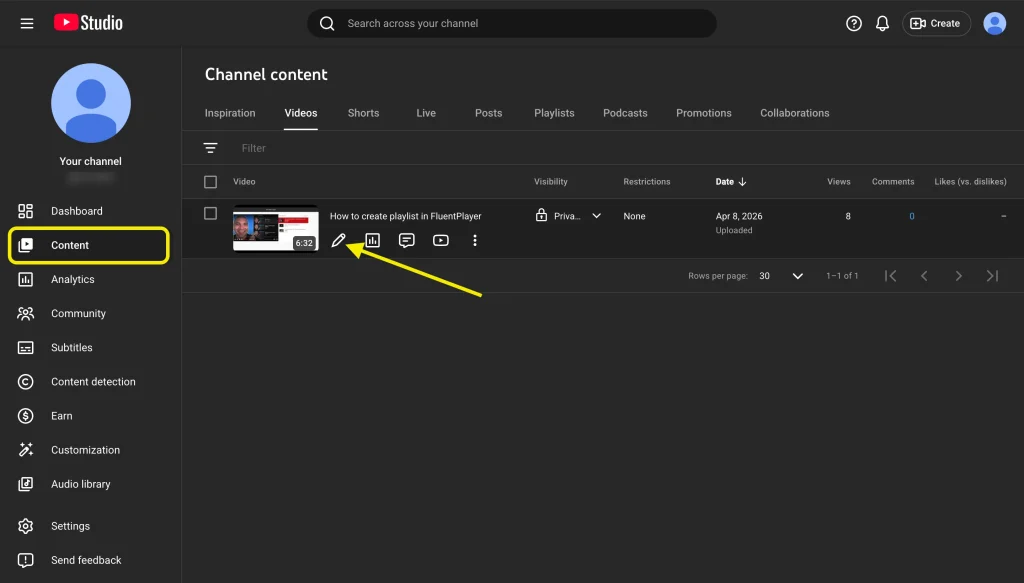
Manual chapters give you full control over naming and placement. Here is how to add them to a video that is already published.Go to YouTube Studio at studio.youtube.com. Select Content from the left menu and click the pencil icon next to the video you want to edit.
Scroll down to the Description field.
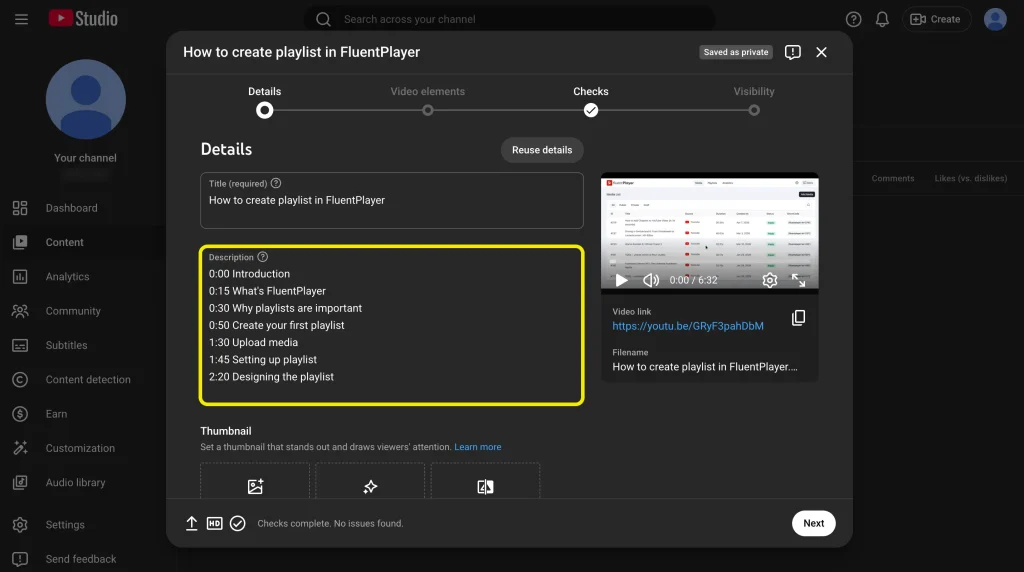
Add your timestamps and titles following the format above, starting at 0:00. Click Save when you’re done.
After saving, go to your video’s public page and hover over the progress bar. You should see labeled segments appear. If chapters do not show immediately, give YouTube a few minutes to process.
You can also add chapters during the initial upload. In the Details step, add your timestamps to the Description field before publishing. It is easier to write the chapter titles at upload while the video structure is still fresh in your head than to come back later and reconstruct it.
Automatic Chapters: When to Use Them and When Not To
YouTube’s automatic chapters sound like a convenience. For anyone using video as a marketing tool, they are a liability.
The system does its best, but what it produces most often are titles like “Going through the features” and “Talking about the options.” Think back to the opening scenario – you needed one specific answer fast. A chapter like that does not get you there. You would still be scrubbing.
For a video you published two years ago and have not revisited, automatic chapters are better than nothing. For anything current, write them yourself.
To disable automatic chapters for a specific video:
- Open the video in YouTube Studio
- Click Show More
- Uncheck Allow automatic chapters and key moments
- Save

To disable them for all future uploads:
- Go to Settings
- Click Upload Defaults
- Click Advanced Settings
- Uncheck Allow automatic chapters
How to Write Chapter Titles That Actually Work
Most creators write chapter titles like section headings in a document. Here is what actually works.
Three rules that matter in practice:
Keep titles under 40 characters. Longer titles get cut off in the progress bar tooltip. What the viewer cannot read, they cannot act on.
Specific beats generic every time. “Introduction” is a wasted slot. “What are YouTube chapters” is a phrase someone might actually search. Every chapter title should be specific enough that it could stand alone as a search query.
Never number sections as the primary label. “Part 1,” “Part 2,” “Part 3” tells your viewer nothing and signals nothing to YouTube. It is the chapter equivalent of a file named “document1.”
Here is what a well-structured set of titles looks like:
0:00 Introduction

0:45 What are YouTube chapters

2:10 How to add chapters manually

4:30 Automatic chapters explained

6:15 Writing chapter titles for SEO

8:40 Common mistakes to avoid
Every title is something a real viewer might search for. That is the standard to aim for.
One Problem Nobody Mentions: Embedded Videos Lose Chapters
When you embed a YouTube video on your WordPress site, the chapters you added in YouTube Studio do not carry over. Your viewer gets a flat, unmarked timeline. The navigation you built stays on YouTube.
So they drag the scrubber. They overshoot, rewind, try again. Most give up before they find what they came for.
How to Add Chapters to Embedded YouTube Videos Using FluentPlayer
That gap is exactly what FluentPlayer is built to close.
FluentPlayer is a WordPress video player plugin by WPManageNinja. It supports video from YouTube, Vimeo, Bunny Stream, and self-hosted sources through one consistent player interface. One of its core features is native chapter support, built independently of whatever YouTube has or has not done with the video.
With FluentPlayer, you add chapters inside WordPress, independent of YouTube. They are built for your audience, labeled for your context, and have nothing to do with what you put in the YouTube description.
Adding chapters to embedded videos works like this:
Install and activate FluentPlayer (for now it’s on the waitlist). Then, add a FluentPlayer block to the post or page where your video lives. Then, paste the YouTube video URL into the block.
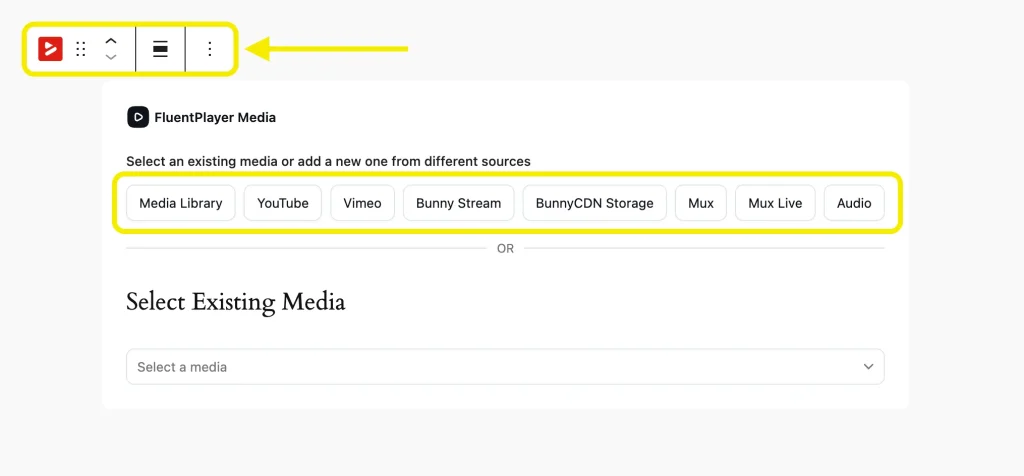
Open the Chapters panel inside the FluentPlayer block settings.

Add each chapter with a title and a timestamp.
Set each timestamp to the exact point in the video where that section begins, save it and publish the video.
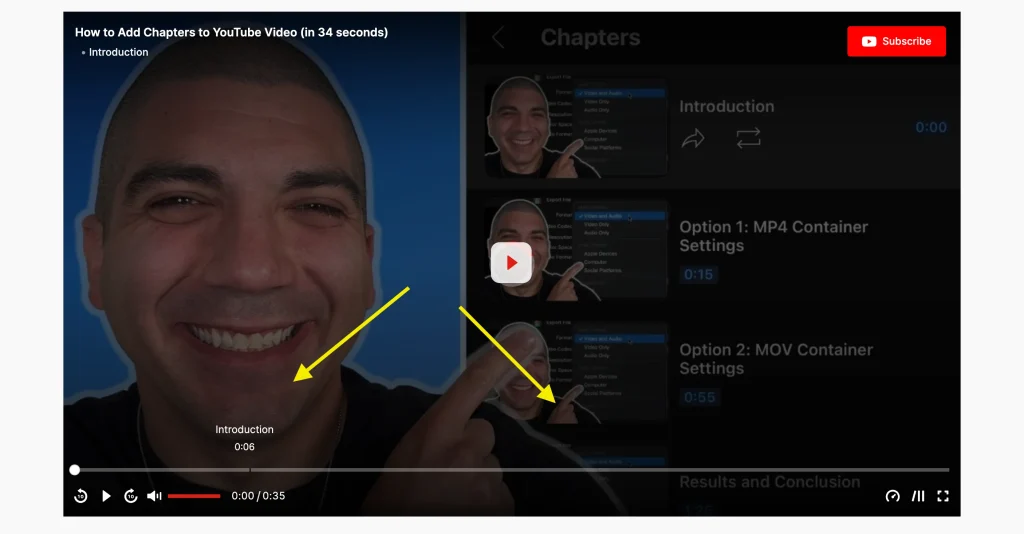
The chapters appear in the player on your WordPress page. Viewers click any chapter to jump directly to that point. Your YouTube video stays unchanged. Your site and your YouTube channel each carry their own chapter structure.
The best part here is, you don’t have to follow the rules of YouTube when using chapters by FluentPlayer. So, you have full control in this case.
For example we used a chapter for a section less than 10 seconds, which you can’t apply in YouTube.
Join the FluentPlayer waitlist at fluentplayer.com to be notified when it launches.
Common Mistakes That Silently Break Your Chapters
These are not edge cases. Every one of these has broken a chapter setup that looked completely correct on the surface – and in every case, YouTube gave no indication of what went wrong. Chapters just did not appear.
Not starting at 0:00. This catches more people than anything else on this list. YouTube produces no errors. Your chapters just silently fail. If your first timestamp is anything other than 0:00, the entire list is ignored. Check this before anything else.
Fewer than three timestamps. Two entries will not activate chapters no matter how well formatted they are. YouTube requires a minimum of three before the feature switches on.
Timestamps in the comments. They look right. They create clickable links that jump to the correct point. But YouTube only reads the description when building chapters. Comments do nothing.
Chapters shorter than 10 seconds. If two timestamps are less than 10 seconds apart, that chapter is silently dropped. This happens most often with intro sections. Check every gap in your list. (Applicable for YouTube)
Wrong format. One extra character before a timestamp, a dash where there should be a space, anything out of place can break the entire list – not just that line. Stick to the exact format: timestamp, space, title. Nothing else on that line.
Timestamps out of order. A single out-of-sequence entry breaks the whole list. This happens most often when editing a description and accidentally rearranging lines. Recheck the order every time you touch it.
If your chapters are not showing after saving, start here. Most failures trace back to one of these six issues.
Before You Go
Adding chapters takes minutes. The navigation benefit, the search visibility, and the watch time improvement last as long as the video is live.
For the effort involved it is one of the highest-return things you can do for a YouTube video.The one gap is what happens when that video moves to your WordPress site. The chapters do not come with it.
If your videos live inside a course, a product page, or a tutorial, your viewers are navigating without the structure you built. FluentPlayer closes that gap. Join the waitlist at fluentplayer.com.

This is Sumit. He’s a physics major who’s trying to understand both the physical as well as the WordPress worlds. Whenever he’s not busy, plays fifa or spends time with his family.
-

10 Best jQuery Table Plugins for Best Data Visualization in 2026
Discover the 10 best jQuery table plugins for 2026. Compare -

Black Friday Marketing Strategies for 2026: Core and Advance Move
Black Friday is the most celebrated shopping season worldwide. Discover -
How Much Can You Earn With Amazon Affiliate Marketing? Rates & Niches
How much can you earn with Amazon affiliate marketing? Dive



Leave a Reply
You must be logged in to post a comment.