

Email Deliverability Hacks: Complete WordPress Guide With Free Tools
Your WordPress site says the email was sent. Your customer says it never arrived.
Both can be true.
WordPress can hand an email to its mail system without knowing whether Gmail accepted it, rejected it, or buried it in spam. Even the official WordPress documentation says a successful wp_mail() response does not mean the recipient received the message.
That gap can cost you password resets, form leads, order confirmations, booking reminders, and sales.
You do not need an expensive setup to fix the foundation. A free WordPress SMTP plugin, correct domain authentication, a healthier contact list, and a few diagnostic tools can make your email system far more dependable.
This guide shows you how.
Key Takeaways
Short on time? Fix these five things first:
- Stop relying on your hosting server to deliver WordPress emails. Connect WordPress to a trusted email provider through FluentSMTP.
- Authenticate your sending domain with SPF, DKIM, and DMARC.
- Use an aligned From address from a domain you own and have authenticated.
- Protect your sender reputation by blocking bad signups, removing invalid addresses, and emailing people who want to hear from you.
- Monitor the full delivery path with FluentSMTP logs, Google Postmaster Tools, MXToolbox, and other free diagnostic tools.
A polished email cannot overcome broken infrastructure. Fix the delivery system first. Then work on content, design, timing, and conversion.
What Is Email Deliverability?
Email delivery and email deliverability sound interchangeable, but they measure different outcomes.
| Term | What It Means |
|---|---|
| Email sent | WordPress successfully passed the message to its configured mail system. |
| Email delivery | The receiving mail server accepted the message. |
| Inbox placement | The accepted message reached the inbox instead of spam. |
| Email deliverability | Your overall ability to get emails accepted and placed where recipients can see them. |
This distinction matters when troubleshooting.
An SMTP log marked “sent” proves that the provider accepted the request. It does not guarantee placement in the primary inbox.
Deliverability combines several factors:
- Sending provider
- SPF, DKIM, and DMARC
- Domain and IP reputation
- Contact-list quality
- Sending frequency and volume
- Bounce and complaint rates
- Subscriber engagement
- Email content and relevance
There is no “never go to spam” switch. There is, however, a dependable system.
Why WordPress Emails Go to Spam or Disappear
Most WordPress email problems begin with one or more of these issues:
- The site relies on the web host’s default mail configuration.
- No dedicated SMTP or email API connection is configured.
- SPF, DKIM, or DMARC is missing or incorrect.
- The visible From address does not align with the authenticated domain.
- A shared sending IP has a poor reputation.
- The website suddenly sends much more email than usual.
- Forms collect fake, mistyped, or bot-generated addresses.
- Hard bounces and inactive subscribers remain on the list.
- Recipients did not expect the email and report it as spam.
- Transactional and promotional emails share one sending stream.
- Marketing emails make unsubscribing difficult.
Changing a few words in the subject line will not repair these problems. Start with the infrastructure.
1. Stop Relying on the Default WordPress Mail Setup
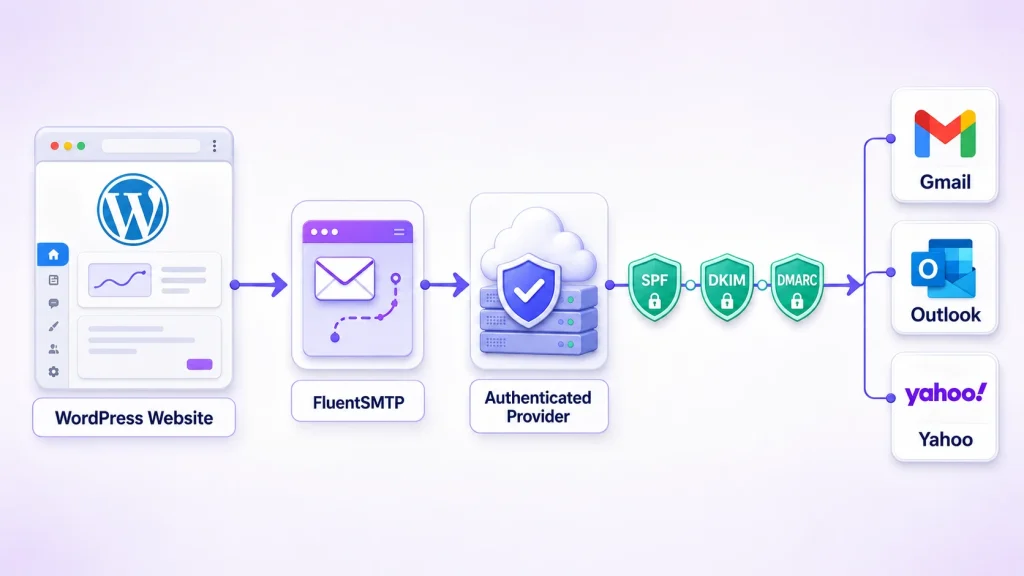
WordPress sends email through the wp_mail() function. By default, that process commonly depends on the hosting server’s mail configuration, with limited control over authentication, routing, failure handling, and diagnostics.
The simplest fix is to connect WordPress to a proper email delivery provider with FluentSMTP.
FluentSMTP is free and works as the bridge between WordPress and services such as:
- Amazon SES
- Brevo
- Mailgun
- SendGrid
- Google Workspace
- Microsoft 365
- Postmark
- SMTP2GO
- Standard SMTP services
It also provides:
- Email logs with server responses and headers
- One-click resending from the email log
- Multiple email connections
- A fallback connection when the default one fails
- Routing based on the From address
- Delivery reports
- Email failure notifications
One distinction matters: FluentSMTP routes the email, while your connected provider sends it.
The plugin does not create sender reputation or guarantee inbox placement. It gives WordPress a professional delivery channel and provides the data needed to investigate failures.
How to configure FluentSMTP
- Go to Plugins → Add New in WordPress.
- Search for FluentSMTP.
- Install and activate the plugin.
- Open Settings → FluentSMTP.
- Choose your email service provider.
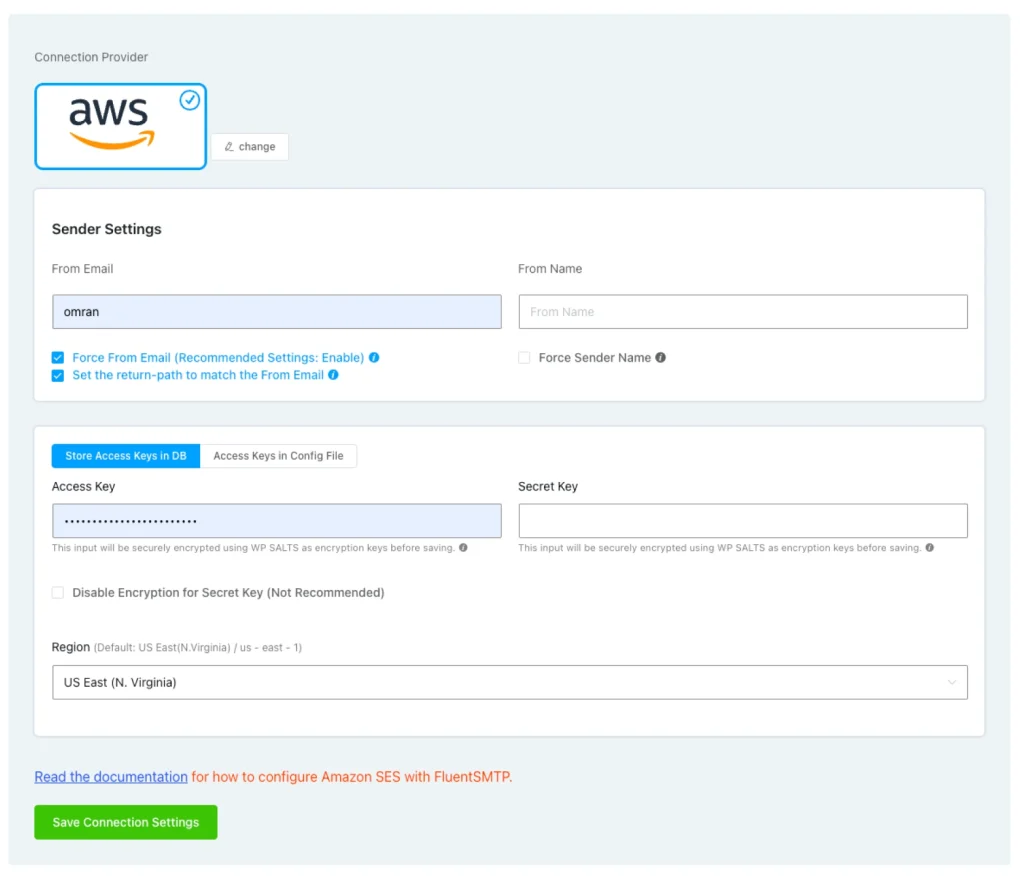
- Complete the connection using its API, OAuth, or SMTP credentials.
- Open the Email Test tab.
- Send a test email to an address you control.
- Check Email Logs for the provider response.
Prefer an API or OAuth connection when your provider supports it.
2. Choose the Right Email-Sending Provider
An SMTP plugin fixes the connection between WordPress and your email provider. It still needs a dependable delivery service behind it.
These are practical starting points for smaller WordPress websites:
| Provider | Best Fit | Free Option |
|---|---|---|
| Brevo | Beginners and smaller websites | Up to 300 emails per day after account approval |
| Amazon SES | Transactional email and growing sites | Up to 3,000 monthly message charges for the first 12 months under its free tier |
| Google Workspace or Gmail | Low-volume website notifications | Subject to Google’s account limits |
| Microsoft 365 or Outlook | Businesses using Microsoft products | Subject to Microsoft’s account limits |
| Other SMTP | Hosting email or another SMTP service | Depends on the provider |
The Brevo and Amazon SES allowances above were verified in July 2026. Provider pricing and limits can change, so check the latest terms before choosing.
A low-volume provider may cover contact-form alerts and password resets. Stores, membership websites, learning platforms, and newsletter operations should choose a service built for transactional or bulk email.
A personal Gmail account is not a bulk newsletter engine.
3. Authenticate Your Domain With SPF, DKIM, and DMARC
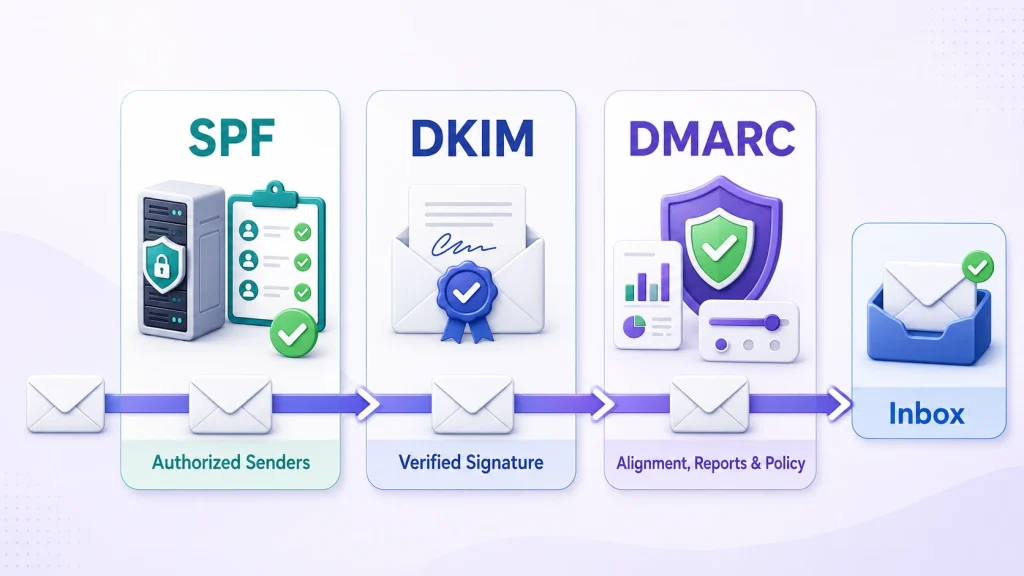
Authentication helps receiving services confirm that an email claiming to come from your domain was authorized by you.
| Record | What It Does |
|---|---|
| SPF | Lists the services allowed to send email for your domain. |
| DKIM | Adds a cryptographic signature that receiving servers can verify. |
| DMARC | Checks domain alignment and tells receivers how to handle authentication failures. |
These records belong in your domain’s DNS manager—not inside WordPress.
Your DNS manager may be Cloudflare, Namecheap, GoDaddy, Hostinger, or another domain provider.
Set up authentication in the right order
- List every legitimate service sending email from your domain.
- Include your business email, WordPress site, CRM, support desk, store, and newsletter platform.
- Add or update the SPF record supplied by each provider.
- Add the provider’s DKIM record or records.
- Verify SPF and DKIM before configuring DMARC.
- Publish a DMARC record with reporting enabled.
- Begin with a monitoring policy such as p=none while identifying every legitimate sender.
- Move toward p=quarantine or p=reject after confirming that your legitimate services pass authentication.
Do not create multiple separate SPF records. Add all authorized sending services to one valid SPF record.
You should also avoid copying a random DNS record from a tutorial. The correct SPF, DKIM, and DMARC values depend on your domain and sending providers.
A copied record could block legitimate email or authorize the wrong sender.
Gmail, Yahoo, and Outlook now expect authentication
Google’s sender guidelines require SPF or DKIM for all senders reaching personal Gmail accounts.
Domains sending around 5,000 or more messages to personal Gmail accounts within 24 hours must:
- Use SPF and DKIM
- Publish a DMARC policy
- Maintain domain alignment
- Send through TLS
- Keep spam complaints below 0.3%
- Support one-click unsubscribe for marketing emails
Google counts messages across the same primary domain. Sending 2,500 emails from example.com and another 2,500 from news.example.com can still make you a bulk sender.
Once Gmail classifies your domain as a bulk sender, that status does not expire. Gmail has also increased enforcement against non-compliant traffic since November 2025.
Yahoo requires SPF or DKIM from all senders and stronger authentication, alignment, and unsubscribe support from bulk senders.
Microsoft introduced similar requirements for domains sending more than 5,000 daily messages to Outlook consumer accounts.
Even if you only send 50 emails per day, configure all three records. Authentication supports deliverability and makes domain impersonation harder.
4. Align Your From Address
Authentication can exist and still fail DMARC when the domains do not align.
Suppose your website displays this sender:
But the delivery service authenticates the message through an unrelated domain. Receiving servers now see a mismatch between the visible identity and the authenticated identity.
Use these practices:
- Send from an address on a domain you own.
- Authenticate that domain with your provider.
- Use a stable From name that recipients recognize.
- Keep the same From address for the same email category.
- Use Reply-To when responses need to reach another inbox.
- Avoid using a free @gmail.com address as the From address for email sent through another server.
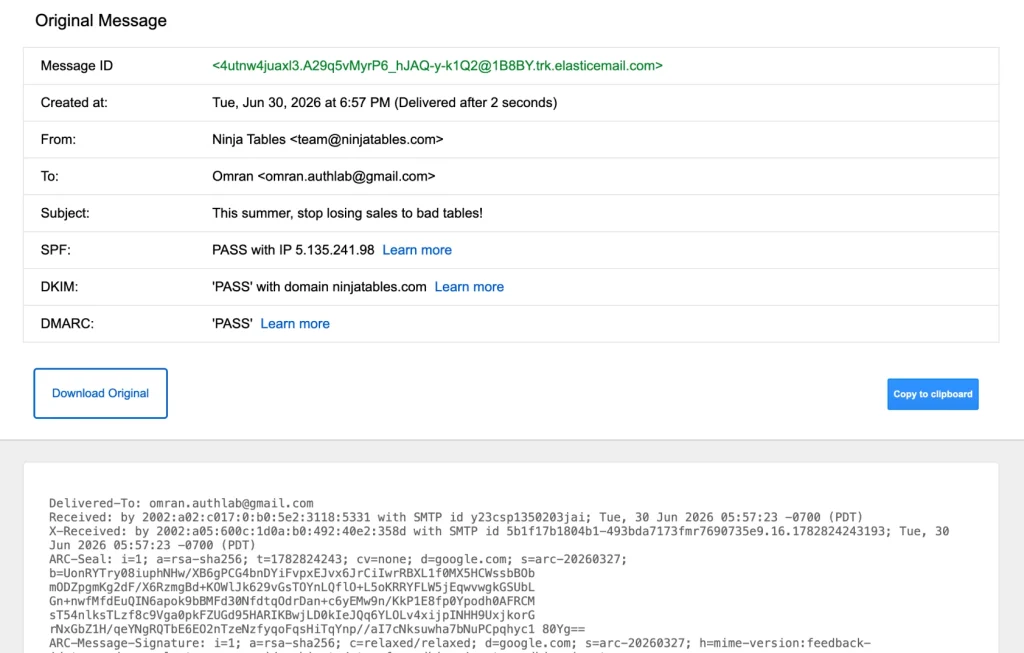
After completing the setup, send a test email to Gmail.
Open the email menu and select Show original. Look for:
- SPF: PASS
- DKIM: PASS
- DMARC: PASS
Passing all three checks does not guarantee inbox placement. A failure, however, shows you exactly where to begin troubleshooting.
5. Separate Transactional and Marketing Email
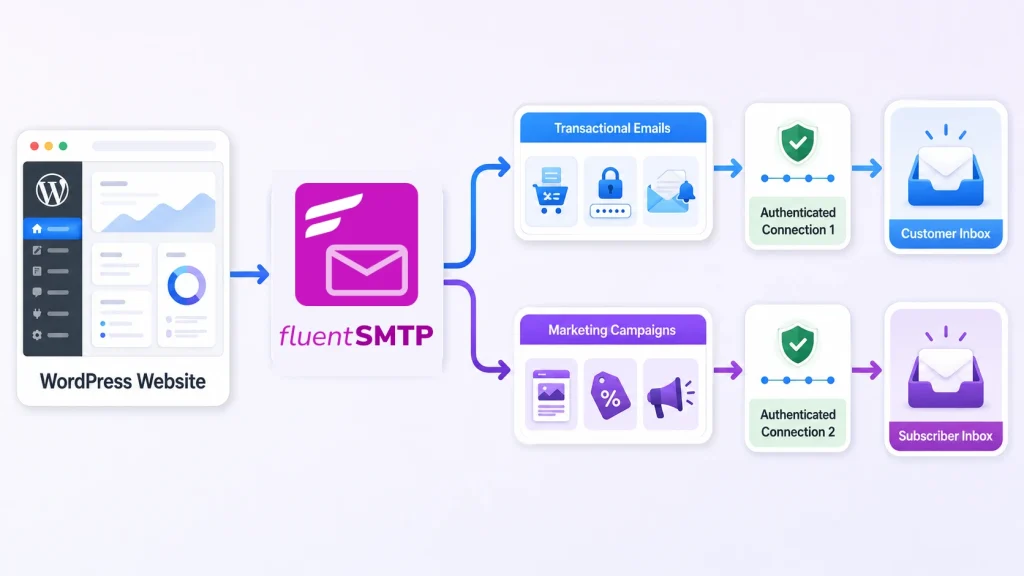
A password-reset email and a flash-sale campaign should not depend on exactly the same reputation path.
Transactional email includes:
- Password resets
- Order receipts
- Form confirmations
- Booking reminders
- Account notifications
- Security alerts
Marketing email includes:
- Newsletters
- Promotions
- Product announcements
- Lead-nurture campaigns
- Event announcements
Marketing messages naturally receive more unsubscribes and complaints. When everything shares one sending stream, poor marketing performance can affect essential customer emails.
Where your volume justifies it, separate email by From address, sending subdomain, provider, or IP pool.
For example:
- [email protected] for receipts
- [email protected] for account notifications
- [email protected] for newsletters
FluentSMTP supports multiple connections, sender-based routing, and fallback delivery. You can route WordPress notifications through one provider while sending marketing emails through another.
A subdomain can separate operations and sender reputation. However, it does not remove Gmail’s bulk-sender classification because Google calculates the threshold at the primary-domain level.
6. Prevent Bad Addresses Before They Enter Your List
Cleaning a damaged list helps. Preventing the damage is better.
Start with your WordPress forms:
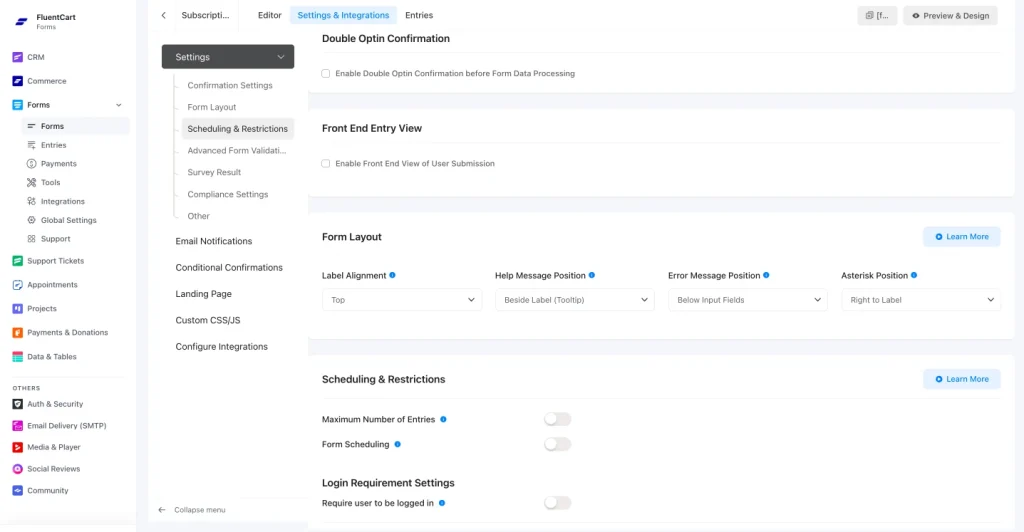
- Use double opt-in for newsletter subscriptions.
- Protect forms with a honeypot, hCaptcha, reCAPTCHA, or Cloudflare Turnstile.
- Validate email fields.
- Never add every contact-form submission to a marketing list automatically.
- Keep marketing consent clear and separate.
- Explain what subscribers will receive.
- State how frequently you will email them.
- Never purchase an email list.
Fluent Forms includes form-spam protection and integrates with Cloudflare Turnstile.
When connected with FluentCRM, new contacts can remain pending until they confirm their subscription. Promotional campaigns are then limited to people who have completed the opt-in process.
Double opt-in adds one step. But that step filters out bots, typing mistakes, malicious signups, and people who never intended to subscribe.
7. Clean Your List Without Deleting Valuable Customers
Mailbox providers watch how recipients react to your emails.
Consistently sending to people who never engage signals that the messages may be unwanted. That can gradually damage your domain reputation.
Handle each contact type differently:
- Hard bounce: Suppress immediately because the address is permanently unavailable or invalid.
- Repeated soft bounce: Investigate the failure and suppress the address if it continues.
- Unsubscribed contact: Stop marketing communication immediately.
- Inactive subscriber: Run a short re-engagement process before suppression.
- Customer who ignores newsletters: Stop promotions where appropriate, but retain essential transactional communication and necessary business records.
Create a simple sunset process
- Identify subscribers without meaningful engagement over an appropriate period.
- Send one or two straightforward re-engagement emails.
- Ask whether they still want to receive your content.
- Keep subscribers who click, reply, update their preferences, or confirm their interest.
- Suppress the rest from regular campaigns.
Do not treat open rate as absolute truth.
Apple’s Mail Privacy Protection prevents reliable open detection for protected users. Give more weight to:
- Link clicks
- Replies
- Purchases
- Account logins
- Form submissions
- Recent signup activity
There is no universal 30-, 90-, or 180-day inactivity rule.
A daily deals newsletter will go cold faster than a quarterly product update. Match your inactivity window to the frequency and expectations established during signup.
8. Increase Sending Volume Gradually
A new or dormant domain that jumps from 20 emails to 20,000 in one day looks risky, even when the list is legitimate.
Build your volume around real engagement:
- Authenticate the domain before sending.
- Begin with recent subscribers and active customers.
- Send at a steady pace instead of one sudden burst.
- Monitor bounces, complaints, unsubscribes, clicks, and provider errors.
- Increase volume only while those signals remain healthy.
Google recommends starting with lower volume, sending first to engaged recipients, increasing gradually, and avoiding sudden bursts.
No universal daily sending limit is safe for everyone.
Your safe volume depends on:
- Domain history
- Contact-list quality
- Email-provider limits
- Recipient engagement
- Complaint rate
- Previous sending patterns
- How quickly your volume changes
Artificial warm-up networks are not a replacement for wanted email. Your strongest reputation signals come from real recipients who expect and value your messages.
9. Make Unsubscribing Easier Than Reporting Spam
Hiding the unsubscribe link does not save a subscriber. It turns the spam button into the easiest exit.
Every marketing email should include:
- A visible unsubscribe link
- A process that works without requiring login
- Fast suppression after the request
- A preference page when frequency or topic choices are useful
- One-click unsubscribe headers when applicable
One-click unsubscribe is a technical email header, not simply a footer link. Your email-marketing platform normally adds it.
Gmail requires one-click unsubscribe for marketing and subscribed messages sent by bulk senders. It also expects unsubscribe requests to be honored within 48 hours.
Yahoo requires a functioning list-unsubscribe method, a visible link in the email body, and processing within two days.
Both providers tell bulk senders to keep reported spam below 0.3%.
Treat 0.3% as a danger ceiling—not a target. The closer your complaint rate is to zero, the better.
10. Monitor Deliverability With Free Tools
Deliverability problems are easier to fix when you catch them before an important campaign.
| Free Tool | What It Helps You Check |
|---|---|
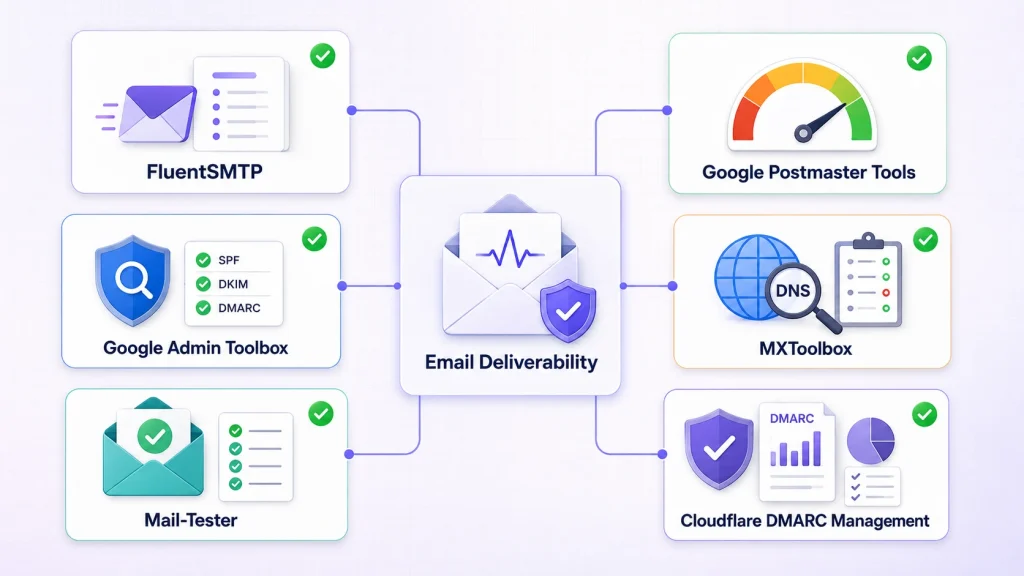
| FluentSMTP | WordPress email logs, server responses, failures, routing, and resending. |
| Google Postmaster Tools | Gmail spam rate, domain reputation, authentication, compliance, and delivery errors. |
| Google Admin Toolbox CheckMX | MX records and common domain-mail configuration problems. |
| MXToolbox | SPF, DKIM, DMARC, MX, and blocklist diagnostics. |
| Mail-Tester | Authentication, formatting, and common message issues. |
| Cloudflare DMARC Management | DMARC reports and sending-source visibility for domains using Cloudflare DNS. |
Google Postmaster Tools covers messages sent to personal Gmail addresses. Low-volume senders may not generate enough traffic to see every dashboard.
FluentSMTP logs answer a different question: Did WordPress hand the message to your provider, and what response came back?
Monitor these deliverability signals
- SPF, DKIM, and DMARC results
- Hard- and soft-bounce trends
- Spam complaints
- Unsubscribe rate
- Provider rejections
- Temporary throttling
- Click and reply activity
- Domain and IP reputation
- Sudden changes among Gmail, Yahoo, or Outlook recipients
No single score tells the whole story. Look for patterns across your infrastructure, contact quality, and recipient behavior.
WordPress Email Deliverability Checklist
Use this checklist before your next campaign, store launch, or important customer announcement:
WordPress Email Deliverability Checklist
Complete each step to strengthen authentication, reputation, and inbox placement.
Build a Better Sending System, Not a Better Spam Trick
WordPress email deliverability is not won by removing “free,” “sale,” or an exclamation mark from your subject line.
Those changes cannot repair a missing DKIM signature, a polluted contact list, or an unreliable sending server.
Start with the system:
- Route WordPress email through a dependable provider.
- Authenticate your domain.
- Send only to people who expect the message.
- Separate critical and promotional traffic.
- Monitor what happens after every send.
Install FluentSMTP, connect your preferred provider, and send a test email.
It costs nothing to fix the WordPress side of the delivery path. More importantly, you gain the visibility needed to solve future problems with evidence instead of guesswork.

WordPress, automation, eCommerce and growth marketing specialist, a WordPress Core Contributor and Media Corps member blending storytelling with technology to craft strategies in SEO, email marketing, and beyond.
-
How to Create Non Disclosure Agreement (WordPress Guide)
Create a professional NDA form in WordPress with Fluent Forms. -
How to Build a RevOps Service With the Best Free CRM Software
Learn how to build a RevOps service using free CRM -
Single-Step Form vs. Multi-Step Form: Which One Is the Best and Why
Single-step vs multi-step form, which format converts better? Learn how


Leave a Reply
You must be logged in to post a comment.