

Ninja Tables for Modern eCommerce: FluentCart Product Table (and More!)

We got exciting news for Ninja Tables lovers and eCommerce sites. Your favourite table plugin now comes with the long awaited integration and presents FluentCart Product Table!
Fan-favourite features, useful integrations, and a complete UI overhaul – Ninja Tables always stays up-to-date for you. In the 7 years of remarkable journey (and counting!), our users have enjoyed some exceptional features and integrations that cater to all business and individual purposes.
With the release of FluentCart for eCommerce, an integration with Ninja Tables was inevitable. Not to mention, so many eCommerce owners who use Ninja Tables for their product tables have been looking to switch to FluentCart from the start!
So, to keep up with the modern eCommerce scene, Ninja Tables FluentCart integration is officially here.
The Big News: FluentCart Integration!
Ninja Tables just rolled out the latest plugin update, version 5.2.4. This update introduces something truly special: FluentCart integration.
FluentCart is the newest sensation in the eCommerce world – a modern and smooth plugin that will change how WordPress users handle online stores.
And now, with Ninja Tables you can create interactive product tables using FluentCart products!
Here’s what makes this integration exciting:
Simple setup
- Install and activate FluentCart
- Upload the products you want to sell
- Select “FluentCart Table” and you’re done!
This integration adds a new option to Ninja Tables’ table creation menu.
Honestly, it’s incredibly easy to build product tables with this integration that match your exact needs.
Table customization
Once you create your FluentCart table, you can customize it using all the Ninja Tables features.
You can control:
- Custom cart details and button settings
- Bulk actions in table frontend for better shopping experience
- Custom filter and search
- Responsive breakpoints and stackable table options
- Design and table layout to match your brand or preference
- Adding unlimited products
And more.
Forever-free!
Since FluentCart is a sister product of Ninja Tables, this integration will remain free forever for Ninja Tables users, just like Fluent Forms integration.
Only install and activate it, and you’re good to go.

How to Integrate FluentCart with Ninja Tables?
Any table creation option you pick in Ninja Tables is simple and fast. Over the years, Ninja Tables brought Fluent Forms, Google Sheets, and WooCommerce integrations for you. All integrations created smart data tables.
Now that Ninja Tables integrates with FluentCart, you get to create FluentCart tables and display your eCommerce products in interactive product tables.
As usual, you can only see this integration if you have FluentCart installed and activated and an updated Ninja Tables version.
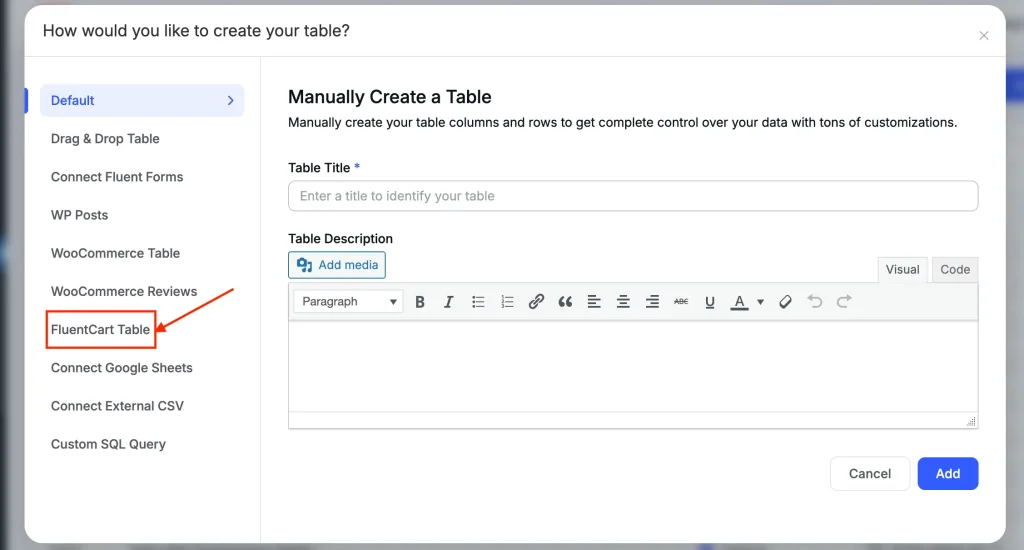
Note down the 4 quick steps to create your first FluentCart table.
Step 1: Add FluentCart products
If you already have products ready to sell. You can skip this step.
But if you’re trying out this integration for the first time, head to FluentCart’s “Products” section and click “Add Dummy Product.”
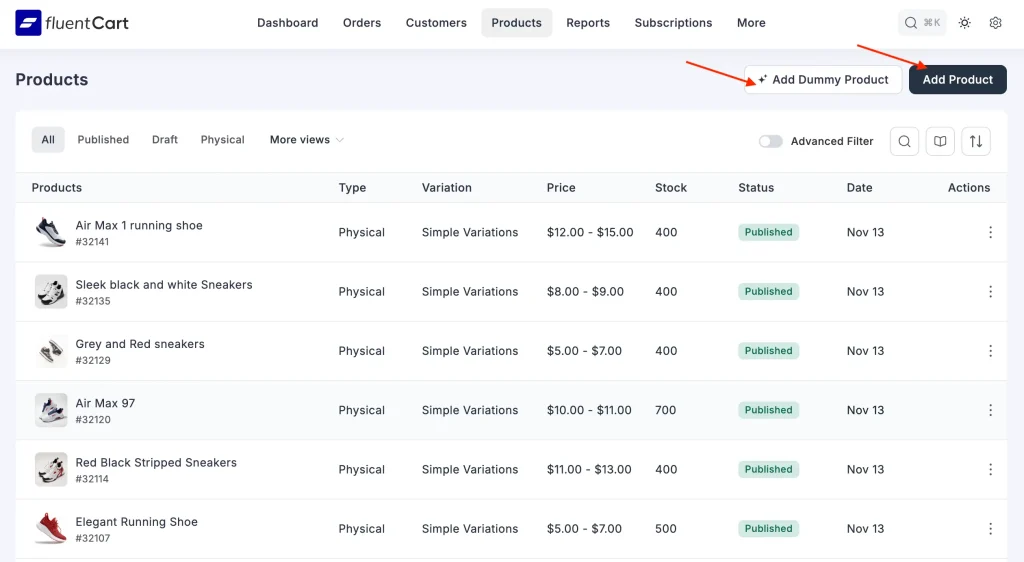
FluentCart will generate dummy products for you.
You can also choose to add dummy products of your own.
Step 2: Pick “FluentCart Table” from the menu
This step is where the fun begins!
As of now, Ninja Tables offers you 10 table creation options from the menu, from where you’ll select “FluentCart Table.”
Let’s move on to the next step.
Step 3: Select FluentCart products for the table
You can see the window asking to fill up the following info:
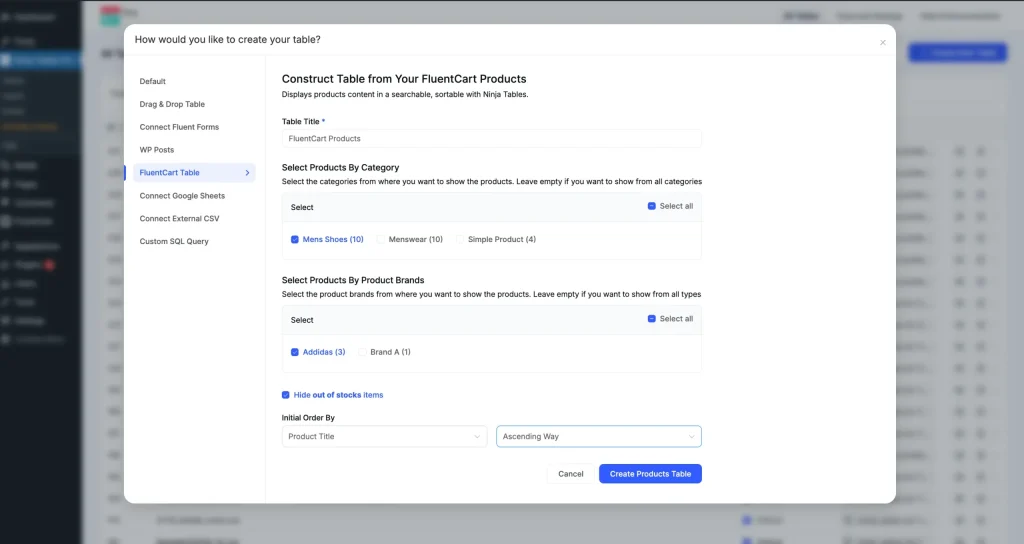
- Table title
- Select the products by category
- Select products by brands
- Hide out-of-stock items
- Decide product order (by title or type)
We’ve selected “Mens Shoes” as we generated them as dummy products earlier.
Now, click the “Create Products Table” button and you’re done!
Here’s the FluentCart table (backend) we just created.
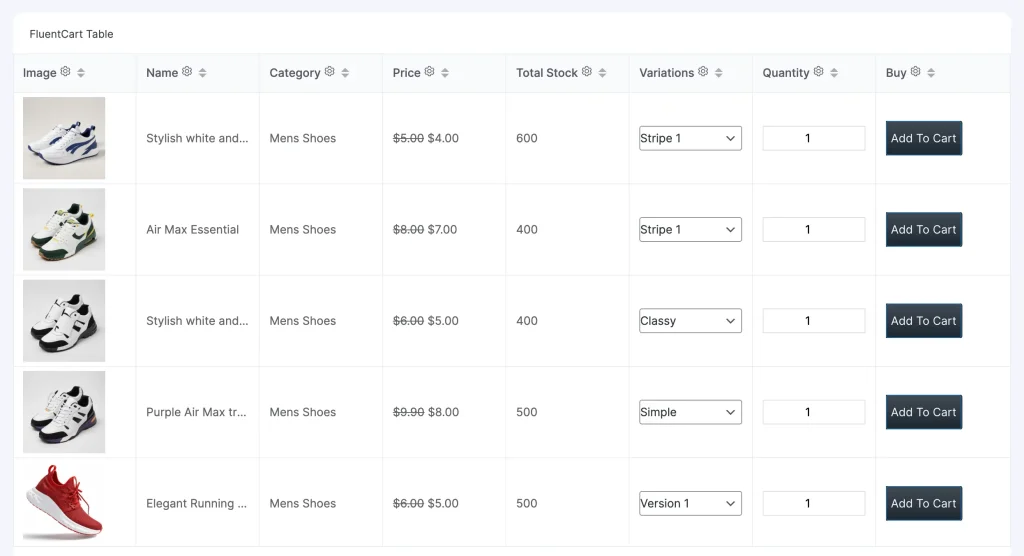
Step 4: Customize and embed
Assuming you created the table with us, how about we change and customize the tables?
If you change your mind and want to add different products, change product order, or something else, you can do that whenever you want.
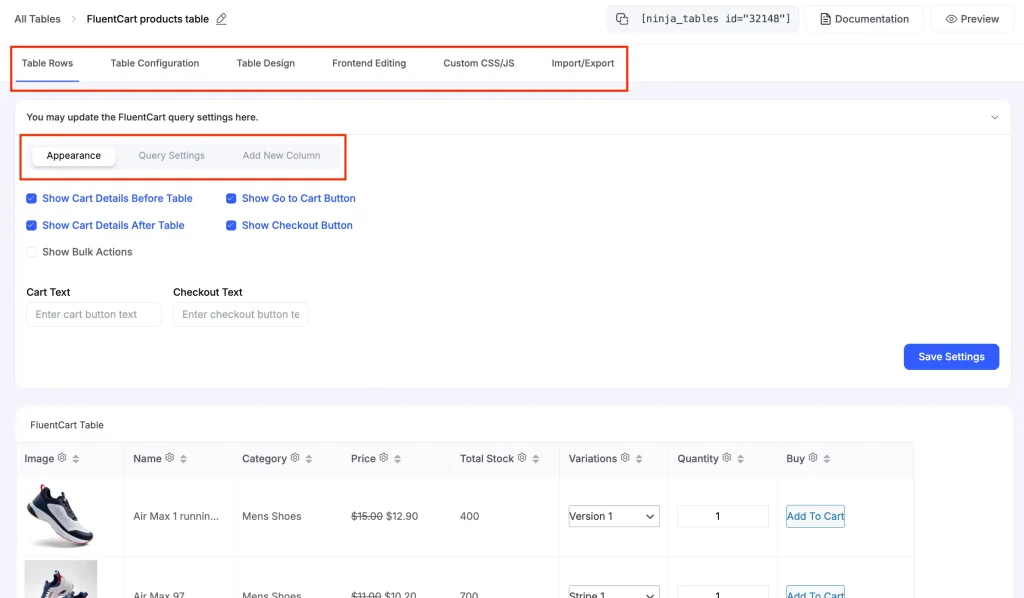
You can see the FluentCart table backend with the regular Ninja Tables customization tabs you know.
NOTE: Frontend Editing tab and Import features won’t work for integrations/external data source tables.
But you can have fun with other features under the other tabs.
- Table Rows: Enter table columns for column Basic Settings like name or data type, Advanced Settings like column width or HTML header, Conditional Formatting, and Transform Value.
- Table Configuration: You can add custom filters from here or rearrange/edit table columns.
- Table Design: Who wants a boring product table? Add custom colors and choose table styling with ease. Also make the table stackable.
- Custom CSS/JS: It’s totally up to you to do some tinkering with CSS/JS. For example, if you want the table to have a background image, use CSS.
- Export: Get the table’s CSV/JSON file to use somewhere else this integration works.
Check out Ninja Tables’ documentation to wrap your head around these features.
You’ll also notice FluentCart integration adds 3 more tabs right below the usual ones.
- Appearance: Choose cart button positions, checkout button visibility, bulk options, or add custom cart and checkout button texts.
- Query Settings: Select/deselect products, brands, and product order.
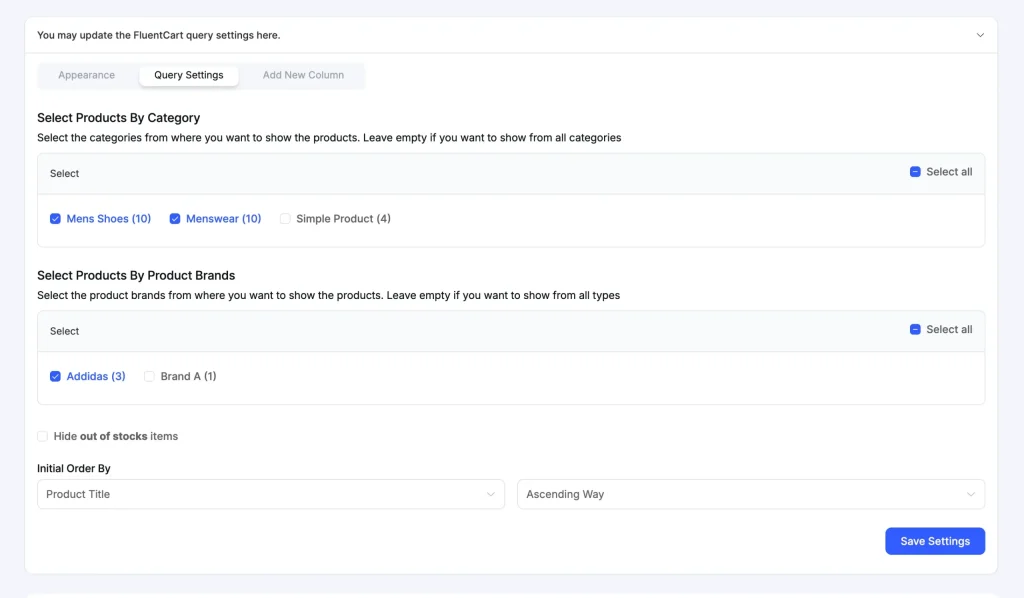
- Add New Column: Need a custom column to showcase description or other product info? Choose column name, data type, and dynamic settings.
Visit the FluentCart table doc.
Don’t forget to save the settings if you do make changes.
When you’re done, copy the table shortcode from top of the table and embed it anywhere you want.
FluentCart Table with Ninja Tables Features
We say it’s a simple integration but that doesn’t mean it’s not fun!
Creating interactive product tables is the super power of Ninja Tables. Which means you get to create a smooth experience for your eCommerce customers with plenty of table plugin features.
- Custom filter to find the right product
- Custom data search
- Manual sorting in the frontend
- Conditions to highlight or change table data
- Pagination for big product data tables
- Responsive breakpoints – hide/show table columns
- Stackable tables for mobile view
- Custom buttons and links
- Bulk actions like bulk add to cart or bulk compare
- HTML table header
- Dynamic data type controls
- Sticky column/header
- Table color and design settings to match your brand
- Custom CSS/JS to make custom tweaks
And more!
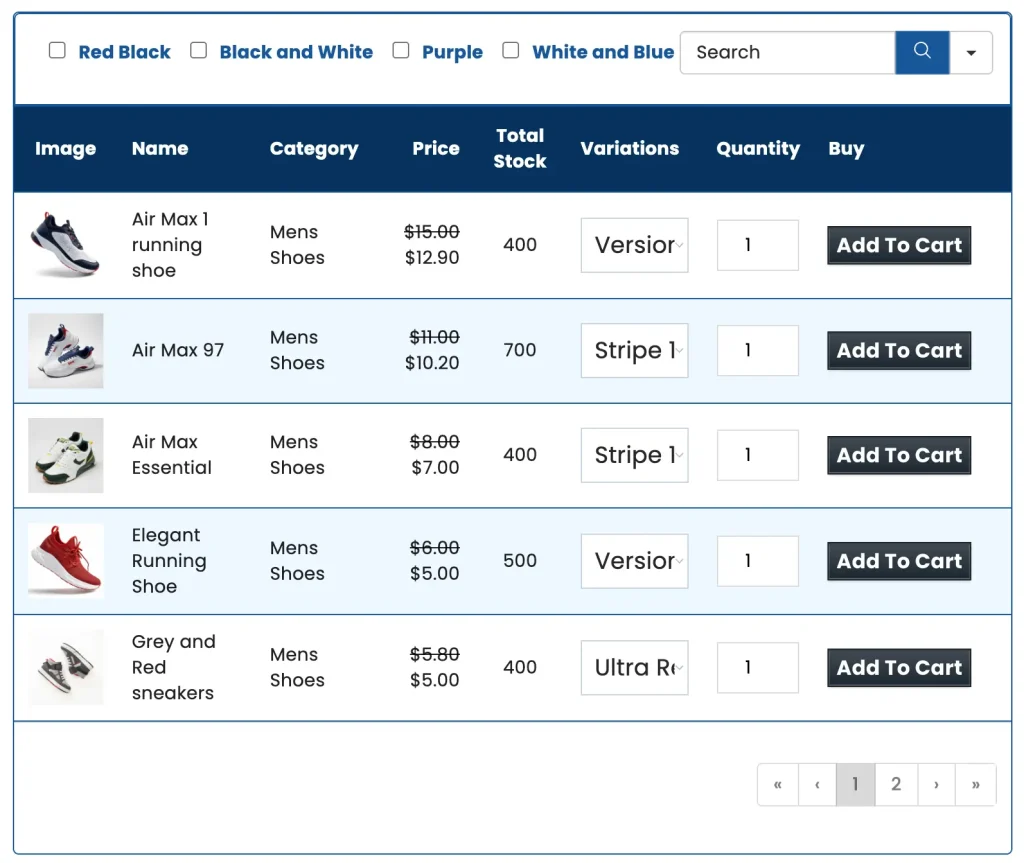
This table contains custom filters, pagination, custom colors, and search bar.
Who Benefits from a FluentCart Table?
The short answer is, FluentCart and Ninja Tables users.
But the longer answer is:
- eCommerce store owners
- Stores with high-volume inventory
- B2B product sellers
- Stores handling multiple product variations
- Non-developers, marketers, and agencies
- Conversion-focused business
- Those in the Fluent Ecosystem
Fluent integrations like Fluent Forms-Ninja Tables or FluentCart-Ninja Tables benefit everyone who wants less friction in managing dynamic data, higher CX, and better sales!
It’s high time you got on board and boost your experience in WordPress.
Other Updates Ninja Tables Got Recently
Sure, FluentCart is the biggest update to the Ninja Tables integration section in a while.
But that doesn’t mean we weren’t cooking!
WooCommerce
Ninja Tables 5.2.3 and 5.2.4 bring some tweaks to WooCommerce integration as well.
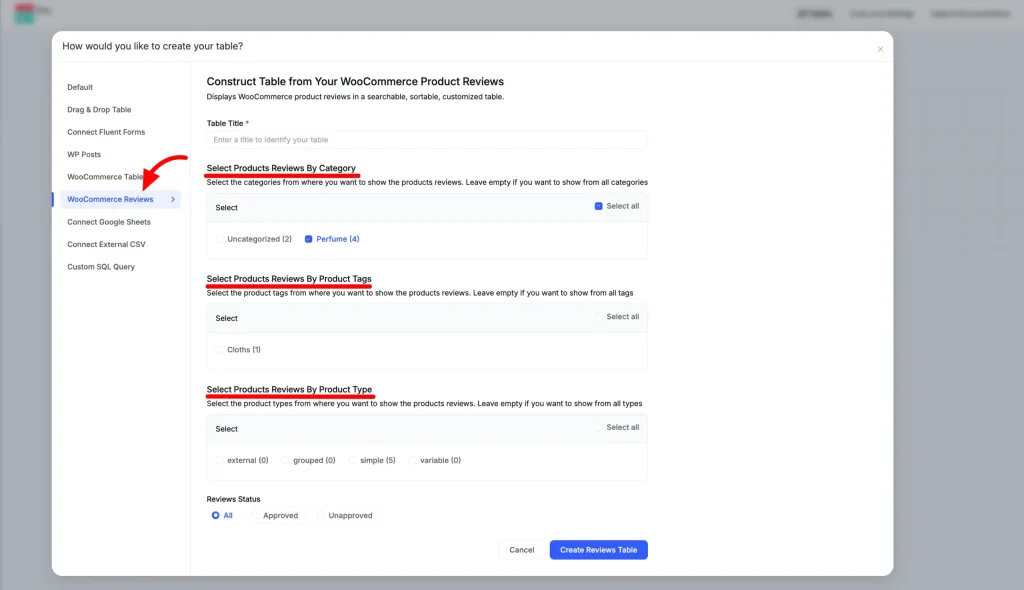
Reviews table
The new “WooCommerce Reviews” table option creates tables displaying product reviews and ratings from your customers. Showcase authentic reviews to build trust.
Average rating column
You can now add a column that displays the average star rating for any WooCommerce product.
From “Dynamic Column Data Settings,” you can control:
- Star rating colors
- Rating value visibility
- Column customization
Bulk options
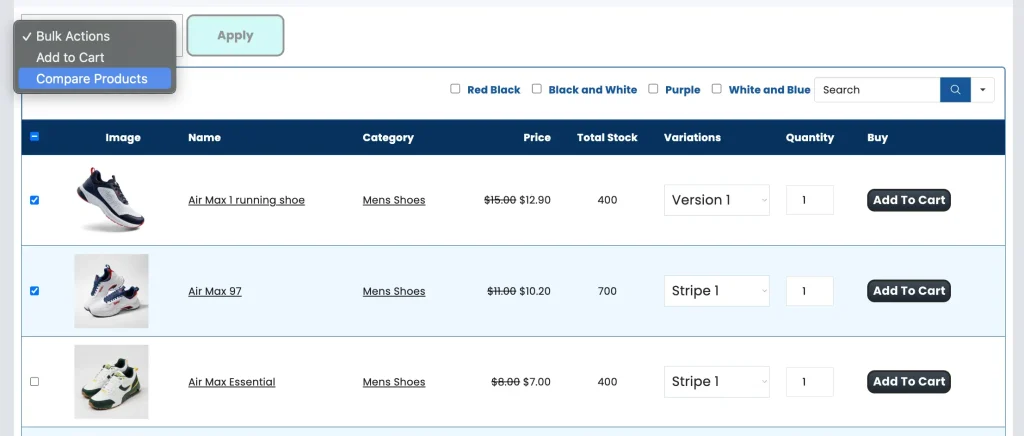
If you enable the “Bulk actions” checkbox, your customers can:
- Bulk select products to add to their cart
- Bulk select products to compare (up to 5 selections)
This option also works perfectly for FluentCart tables.
UI refactoring
Version 5.1.0 brought a comprehensive UI refactoring focused on user comfort and efficiency.
- Polished visuals and decluttered interface
- Improved visual hierarchy
- Corner radius and element alignment
- Standardized spacing and padding
- Modern color palette
- Smooth onboarding
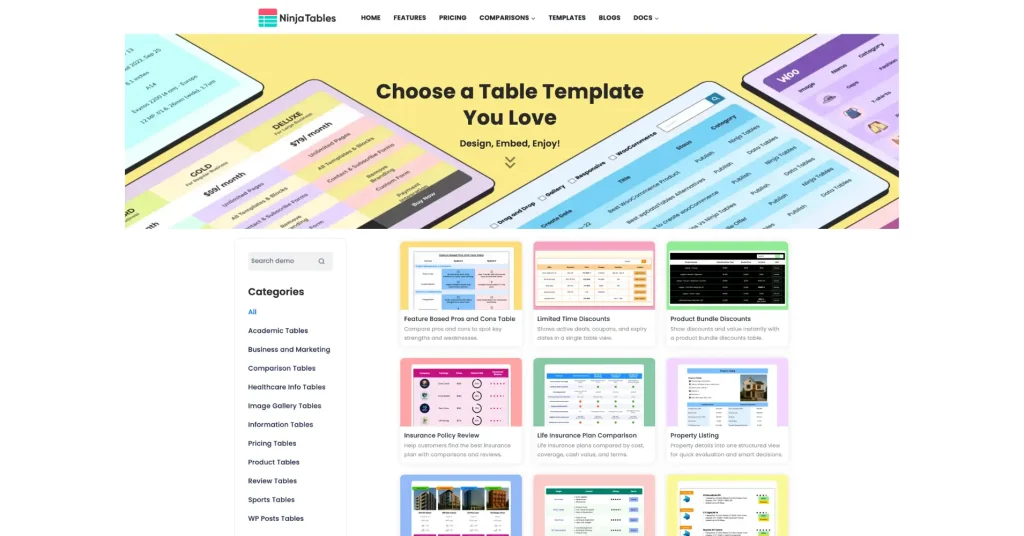
New table templates
We received lots of requests for some tables and saw some customers struggling to create a few. So, we updated the free templates page with a few more tables and categories.
Why These Updates Matter
Ninja Tables hears you. We have been under the radar lately but we’re regularly updating the plugin to give you maximum comfort and control.
For eCommerce
The latest FluentCart integration transforms Ninja Tables into a powerful selling tool once again.
You can create:
- Dynamic product listings
- Comparison tables that drive conversions
- More engagement and conversion
- Review showcases that build trust
- Smooth shopping experiences
And if you decide to stick to WooCommerce, features are enhanced for you as well!
For everyone
The UI overhaul makes table creation genuinely enjoyable. We scrapped the old-fashioned plugin UI and opted for a modern and sleep layout.
Now plugin navigation is clearer, actions are more intuitive, and the modern design reduces cognitive load.
How to Update Ninja Tables
Updating to the latest version is simple:
- Go to your WordPress dashboard
- Navigate to Plugins > Installed Plugins
- Search Ninja Tables and click “Update”
- Or download the latest free version from wordpress.org
Make sure you’re using the latest version to access all these improvements and features.
Looking Forward
FluentCart integration opens new possibilities for modern eCommerce experiences!
It’s particularly exciting for anyone looking to build modern, conversion-optimized product tables and increase their eCommerce sales. Combined with the refreshed interface and numerous improvements, Ninja Tables has never looked better!
Plus the UI doesn’t bore you anymore, thanks to the UI overhaul.
These updates represent our commitment to continuous improvement and solidifies its position as one of the most popular table plugins for WordPress.
Create, customize, and control smart and organized tables today.
Happy table-making!
-
10 Best TablePress Alternatives in 2026 (For Every Use Case)
TablePress works for simple tables. When you need a more -

Designing Big Data Tables: UI/UX Principles and Best Practices
Designing big data tables requires more than clean layouts. Insights -

Charts vs Tables in WordPress: When to Use Each (with Examples)
If your website handles lots of dynamic data, it’s best…


Leave a Reply
You must be logged in to post a comment.