

How to Optimize Your WordPress Website Without Overloading It
WordPress gives you a plugin for almost everything. And that is both one of its biggest strengths and one of the easiest ways to turn a simple website into a complicated one.
Your website feels slow, so you install a caching plugin. Images are heavy, so another plugin comes in for image optimization. Then you add an asset manager, database cleaner, lazy-loading plugin, font optimizer, CDN connector, and maybe another plugin to monitor what all those plugins are doing.
Eventually, you have a full optimization stack just to keep the original stack under control.
There is a better place to start.
Before installing another website optimization tool, look at what your WordPress site is being asked to load, process, query, render, and maintain in the first place. A website with a simple theme, carefully chosen plugins, properly prepared images, good hosting, and fewer unnecessary scripts often needs much less optimization later.
That does not mean WordPress optimization tools are useless. Caching works. CDNs work. Image processing tools are valuable. Object caching can make a major difference on dynamic websites.
But those should solve specific performance problems. They should not become the foundation of your website.
The simplest approach is usually this:
Reduce what you do not need, measure what is actually slow, and optimize the problem you find.
That is what this guide is about.
Key Takeaways
- Fewer plugins can make WordPress easier to maintain, but plugin quality and behavior matter more than the raw number.
- Use WordPress Core functionality before adding another plugin for something WordPress already handles.
- Keep your theme and page-building setup as simple as your design allows.
- For eCommerce, choose a strong commerce foundation so basic store functionality does not require a long chain of add-ons.
- Resize and prepare images before uploading them instead of depending entirely on post-upload optimization.
- Audit third-party scripts, fonts, widgets, trackers, and embeds because they can slow a site even when WordPress itself is optimized.
- Fix hosting, database, caching, or plugin problems at the layer where they actually happen.
- Use website optimization tools to diagnose and solve problems, not as a default checklist of plugins to install.
WordPress Website Optimization Starts With Less
A fresh WordPress installation is surprisingly simple.
Then the website starts growing.
A contact form gets added. Then analytics. SEO. Social feeds. A page builder. Page builder add-ons. Popups. Chat. Reviews. Tracking pixels. A cookie tool. Custom fonts. An eCommerce platform. A few eCommerce extensions. Some integrations.
None of those additions is automatically bad. Most were probably installed for a good reason.
The problem is that websites rarely get the same attention when something becomes unnecessary.
The campaign ends, but the tracking script remains. The old form plugin is replaced, but its database data remains. A theme feature gets replaced by a plugin. Later, another plugin duplicates part of that functionality again.
That is how complexity grows quietly.
WordPress itself lists hosting environment, software configuration, images and their file sizes, caching, and database behavior among the factors that affect performance. There is no single “speed plugin” that replaces good decisions across those layers.
So before optimizing anything, ask a simpler question:
What can this website stop doing?
That question can save you a lot of optimization work later.
Use Fewer Plugins, but Do Not Turn Plugin Count Into a Performance Score
Let’s get this out of the way first.
A WordPress website with 35 plugins is not automatically slower than a website with 12.
It depends on the plugins.
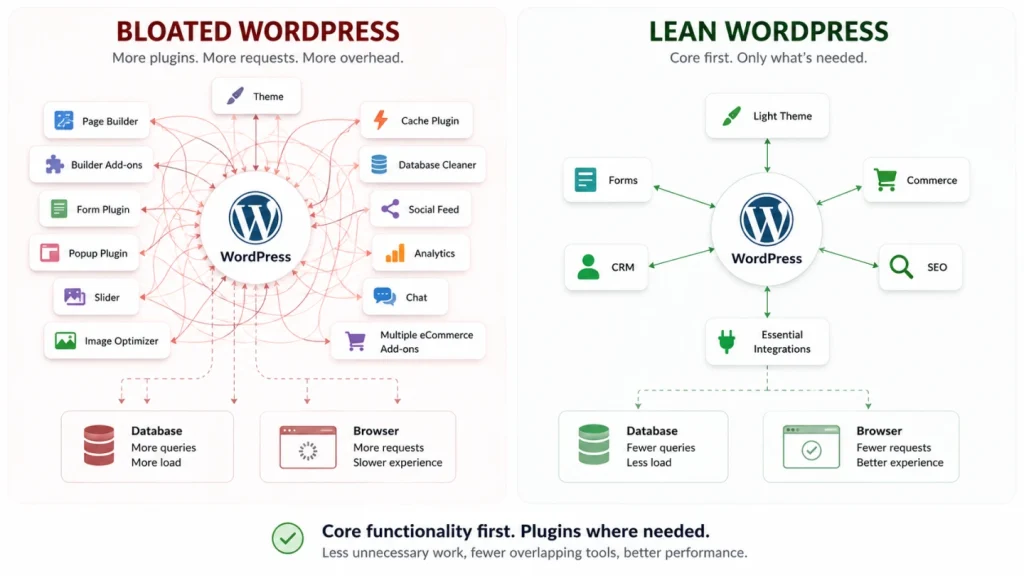
One plugin may only add a small admin feature and barely touch the frontend. Another can add several database queries, load CSS and JavaScript on every page, create scheduled tasks, call external APIs, process data in the background, and add functionality you never use.
So when people say “too many plugins make WordPress slow,” the idea is directionally useful, but technically incomplete.
The better rule is:
Install a plugin only when the functionality is worth the additional dependency.
Before installing one, check three things.
See if WordPress already handles it
WordPress Core does much more today than it did a few years ago.
The block editor and Site Editor can handle layouts, buttons, columns, galleries, navigation, patterns, global styling, and many other design jobs that previously required separate plugins or page-builder extensions.
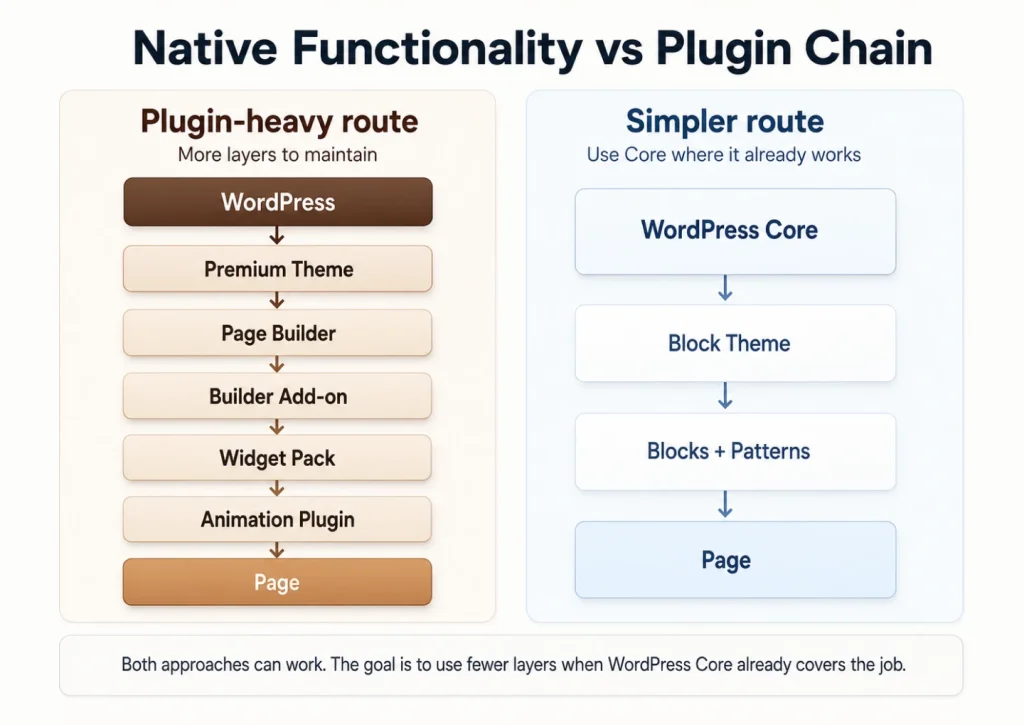
WordPress has also been improving how those frontend features are delivered. WordPress 6.9 expanded on-demand block asset loading so styles are loaded around the blocks actually being used, and assets for blocks that are not ultimately rendered can be removed.
That is important because it gives you fewer reasons to rebuild basic WordPress functionality through another layer of software.
Check what your current plugins already do
Plugin overlap is common.
You may have one plugin for forms and another for newsletter forms. One SEO plugin may already create XML sitemaps while a second plugin exists solely to generate them. Your eCommerce platform may already handle a feature you are about to purchase as an extension.
Before adding anything, check your existing stack. You may already own the solution.
Look at what the plugin actually does to the site
This is where optimization becomes less about opinions and more about measurement.
Query Monitor, for example, can break down database queries by the plugin, theme, or function responsible for them. It can also inspect enqueued scripts and styles, HTTP API calls, PHP errors, hooks, REST requests, and other activity happening during a WordPress request.
That is much more useful than looking at the Plugins screen and deciding that 27 feels like too many.
You might discover that five plugins are doing almost nothing expensive while one supposedly lightweight plugin is responsible for a disproportionate amount of work.
So reduce your plugin count where it makes sense, but optimize behavior, not a number.
Keep the Theme Simple Before You Start Optimizing It
Themes create another version of the same problem.
You install a multipurpose theme because it can build anything. Then you install its required page builder. Then the widget package. Then an animation extension. Then a slider. Then a header builder because the theme’s header options are not quite right.
At that point, your website needs a substantial stack of software just to display a page.
Again, this does not mean premium themes or page builders are bad. They are useful when the design requires them.
The question is whether your website actually needs that level of complexity.
For many business websites, blogs, landing pages, documentation sites, and content-heavy websites, the WordPress block system already gives you enough flexibility to build a clean interface without bringing in a huge design framework.
Default block themes such as Twenty Twenty-Four and Twenty Twenty-Five are useful examples of this simpler architecture.
WordPress Core’s own performance work shows why that matters. Twenty Twenty-Three and Twenty Twenty-Four do not enqueue their own traditional CSS stylesheet; much of their styling comes through WordPress global styles and block styles. WordPress 6.9 also added more optimizations around small block-theme stylesheets and on-demand asset loading.
In WordPress Core benchmarks, a stock Twenty Twenty-Five sample page running on WordPress 6.9 showed an 18.9% LCP improvement over WordPress 6.8 in the tested environment. The exact improvement will obviously vary by website, but the direction matters: WordPress itself is getting better at reducing frontend work.
A simple theme lets you benefit from more of that work without fighting a giant frontend framework on top of it.
Start basic. Add design complexity when it creates real value for the visitor.
For eCommerce, Choose the Foundation Before the Add-Ons
eCommerce is where WordPress complexity can get out of control very quickly.
A store does much more than display pages. It manages products, inventory, customers, checkout, payments, shipping, taxes, orders, coupons, and reporting. Depending on what you sell, you may also need subscriptions, licenses, product variations, trials, bundles, recurring payments, or digital delivery.
If the commerce platform handles only the basics, every new business requirement becomes another extension.
- One for subscriptions.
- One for product variations.
- Another for visual swatches.
- Another for licensing.
- Another for checkout customization.
- Another for invoices.
- Another for reporting.
- Another for the payment method your customers need.
You can end up with an eCommerce system made from a dozen separate products that all need to remain compatible with one another.
This is why I would think about performance before choosing the commerce plugin, not after the store is already built.
Choose a foundation that covers the functions your business is likely to need. Then use extensions for the exceptions.
A practical FluentCart example
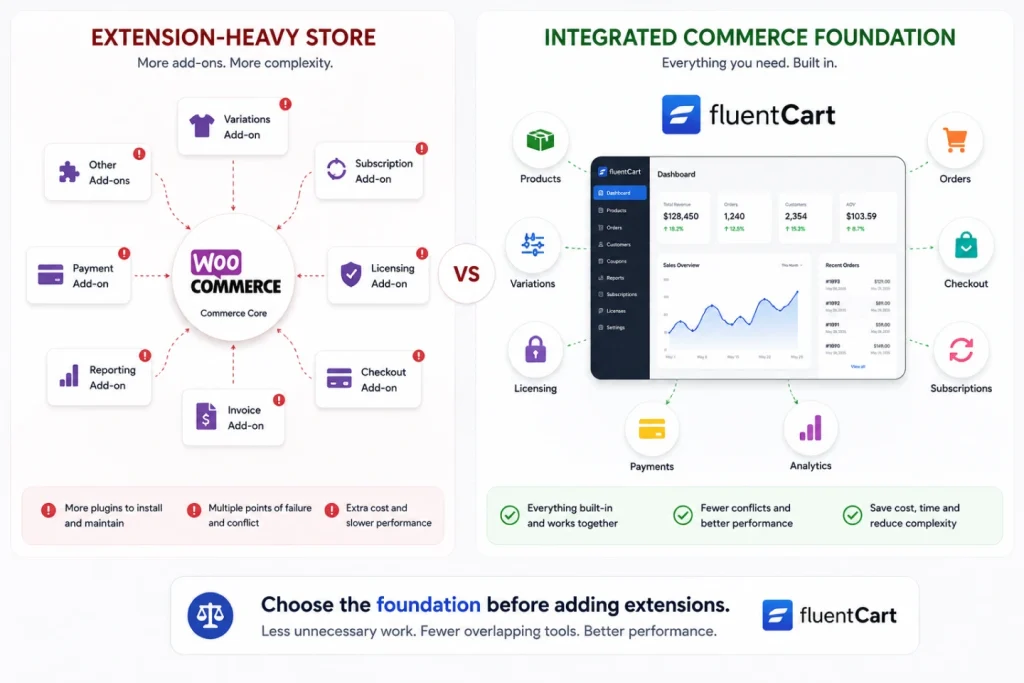
FluentCart is a good example of this approach because several core commerce functions are handled inside the same system rather than being treated as separate products.
Take product variations.
A clothing store might sell one shirt in six sizes, four colors, and three materials. That creates 72 possible combinations before you even start thinking about individual stock, price, SKU, and images.
FluentCart’s Advanced Variations system generates those combinations inside the core product. The Attribute Manager lets stores reuse properties such as colors and sizes across products, and bulk editing handles price or stock changes across groups of variants. The functionality was added to FluentCart Core instead of requiring another variation add-on.
That does not prove that every all-in-one plugin is automatically faster.
It proves something more useful:
When related functionality belongs together, native functionality can remove extra dependencies from the store architecture.
That is what you should look for.
A commerce platform should handle commerce well. A form plugin should handle forms well. A CRM should handle customer communication well.
Use niche tools where they make sense, but avoid building basic workflows from five overlapping plugins when one focused product already covers them.
Optimize Images Before They Reach WordPress
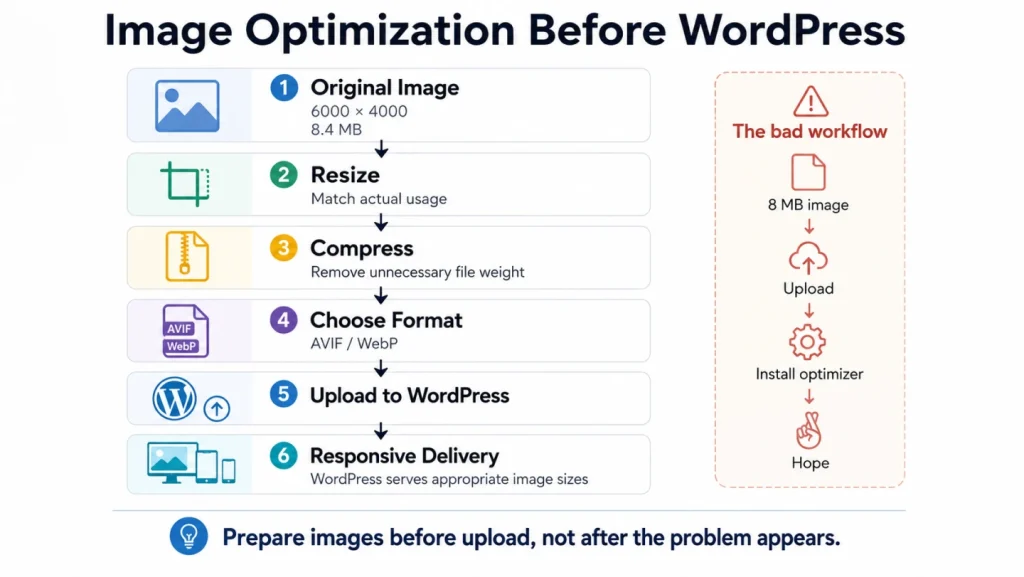
Images are one of the easiest performance problems to create and one of the easiest to prevent.
Imagine you need an image that will display around 900 pixels wide inside a blog post.
You upload the original 6,000-pixel image from a camera or stock library. The file weighs several megabytes. Then you install an image optimization plugin to compress it.
The plugin may help, but the first mistake happened before WordPress ever saw the file.
The original image was unnecessarily large for its job.
A better workflow starts before upload.
First, crop the image to what the page actually needs. Resize it to a sensible maximum dimension. Compress it while checking that the visual quality still holds up. Then choose an appropriate modern format.
WebP remains an excellent default for many WordPress websites. AVIF can reduce file sizes further in many cases, particularly for photography, and WordPress has supported AVIF uploads since version 6.5 where the server’s image-processing library supports the format.
WordPress already handles responsive image markup and creates multiple image sizes so browsers can choose a suitable source for the display size. Give that system a sensible original image to work with instead of handing it a giant file and expecting optimization plugins to clean everything up afterward.
There is another important detail: do not lazy-load your most important above-the-fold image blindly.
The browser needs the likely Largest Contentful Paint image early. WordPress Core has spent several releases improving image prioritization for exactly this reason. In WordPress 6.9 testing with Twenty Twenty-Five, fetch-priority improvements around the likely LCP image produced a median LCP improvement of about 8% under the benchmark conditions.
Lazy loading is useful. Lazy loading the wrong image is not.
Build the Page Around What the Visitor Needs
Performance problems are sometimes design problems wearing a technical costume.
Think about a homepage with a large slider, autoplay video background, animated counters, logo carousel, testimonials carousel, social media feed, popup, live chat, Google Maps embed, floating buttons, custom cursor, scroll animation, and five different tracking scripts.
You can spend hours delaying JavaScript and optimizing assets.
Or you can ask whether half of those things should be there.
This is where website optimization and user experience meet.
The visitor does not care how many effects your page builder supports. They are trying to understand what you offer, whether they can trust you, and what they should do next.
A cleaner page can help both sides.
The visitor has fewer distractions, and the browser has fewer elements, scripts, styles, images, animations, and requests to deal with.
This does not mean every website should look minimal.
It means every element should earn the space and performance cost it creates.
If removing an animation changes nothing about the message, conversion, or experience, you probably did not need the animation.
Third-Party Scripts Can Make a Simple WordPress Site Heavy
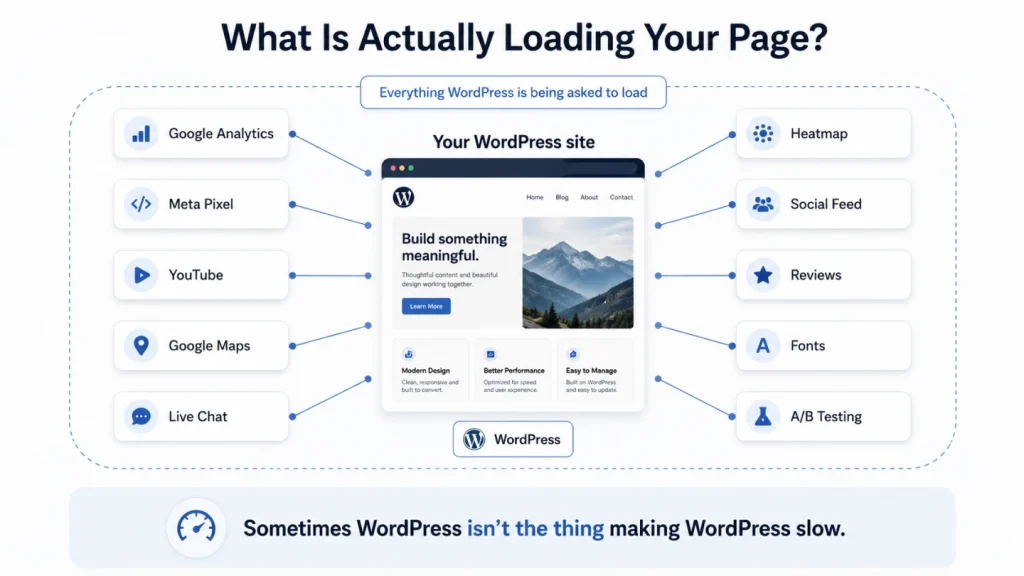
Sometimes your theme and plugins are not the biggest problem.
Your integrations are.
Websites regularly load JavaScript from analytics platforms, advertising networks, social widgets, heatmaps, chat services, video embeds, review platforms, A/B testing tools, maps, and marketing systems.
Web.dev points out that third-party scripts can affect performance because they add JavaScript and resources delivered from systems outside your own website. Common examples include chat services, advertising iframes, analytics, social buttons, video embeds, and testing tools.
The important word here is need. You may need analytics. You may genuinely need to chat.
A store running paid advertising may need conversion pixels. But do they all need to load on every page? Does your heatmap tool still need to run six months after the UX experiment ended?
Does a YouTube player need to load before someone interacts with the video? Does your Facebook feed make the homepage more useful, or is it loading another platform into your website to show content people could already see on Facebook?
Audit those dependencies like you audit plugins. Sometimes the best website optimization tool is the delete button.
Good Hosting Solves Problems a Plugin Cannot
There is another common WordPress performance mistake: trying to fix infrastructure problems from the Dashboard.
Your hosting controls the environment WordPress runs on. CPU, memory, PHP processing, database performance, disk speed, server configuration, geographic distance, and caching infrastructure can all affect how quickly a request is handled.
WordPress’s own performance documentation puts hosting near the beginning of the optimization conversation for a reason. Different hosting environments provide different performance capabilities, and server-level configuration can affect what optimization options are available.
If your server takes too long to generate a basic uncached page, minifying another CSS file is unlikely to be the breakthrough you are looking for.
This becomes even more important for dynamic WordPress sites.
A small blog mostly serves content. An eCommerce store has logged-in customers, carts, checkout sessions, product queries, orders, scheduled actions, inventory updates, and integrations running constantly.
Choose hosting for the workload.
Then check what the hosting provider already handles before installing duplicate optimization tools.
Your host may already provide:
- full-page caching
- object caching with Redis or Memcached
- a CDN
- Brotli or Gzip compression
- image optimization
- server-level security
- backups
If the infrastructure already does the job, adding another layer inside WordPress may give you more settings rather than more speed.
Use Caching, but Understand What You Are Caching
Caching is one optimization tool I would absolutely not dismiss.
For public pages, serving a cached result instead of running PHP and database work again for every visitor can produce a major improvement.
But WordPress sites have different kinds of caching.
- Page caching stores finished page output.
- Browser caching helps visitors reuse static files.
- Object caching can keep frequently requested database results in memory.
- A CDN can cache and serve assets closer to visitors.
Those are related ideas, but they are not identical.
The problem starts when multiple tools are configured to do the same job without anyone knowing which one is actually responsible.
That can create stale content, broken checkout behavior, inconsistent pages, or a debugging nightmare.
Use caching. Just know where it is happening.
Do Not Ignore the Database
A WordPress site’s frontend can remain almost identical for years while the database underneath it keeps growing.
- Plugins create options.
- Themes create options.
- Plugins get removed.
- Others replace them.
- Transients accumulate.
- Cron jobs run.
- Logs grow.
- eCommerce data grows.
- Revisions pile up.
None of this means you need to run a database cleaner every Friday. It means database health is part of long-term WordPress maintenance.
One area worth watching is autoloaded options. These are WordPress options that may be loaded automatically during requests because they are expected to be used frequently.
That is useful when the data is genuinely needed.
It becomes wasteful when plugins store large amounts of unnecessary data there.
This is exactly the kind of performance issue where a diagnostic tool is more useful than another generic speed plugin. Query Monitor can help identify expensive database activity and attribute queries to the responsible component instead of making you guess.
And before manually deleting database entries, back up the database and understand what the data belongs to.
The goal is optimization. Not discovering what the missing table did after production breaks.
Keep Your WordPress Dashboard Simple Too
We talk about website speed mostly from the visitor’s side, but the Dashboard matters as well.
A WordPress site that takes seven seconds to open the Orders page is not well optimized just because the homepage scores nicely in Lighthouse.
This matters especially for businesses running their operations inside WordPress.
Think about an eCommerce store processing orders, a support team managing tickets, a marketing team building campaigns, or an editorial team publishing every day.
A delay repeated dozens or hundreds of times becomes a workflow problem.
Plugins can affect the Dashboard through database queries, background processes, scheduled actions, API calls, and unnecessary admin assets.
So when you audit your WordPress stack, do not only test the homepage.
Open the screens your team actually uses.
- Products.
- Orders.
- Contacts.
- Forms.
- Reports.
- Posts.
- Media.
Whatever your workflow depends on.
Optimization should make WordPress better for the people operating the site too.
Then Use Website Optimization Tools
After all of this, yes, we finally get to the website optimization tools.
Because they are useful. The difference is when you use them. Do not start by asking:
“What WordPress speed plugin should I install?”
Start by asking:
“Where is the site slow?”
PageSpeed Insights and Lighthouse can help you understand frontend loading and Core Web Vitals.
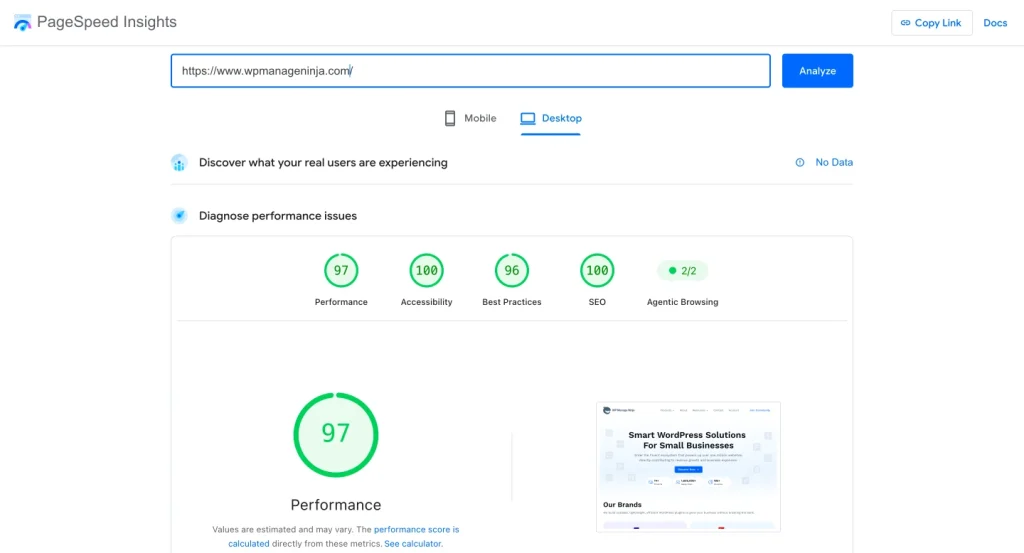
Chrome DevTools can show network requests, JavaScript, file sizes, and rendering behavior.
Search Console can tell you how your pages perform for real users at scale.
Query Monitor can help investigate database queries, WordPress hooks, HTTP requests, scripts, styles, PHP issues, and which plugins or themes are responsible for them.
WordPress Site Health can identify problems inside the installation.
These are website optimization tools too.
And in many cases, measurement tools should come before optimization plugins.
Once you know what the problem is, the solution becomes much easier to choose.
| Problem | Start Here |
|---|---|
| Slow server response | Hosting, PHP, database, object cache |
| Heavy pages | Images, scripts, fonts, embeds, page design |
| Slow WordPress Dashboard | Queries, background tasks, plugin behavior |
| Poor LCP | Hero image, render-blocking resources, server response |
| Layout shifts | Image/video dimensions, dynamic content, fonts |
| Slow interaction | JavaScript and third-party scripts |
| Global visitors loading slowly | CDN and geographic delivery |
| Repeated database work | Persistent object caching |
| Too many frontend assets | Theme/plugin audit and conditional loading |
The tool should match the problem.
My WordPress Optimization RAPID Rule
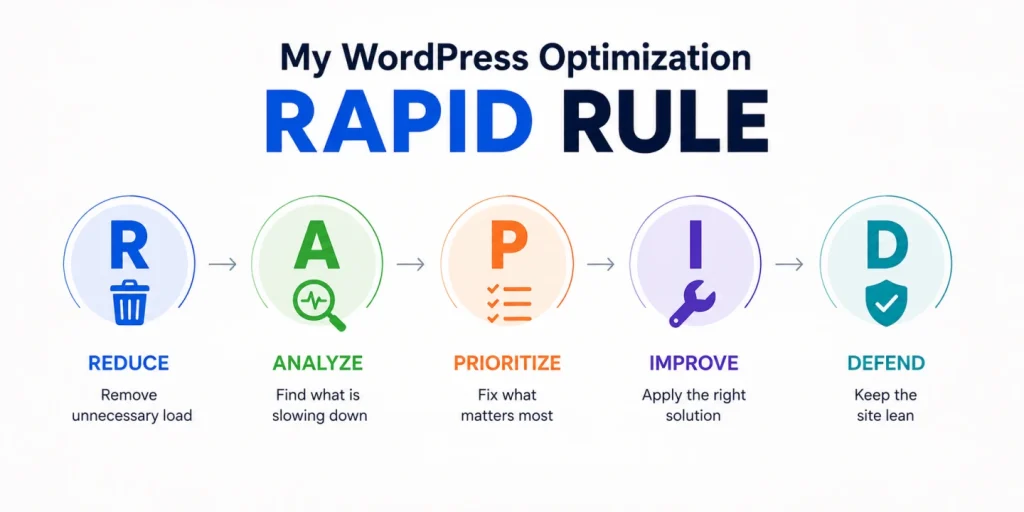
WordPress optimization becomes much easier when you stop treating every warning as a separate problem. Instead of installing a new tool for every issue, I prefer to follow a simple framework that keeps the process focused.
I call it the RAPID rule: Reduce, Analyze, Prioritize, Improve, and Defend.
Reduce
Start by reducing unnecessary work. Review the plugins, scripts, integrations, images, design elements, and features your website is currently carrying. Some may be essential, while others may exist simply because they were added at some point and never reviewed again.
The goal is not to strip the website down for the sake of having fewer things. It is to remove what no longer contributes to the user experience or business goal. Every unnecessary request, script, image, or background process you remove is one less thing you need to optimize later.
Analyze
Once the site is cleaner, analyze how it actually performs. Check your important pages, server response, Core Web Vitals, image sizes, database activity, JavaScript, third-party requests, and the WordPress Dashboard itself.
This step matters because slow websites are not always slow for the same reason. One site may struggle because of heavy images, while another may have a slow server, inefficient queries, or too many external scripts. Without analysis, optimization becomes guesswork.
Prioritize
You will probably find several issues, but they will not all deserve the same attention. A slow checkout page matters more than a minor warning on an unused page. A poor server response can have a much bigger impact than a small CSS file that could be reduced slightly.
Prioritize the problems that affect real visitors, conversions, and the workflows your team depends on. This keeps you focused on meaningful improvements instead of spending hours chasing small technical scores.
Improve
Once you know what matters most, apply the right solution. Better image preparation may solve a media problem. Caching may help with repeated page generation. A CDN may improve delivery for visitors in different regions. Better hosting may solve a server bottleneck that no WordPress plugin can fix.
This is where optimization tools become useful. The difference is that you are now using them to solve a specific problem instead of installing them because they appear on a generic performance checklist.
Defend
The final step is keeping the site optimized as it grows. WordPress websites change constantly. New plugins get installed, campaigns add tracking scripts, content teams upload new media, and business requirements introduce more features over time.
That growth is normal, but it needs to be controlled. Review your stack from time to time, remove what is no longer useful, and keep an eye on the parts of the site that matter most.
The RAPID rule keeps the process simple: reduce unnecessary work, analyze the site, prioritize the biggest problems, improve what matters, and defend the performance you have gained.
The Best Optimized Website Is Not the One With the Most Optimization Plugins
WordPress is flexible because you can keep adding things.
Plugins, themes, integrations, trackers, scripts, animations, extensions, widgets, and features can turn a simple website into almost anything you want.
The same flexibility makes restraint important.
You do not need to remove useful functionality just to make WordPress fast. You do not need to avoid plugins. And you definitely do not need to build every feature yourself.
You need a cleaner reason for what gets installed.
Let WordPress Core handle what it already does well. Choose focused plugins for the functionality your website actually needs. Build an eCommerce stack around a strong commerce foundation instead of a pile of basic add-ons. Keep your design system under control. Prepare images for the web. Pay attention to hosting and database health. Audit third-party scripts.
Then use optimization tools where there is something left to optimize.
A website that performs less unnecessary work is easier to speed up, easier to maintain, easier to troubleshoot, and usually easier for visitors to use.
And that is a much better optimization strategy than installing another plugin and hoping the score turns green.

WordPress, automation, eCommerce and growth marketing specialist, a WordPress Core Contributor and Media Corps member blending storytelling with technology to craft strategies in SEO, email marketing, and beyond.
-
FluentSMTP Review: Whats Inside this 700K+ WordPress SMTP Plugin?
Check our FluentSMTP review blog to Discover whats inside this -
Taking a Closer Look at Common WordPress Errors and How to Fix Them
A troubleshooting guide to the common WordPress errors, why they -

8 Hidden Factors Slowing Your WordPress Site (and How to Fix Them)
Wondering why your WordPress site is slow? Discover 8 causes,


Comments
-
[…] image; instead, they will see what they previously viewed. Therefore, consider WebP to be an enhancement to your WordPress site, not a […]
-
[…] image; instead, they will see what they previously viewed. Therefore, consider WebP to be an enhancement to your WordPress site, not a […]

Leave a Reply
You must be logged in to post a comment.