

Signed Plugin Updates in WordPress: How Secure Updates Work
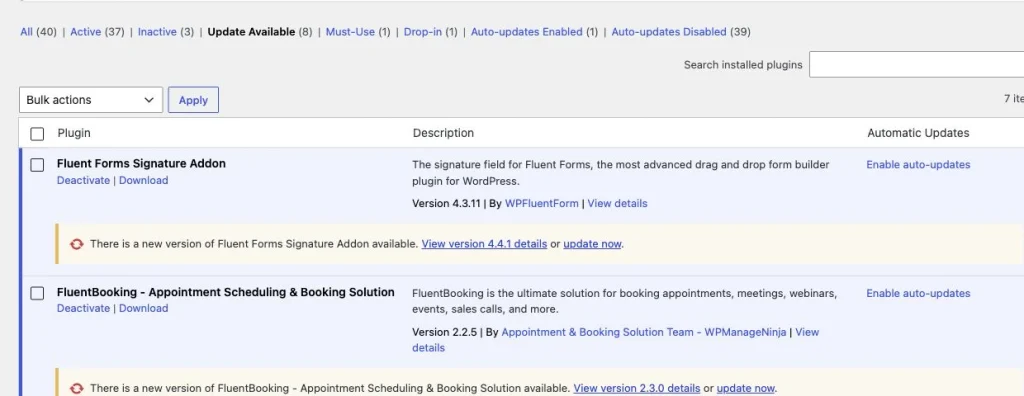
WordPress makes plugin updates feel routine: a badge appears, you click Update now, and a ZIP package is downloaded and installed. But the simplicity of that interface hides an important security question: how can WordPress know the package it received is the one the plugin maker intended to ship?
For premium plugins, the answer cannot depend only on HTTPS or on the update server saying “trust me.” A safer delivery system gives the plugin an independent way to authenticate the release before extraction—and gives site owners a public reference they can use later to inspect a download or an installed directory.
That is the role of signed updates and public checksums. They solve different parts of the same problem: signed updates authorize a package before installation, while checksums help you verify bytes before or after the fact.
Key takeaways
- A signed update authenticates release metadata with public-key cryptography, then checks the downloaded ZIP against the signed SHA-256 digest before WordPress unpacks it.
- A checksum answers “are these bytes identical?” A signature adds “was this release authorized by the holder of the signing key?”
- WPManageNinja’s public registry currently lists 14 products, 29 published release records, and 3,737 fingerprinted files.
- A mismatch is a serious signal to stop and investigate, but it is not by itself proof of a compromise.
Why plugin update security matters
A plugin update can replace executable PHP and JavaScript across a WordPress site. The account that controls the update channel therefore holds a privilege similar to a deployment system: it can deliver code to every site that accepts the update, including sites with auto-updates enabled.
Traditional protections still matter. TLS protects traffic in transit. Server hardening reduces the chance that an attacker reaches the release infrastructure. Access controls, isolated build systems, and short-lived credentials reduce blast radius. But each of these controls can fail, and most of them are invisible to the receiving WordPress site.
Signed releases add a control at the destination. Even if a package is downloaded from the expected endpoint, the plugin can reject it unless the release metadata verifies with a public key already compiled into trusted plugin code.
The July 2026 incident, in one lesson
On Jul 31, 2026 altered copies of Fluent Forms Pro 6.2.7 and Ninja Tables Pro 5.2.11 were served for roughly five hours through an old server that should have been retired. A proxy still routed some update endpoints to it, and the packages could arrive through normal updates, including auto-updates.
WPManageNinja reported that it stopped the incident the same day, removed the old access path, rotated credentials, removed the routing rules, shut the server down, and published clean builds. The practical lesson is broader than any one event: securing plugin code is not enough if the delivery channel cannot independently prove which release was authorized.
Why this belongs in an educational article?
The incident is a useful context, not the whole story. It shows the exact failure mode that signed releases are designed to contain: an update endpoint can return a package that looks normal to WordPress while differing from the vendor-authorized build.
What a traditional premium-plugin update flow looks like
- WordPress asks the plugin vendor’s licensing or update API whether a newer version is available.
- The API returns release information and a download URL.
- WordPress downloads the ZIP package from the vendor or its CDN.
- The upgrader unpacks the archive and replaces the installed plugin files.
- The site loads the new code on the next request.
TLS can protect the API response and download while they travel over the network. It does not, by itself, prove that the package stored on the origin server or CDN is the authorized build. If an attacker can change the file at the source or control an older route that still serves updates. The receiving site needs a second trust check.
What a signed plugin update means
A digital signature uses a key pair. The private signing key is kept secret and is used to authorize a release. The matching public key can be distributed inside the plugin and used to verify signatures. The public key can validate what the private key signed, but it cannot create a valid signature for a new release.
WPManageNinja’s published design uses Ed25519 signatures. Instead of signing a large ZIP directly, the release system signs a small manifest. That manifest binds together the product slug, the exact version, the ZIP’s SHA-256 digest, and a key identifier. The plugin verifies the signature over the manifest bytes, then hashes the downloaded ZIP and compares that result with the signed digest.
{
  "slug": "fluentcampaign-pro",
  "version": "3.1.13",
  "sha256": "<64-character ZIP digest>",
  "key_id": "wpmn-pub-key"
}
This distinction matters: the signature authenticates the manifest, and the manifest’s digest binds the authorization to one exact ZIP. Change even one byte in the archive and the SHA-256 value changes; change the manifest and its signature no longer verifies.
How WPManageNinja’s signed release works
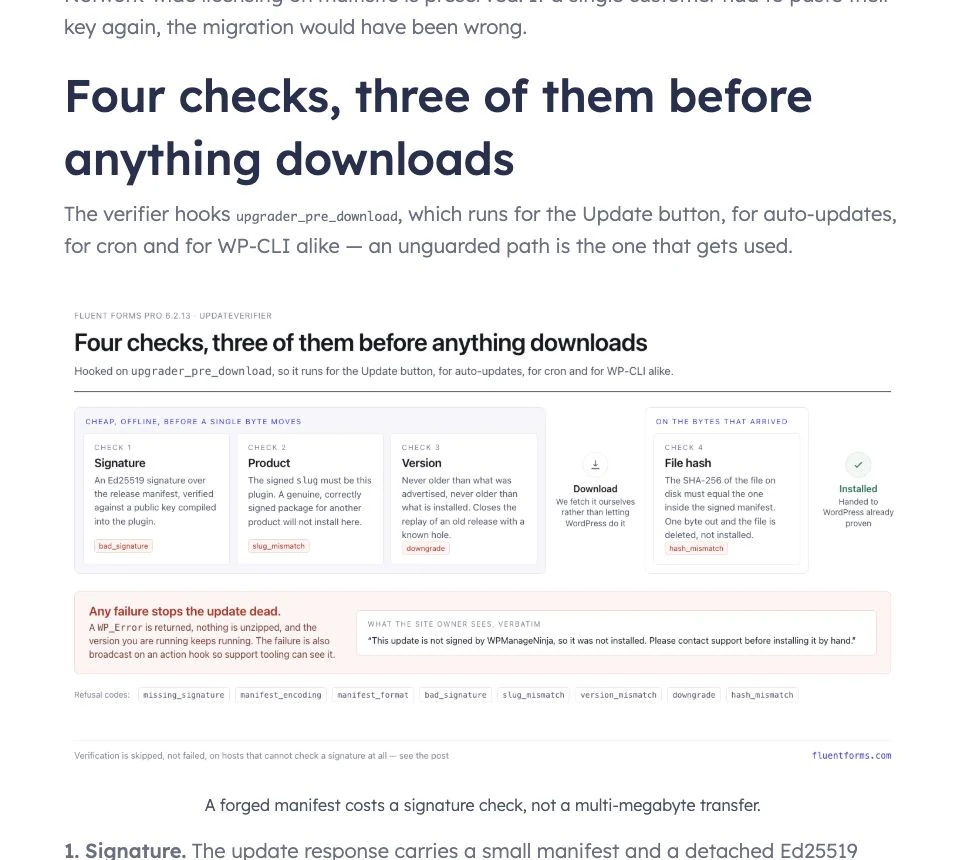
- WordPress receives the normal update offer plus a manifest and a detached Ed25519 signature.
- The plugin verifies the signature against the public key compiled into the plugin. The manifest is checked as the exact byte sequence received, avoiding accidental changes caused by decoding and re-encoding JSON.
- Before download, the verifier checks that the product slug matches and that the version is the expected upgrade—not an older release presented as new.
- The ZIP downloads to a temporary local file. The plugin computes its SHA-256 digest and compares the complete 64-character result with the value in the signed manifest.
- Only after all checks pass does the WordPress upgrader continue to unpack and install the archive.
The verifier is attached to WordPress’s pre-download upgrader path, so the same guard can apply to a click on Update now, an automatic update, a scheduled update, or WP-CLI. If a signature, product, version, or hash check fails, the upgrader receives an error. The temporary package is refused, nothing is unzipped, and the currently installed version remains in place.
The signing architecture
The signing architecture is designed to separate authority from distribution. WPManageNinja says the private signing key is entered manually with terminal echo disabled, kept only in memory for the signing step, and not stored on the licensing server, build machine, CDN, command line, or logs. The public verification key ships in the plugin. For key rotation, a release can temporarily trust both the retiring and replacement public keys before the old key is removed.
The published implementation also describes compatibility fallbacks when a server cannot perform Ed25519 verification or when the package is a local path such as a manual upload. That transparency is important: signed remote updates are a strong control, but site owners should not assume every installation path is covered identically.
Signed updates and public checksums are two different layers
| Layer | Question it answers | Best moment to use it |
|---|---|---|
| Signed update | Was this exact release authorized by the holder of the vendor’s private signing key? | Automatically, before a remote package is installed |
| ZIP SHA-256 | Is this downloaded archive byte-for-byte identical to the published archive? | Before a manual install or while auditing a saved ZIP |
| Per-file checksums | Do the installed files match the published release manifest? | During incident response, integrity monitoring, or a routine audit |
A checksum is not an identity system. Anyone who can replace both a package and an unsigned checksum published from the same infrastructure may be able to make the two match. A valid digital signature is harder to forge because the signing authority is held separately in the private key.
Checksums remain valuable because they are transparent, easy to automate, and useful after installation. The strongest practical workflow uses signatures for authorization and checksums for independent inspection.
Inside the WPManageNinja public checksum registry
The public registry publishes ZIP-level SHA-256 values and per-file MD5 and SHA-256 values. Its manifest structure is byte-compatible with the WordPress.org plugin checksum API for the plugin, version, and files keys, while WPManageNinja-specific additions live under _meta. Published version manifests are immutable and support ETag-based caching.
Registry snapshot
14 products • 29 published release records • 3,737 files fingerprintedLast updated: Aug 31, 2026 • Coverage begins: Aug 14, 2026Coverage starts with the releases shown by the registry and moves forward. A missing older version is a coverage gap—not evidence that the release was unsafe.
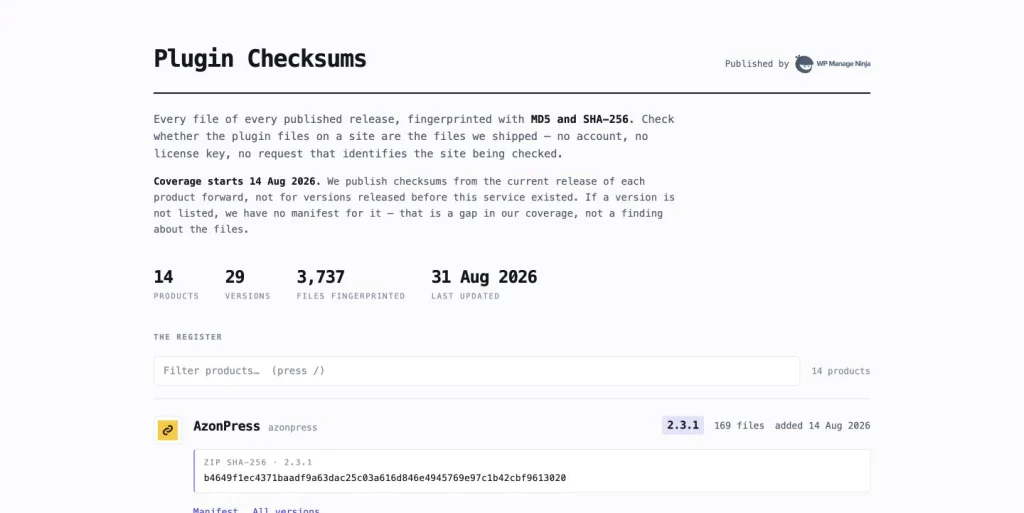
Current registry coverage by product
| Product | Registry Slug | Latest | Releases | Files |
|---|---|---|---|---|
| AzonPress | azonpress | 2.3.1 | 1 | 169 |
| FluentAffiliate Pro | fluent-affiliate-pro | 1.6.5 | 2 | 127 |
| Fluent Boards Pro | fluent-boards-pro | 2.0.12 | 2 | 146 |
| FluentBooking Pro | fluent-booking-pro | 2.3.0 | 3 | 179 |
| FluentCommunity Pro | fluent-community-pro | 2.8.1 | 3 | 198 |
| FluentPlayer Pro | fluent-player-pro | 1.4.0 | 2 | 171 |
| Fluent Support Pro | fluent-support-pro | 2.3.2 | 2 | 130 |
| FluentHub | fluent-toolkit | 2.1.1 | 2 | 360 |
| FluentCRM Pro | fluentcampaign-pro | 3.1.13 | 2 | 340 |
| Fluent Forms Signature Addon | fluentform-signature | 4.4.1 | 1 | 21 |
| Fluent Forms Pro Add On Pack | fluentformpro | 6.2.13 | 2 | 389 |
| Ninja Tables Pro | ninja-tables-pro | 5.2.16 | 3 | 1,110 |
| Paymattic Pro | wp-payment-form-pro | 4.6.25 | 2 | 240 |
| WP Social Ninja Pro | wp-social-ninja-pro | 4.4.0 | 2 | 157 |
“Latest” is the newest version currently displayed on the registry homepage; “Releases” is the number of immutable version manifests listed for that product. Use the product’s All versions index to retrieve the exact historical version list.
Latest ZIP SHA-256 values
| Product | Version | Latest ZIP SHA-256 |
|---|---|---|
| AzonPress | 2.3.1 | b4649f1ec4371baadf9a63dac25c03a616d846e4945769e97c1b42cbf9613020 |
| FluentAffiliate Pro | 1.6.5 | ec6f8890954c5f0ca2ad13bcb4fd91e53b79f0af7d2ff07f8edc17fea3c446d4 |
| Fluent Boards Pro | 2.0.12 | 2a15ce8241fe90f13b4358f4caf457dd4cee4159aed004aeda575027f70a886c |
| FluentBooking Pro | 2.3.0 | ae1d5ddb280bac89409e55775e336b297f6baf24700e4793217745a2a5a8a44c |
| FluentCommunity Pro | 2.8.1 | 849aa5b8b1b711bc08e810f868348f05dbac136db6543e671c4d25795f378125 |
| FluentPlayer Pro | 1.4.0 | ba8f73981cea15c0f2bdde1bda6932f1d3e18794a11e73cfc5dd2eb828643530 |
| Fluent Support Pro | 2.3.2 | 3b3f2e9363cae46a7d67391e053b814fca8b9ce04b4bfde7b4edd830b6bddc26 |
| FluentHub | 2.1.1 | 3f6c40d0fb4c7fc769ec09881d9d0880cfddb526bc7160e9b5b4fa6712984dcd |
| FluentCRM Pro | 3.1.13 | 0bfcd9c34d9c5cc1144d432504a60dcf661db11045a4a4ebd6aa82ef38bacfa7 |
| Fluent Forms Signature Addon | 4.4.1 | 3f7ca9730e1fff1ee56f45dd0342101136a3e2d0ab1b390e945b126f34e0c461 |
| Fluent Forms Pro Add On Pack | 6.2.13 | 0c49b1a43506172e8f61e3dc50fc096aed172bac07d5e9ba7e45261638bb7ea4 |
| Ninja Tables Pro | 5.2.16 | 928105b2ae0d0fbc940eb204c8394d0800dd186763ad8bcbe40e7e0b07991dbd |
| Paymattic Pro | 4.6.25 | f9a6a82812e4db849a7e50cbf6f1ded2cea61e5c21e997837861ed7ba9a73e12 |
| WP Social Ninja Pro | 4.4.0 | bb274a22671a6aaed0824d323d3e36bf8b429a87c2934ac1c7f7e8e7ccc76a82 |
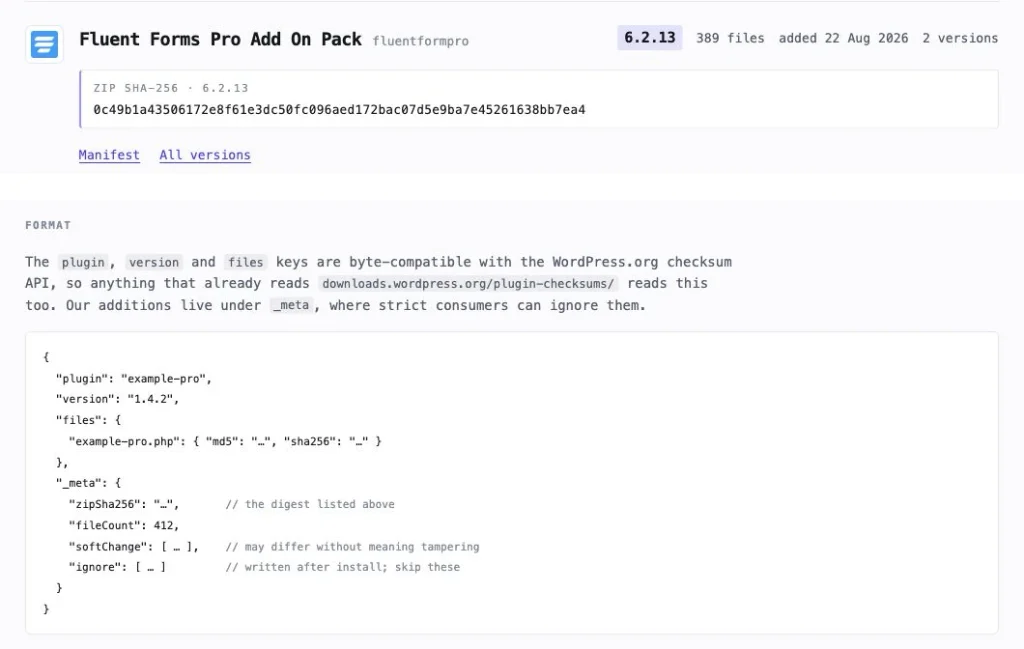
How to verify a downloaded plugin ZIP
First confirm the exact product slug and version. Then calculate SHA-256 locally and compare the complete 64-character value with the registry entry. A matching prefix is not enough.
macOS or Linux
shasum -a 256 plugin-name.zipWindows PowerShell
Get-FileHash .\plugin-name.zip -Algorithm SHA256Windows Command Prompt
certutil -hashfile plugin-name.zip SHA256If the values match, the ZIP you have is byte-for-byte identical to the archive represented by the published digest. That does not independently prove the code is vulnerability-free, but it rules out an accidental or unauthorized byte-level change relative to that registry entry.
How to verify an installed plugin directory
- Read the installed plugin’s exact version from WordPress or its main plugin file.
- Fetch the immutable manifest for that slug and version.
- For every path in files, calculate the local MD5 or SHA-256 value and compare it with the published value.
- Flag missing files, changed files, and unexpected extra executable files. Apply any documented ignore or softChange metadata carefully.
- If anything differs, preserve evidence before replacing files: note the path, hash, timestamps, and how the site obtained the release.
- https://checksums.wpmanageninja.com/plugin-checksums/{slug}/{version}.json
- https://checksums.wpmanageninja.com/plugin-checksums/1.0/?slug={slug}&version={version}
- https://checksums.wpmanageninja.com/plugin-checksums/{slug}/index.json
- https://checksums.wpmanageninja.com/plugins.json
The REST endpoints accept GET and HEAD, expose CORS, and support ETags. The public service does not require a customer account, license key, or site-identifying request, which makes it suitable for external monitoring and incident-response tools.
How to interpret a mismatch
Stop the update or isolate the site before drawing a conclusion
A mismatch proves the compared bytes differ. It does not, by itself, prove malicious tampering.Legitimate causes can include an incomplete transfer, text-mode FTP changing line endings, a site-owner patch, a security tool rewriting a file, or comparing against the wrong version.A match only covers the plugin files you compared. It does not certify the rest of WordPress, the database, the server, or the safety of the original release itself.
When a mismatch appears, download a fresh copy from the official source, hash both packages, compare file-level differences, review access and update logs, and contact the vendor with the exact product, version, file paths, and digests. If production integrity is uncertain, treat the site as an incident-response case rather than simply overwriting the evidence.
Which WPManageNinja products support signed updates and public checksums?
The table below keeps the two claims separate. “Public checksums” means a product appears in the public registry. “Signed updates” is marked confirmed only when an official product source explicitly documents the signed pipeline. Absence of a public confirmation is not proof that a product lacks internal signing; it means the reviewed official sources did not establish the claim.
| Product | Signed-update status | First confirmed | Checksums | Official source |
|---|---|---|---|---|
| AzonPress | Not publicly confirmed in reviewed official sources | — | Yes | Registry |
| FluentAffiliate Pro | Confirmed | 1.6.5 | Yes | Release + Registry |
| Fluent Boards Pro | Pipeline confirmed; first version not documented | — | Yes | Release + Registry |
| FluentBooking Pro | Confirmed | 2.2.5 | Yes | Release + Registry |
| FluentCommunity Pro | Confirmed | 2.8.0 | Yes | Release + Registry |
| FluentPlayer Pro | Not publicly confirmed in reviewed official sources | — | Yes | Registry |
| Fluent Support Pro | Not publicly confirmed in reviewed official sources | — | Yes | Registry |
| FluentHub | Not publicly confirmed in reviewed official sources | — | Yes | Registry |
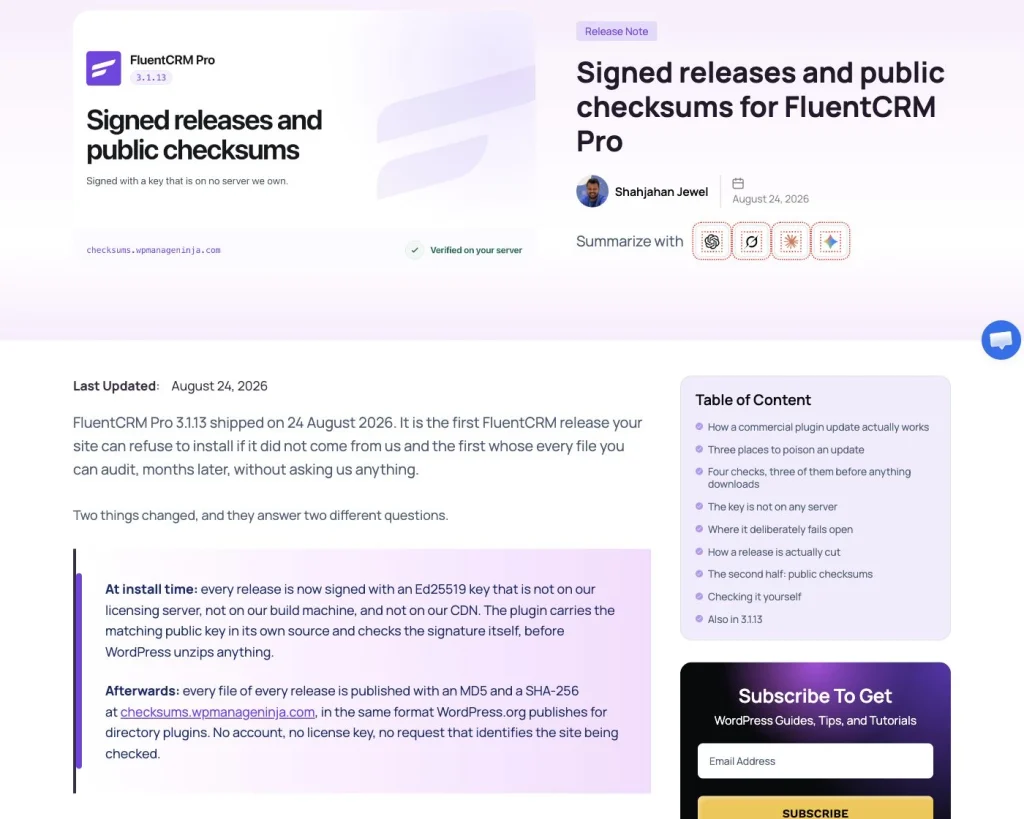
| FluentCRM Pro | Confirmed | 3.1.13 | Yes | Release + Registry |
| Fluent Forms Signature Addon | Not publicly confirmed in reviewed official sources | — | Yes | Registry |
| Fluent Forms Pro Add On Pack | Confirmed | 6.2.13 | Yes | Release + Registry |
| Ninja Tables Pro | Confirmed | 5.2.15 | Yes | Release + Registry |
| Paymattic Pro | Not publicly confirmed in reviewed official sources | — | Yes | Registry |
| WP Social Ninja Pro | Not publicly confirmed in reviewed official sources | — | Yes | Registry |
For the products whose launch documentation states it, existing customers continue to use the normal WordPress updater without re-entering a license. That operational detail should not be generalized to every product without a product-specific announcement; the checksum registry itself does not make licensing claims.
What site owners should do now
- Keep WordPress, plugins, and server cryptography libraries current so supported signature verification can run.
- Install premium updates through the normal authenticated WordPress flow unless you have a verified manual package.
- Do not bypass a signature or SHA-256 failure just to complete an update. Capture the error and verify the package independently.
- Record the plugin version and package digest in deployment logs for high-value sites.
- Use the public registry during routine integrity scans and incident response, not only after a security advisory.
- Maintain tested backups and a recovery plan. Integrity verification can stop or expose a bad package; it cannot reverse every consequence of compromised code that already ran.
What signed updates protect against—and what they do not
| They help protect against | They do not automatically protect against |
|---|---|
| A package changed after the vendor authorized the release | A vulnerability or malicious change already present in the vendor-authorized source |
| A compromised or stale delivery route serving a different ZIP | The private signing key itself being stolen or misused |
| Version or product substitution when those fields are checked | Compromise elsewhere in WordPress, the database, hosting account, or administrator device |
| Silent corruption during download or storage | Manual installation paths that do not invoke the remote updater’s verifier |
Why users should care even if updates are automatic
Auto-updates reduce the time a known vulnerability remains exposed, which is a real security benefit. They also move the trust decision away from a human click. The site may accept and execute a package at night, on a weekend, or while nobody is watching the dashboard.
Signed verification makes that automation safer because the receiving plugin can enforce a release policy at machine speed: validate authority, validate identity, validate version, validate bytes, then install. Public checksums add a transparent audit trail that site owners, hosts, security vendors, and incident responders can inspect independently.
Questions to ask any premium-plugin vendor
- Is the update manifest digitally signed, and which algorithm is used?
- Is the private signing key separated from the update server, build server, and CDN?
- Does the verifier check product identity, exact version, and the full package digest before extraction?
- Does verification cover one-click updates, auto-updates, scheduled runs, and WP-CLI?
- What happens on failure—does the update abort before any file is unpacked?
- Are ZIP and per-file checksums public, immutable, and available without a customer account?
- How are public keys rotated, and how is an emergency signing-key compromise handled?
- Which update paths or server environments fall back or remain outside verification?
A safer update is one the receiving site can verify
WordPress’s update experience should stay simple for users. The complexity belongs in the release pipeline and verifier: keep signing authority separate, authenticate a small manifest, bind it to one exact package, reject mismatches before extraction, and publish enough information for independent audits.
That is why signed updates and public checksums belong together. Signatures help WordPress decide whether to trust a release before installation. Checksums help everyone else verify what was downloaded or what is now on disk. Neither replaces secure development, server hardening, backups, or monitoring—but together they close an important gap in the plugin supply chain.
Practical next step
Before your next manual premium-plugin update, copy the published ZIP SHA-256 value, calculate the digest locally, and compare the complete result. If the product documents signed remote updates, prefer the normal WordPress update path so the built-in verifier can do its job.
-
WPManageNinja September 2026 Roundup: Commerce, CRM & Connection
WPManageNinja’s September 2026 roundup with 21 releases, FluentCRM 3.2.0, FluentCart -
WPManageNinja August 2026 Roundup: Month of Security, AI and Growth
See what WPManageNinja shipped in August 2026, including signed updates, -
Security incident on 31 July 2026: What Happened and What You Should Do
Fluent Forms Pro and Ninja Tables Pro were tampered with.



Leave a Reply
You must be logged in to post a comment.